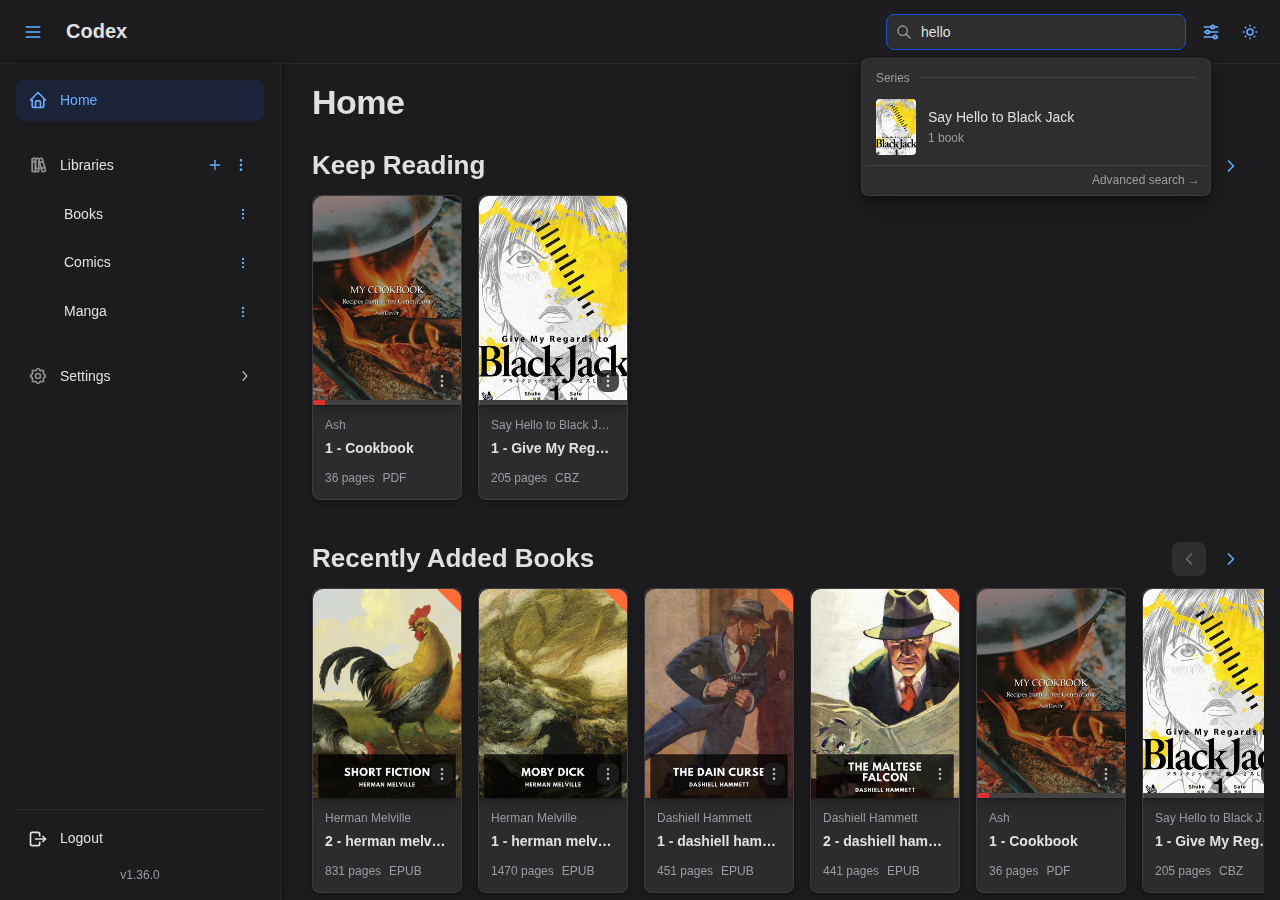
Feature Showcase
Explore the main features of Codex through screenshots and descriptions.
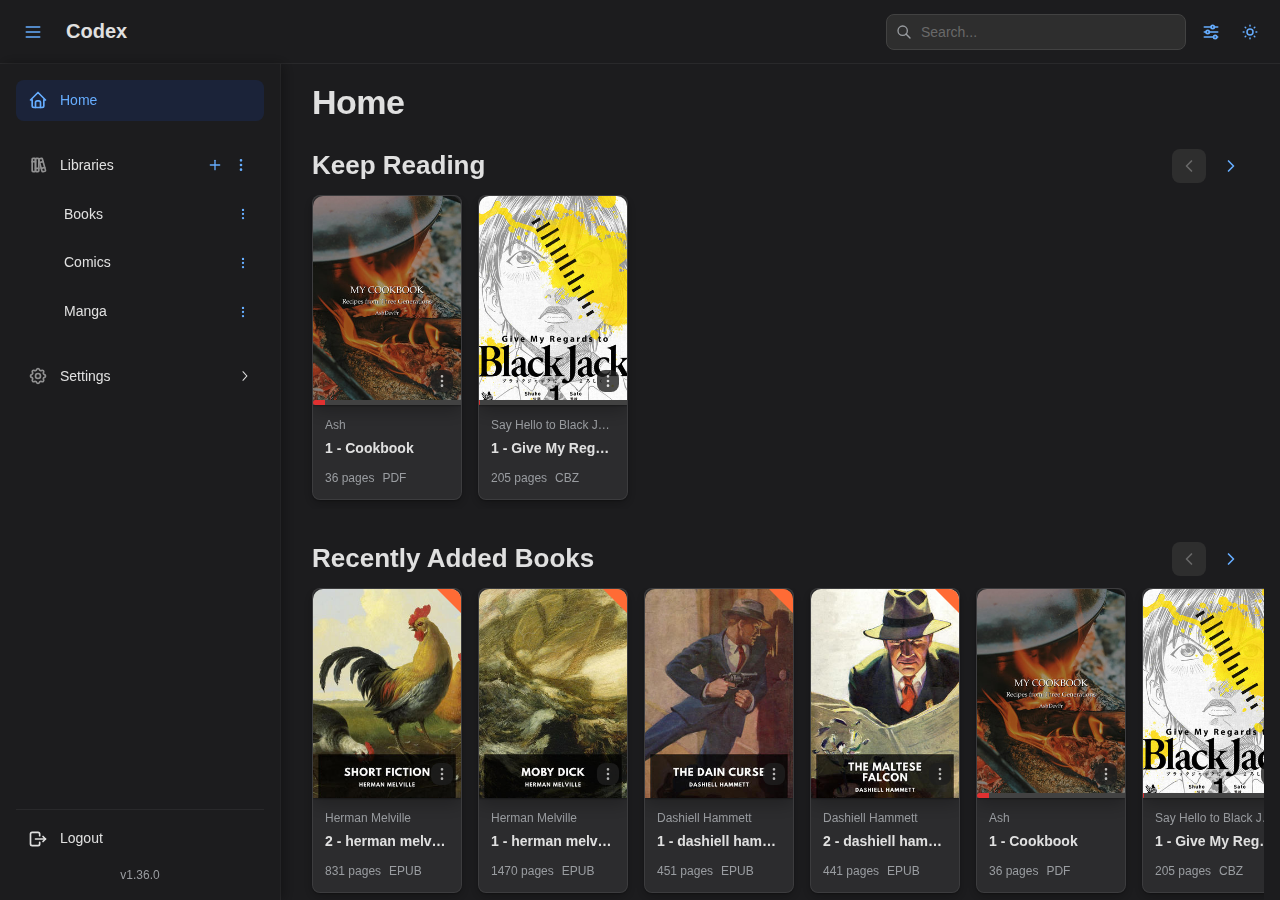
Home Page
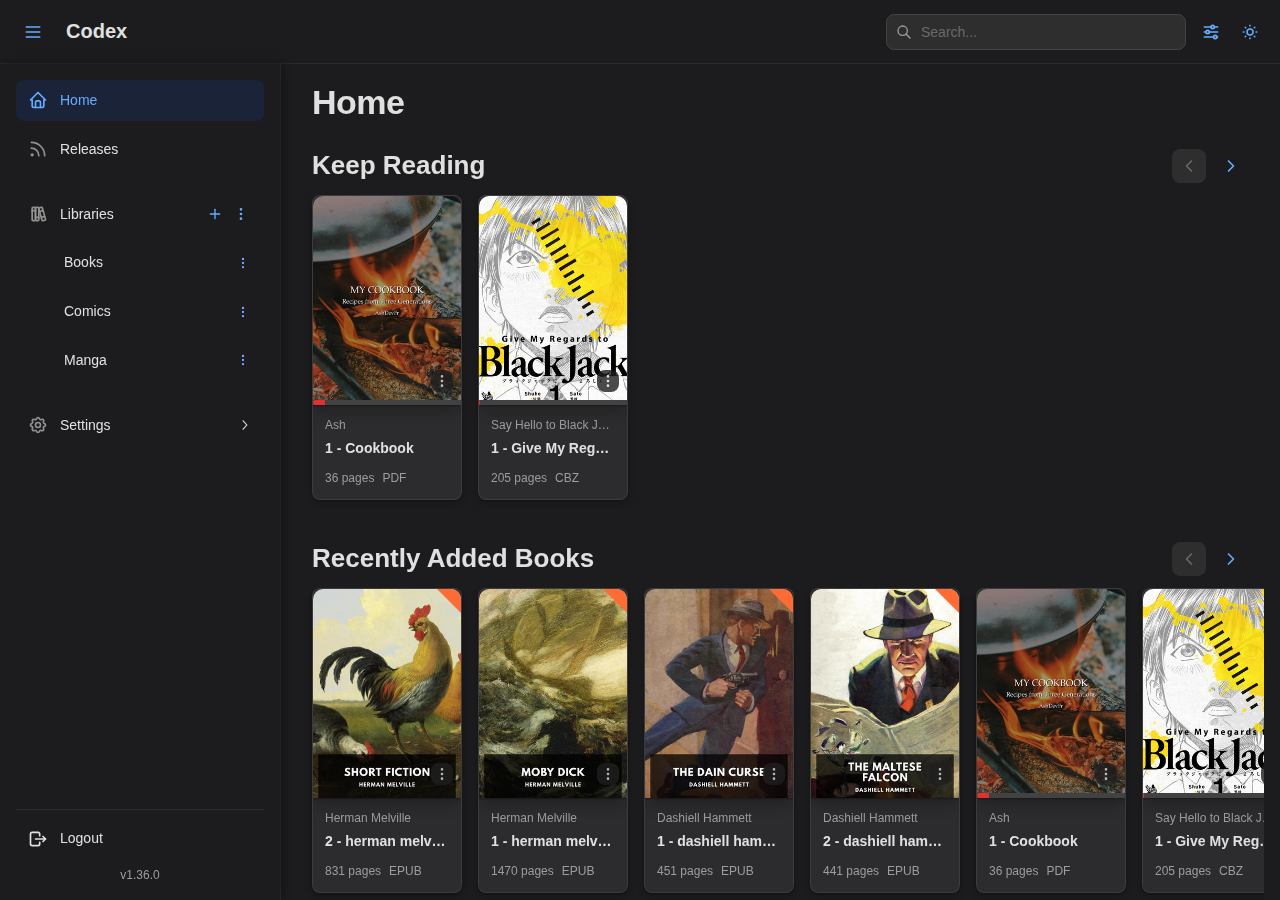
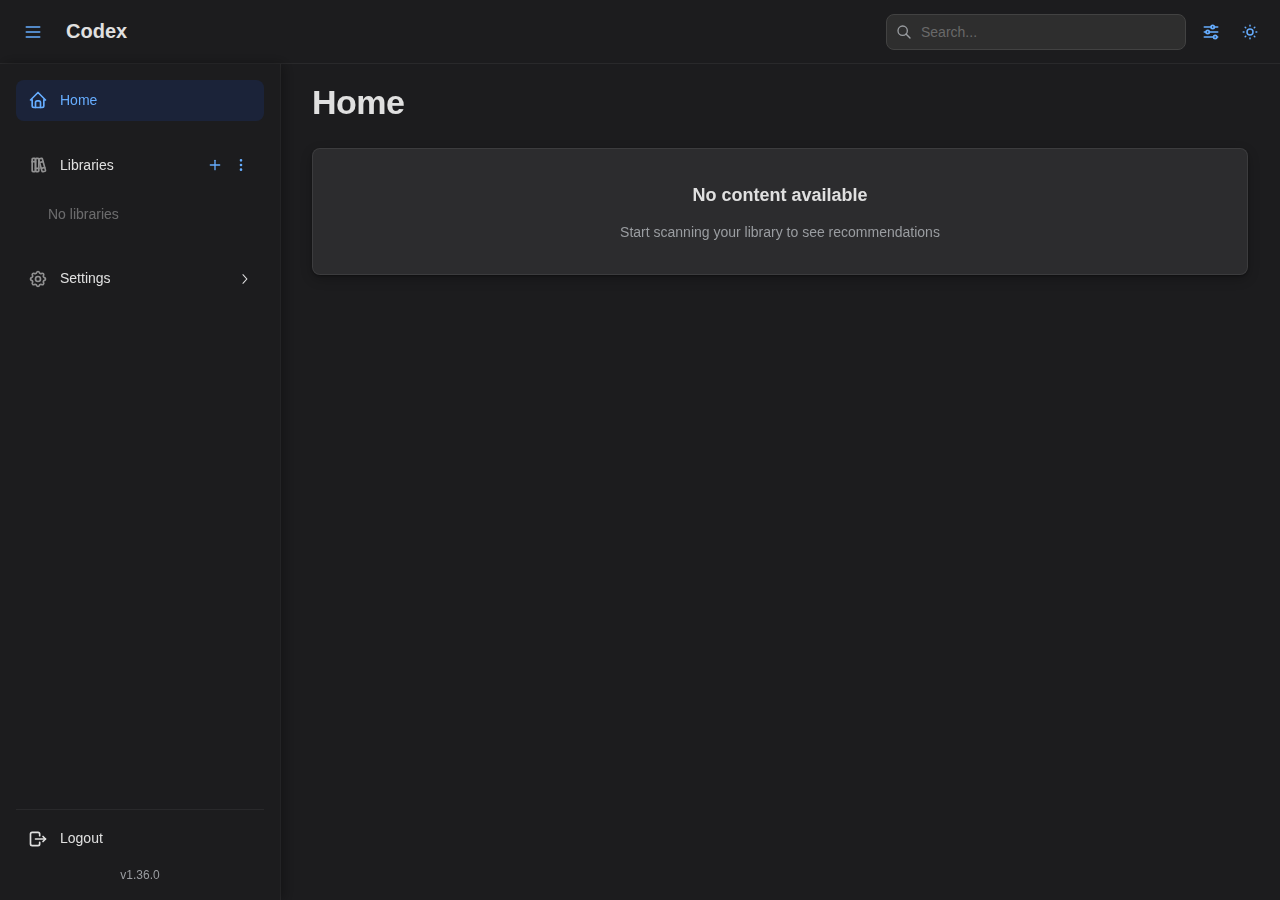
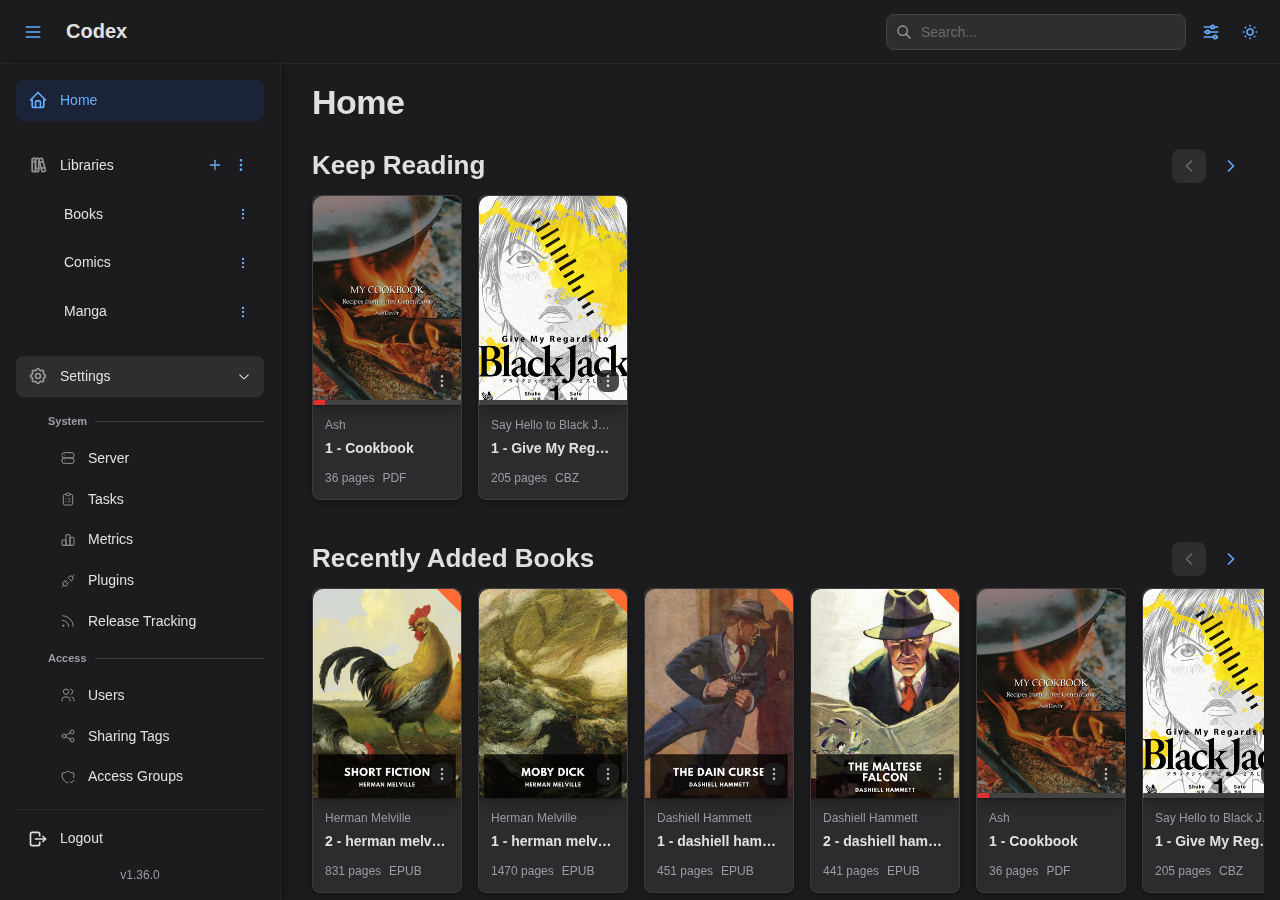
The home page provides quick access to your reading activity and recently added content. The Keep Reading section lets you continue where you left off, and the Recently Added section helps you discover new additions to your library.
Library Management
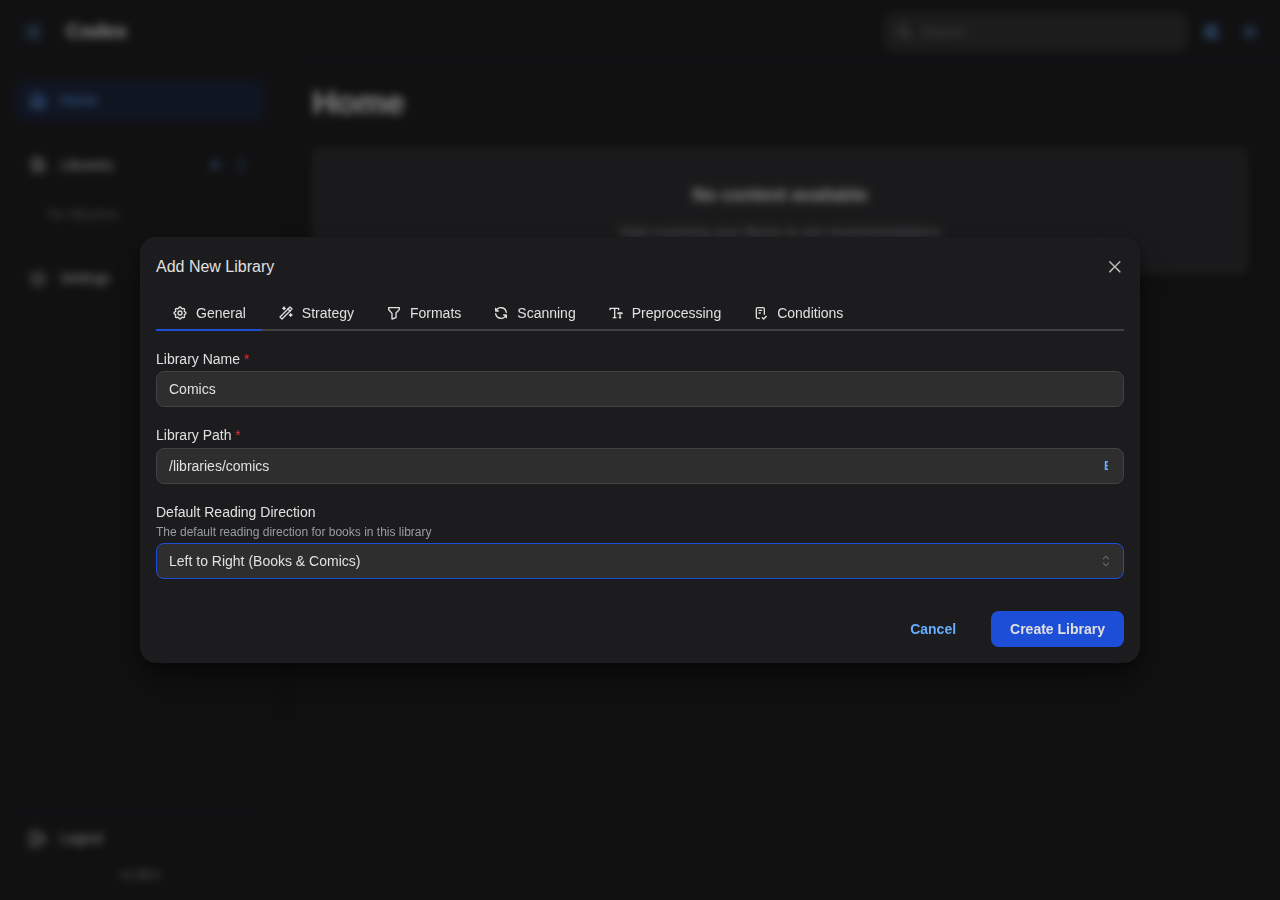
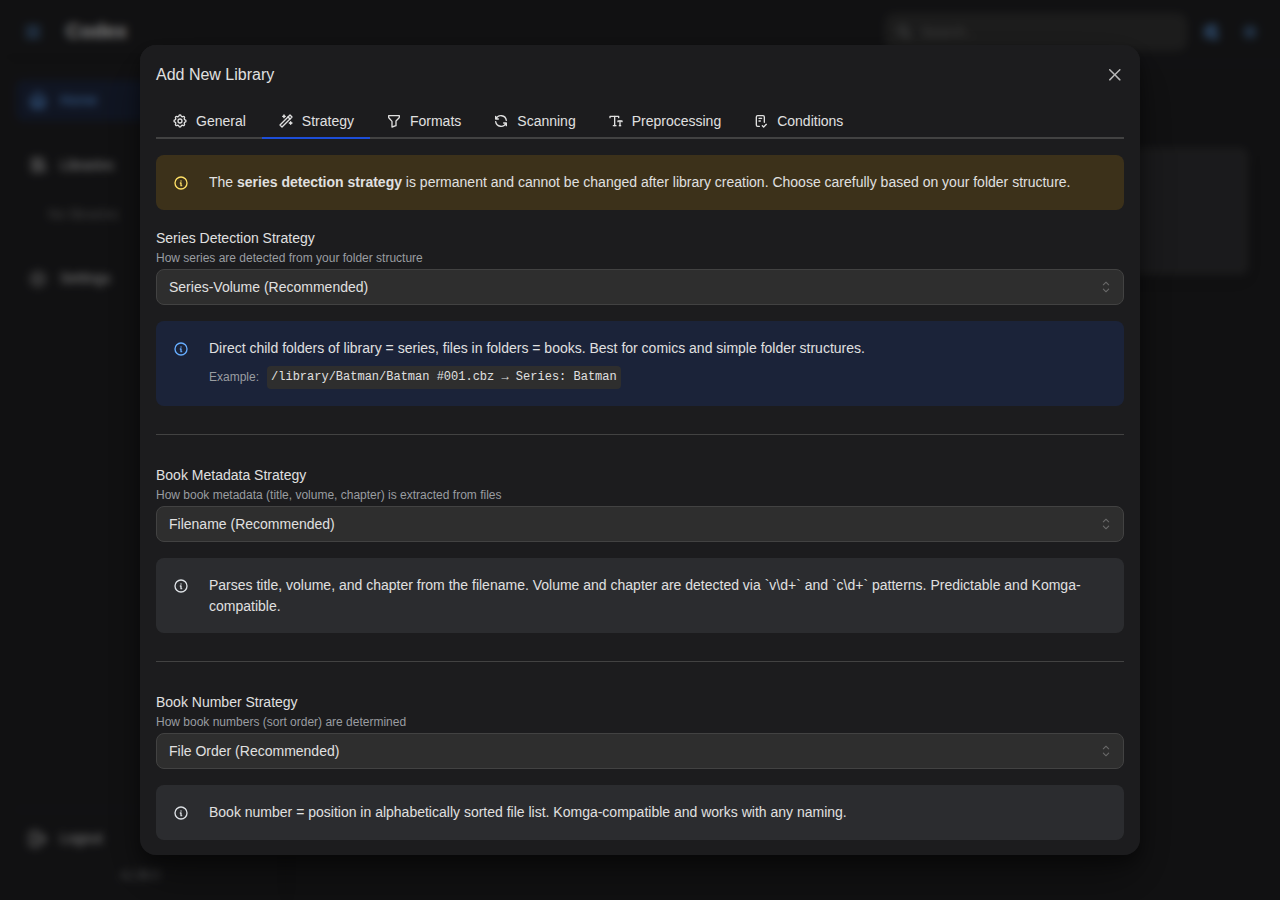
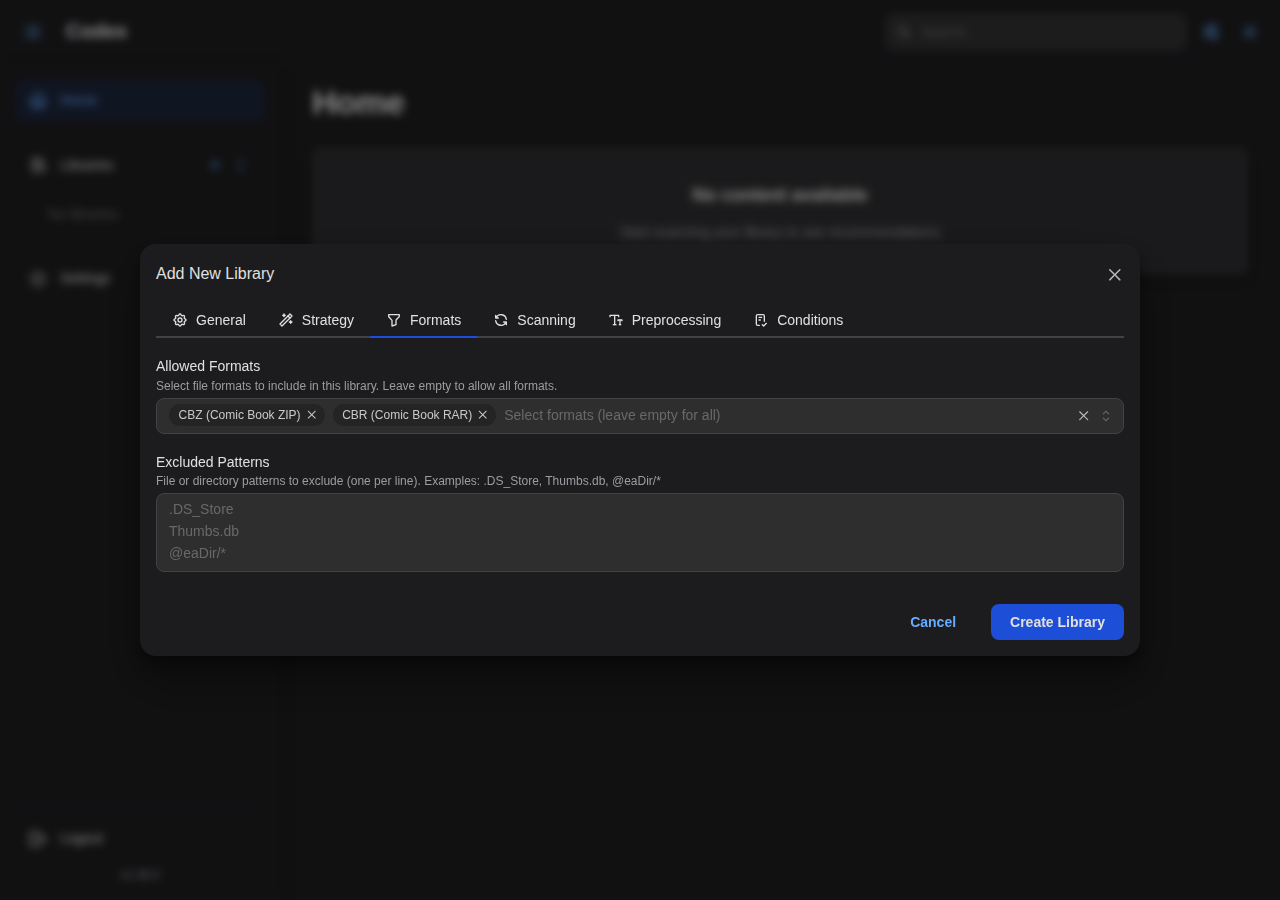
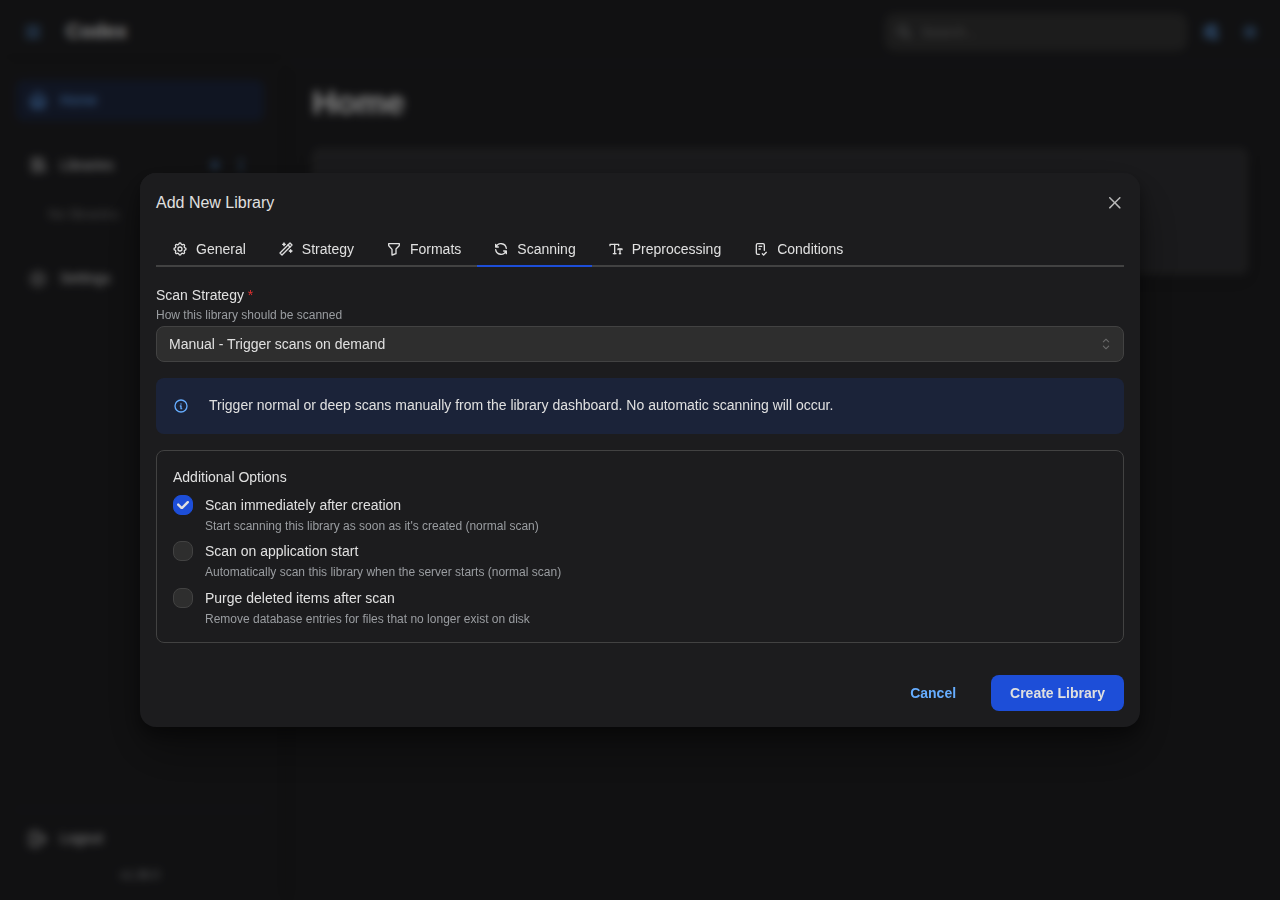
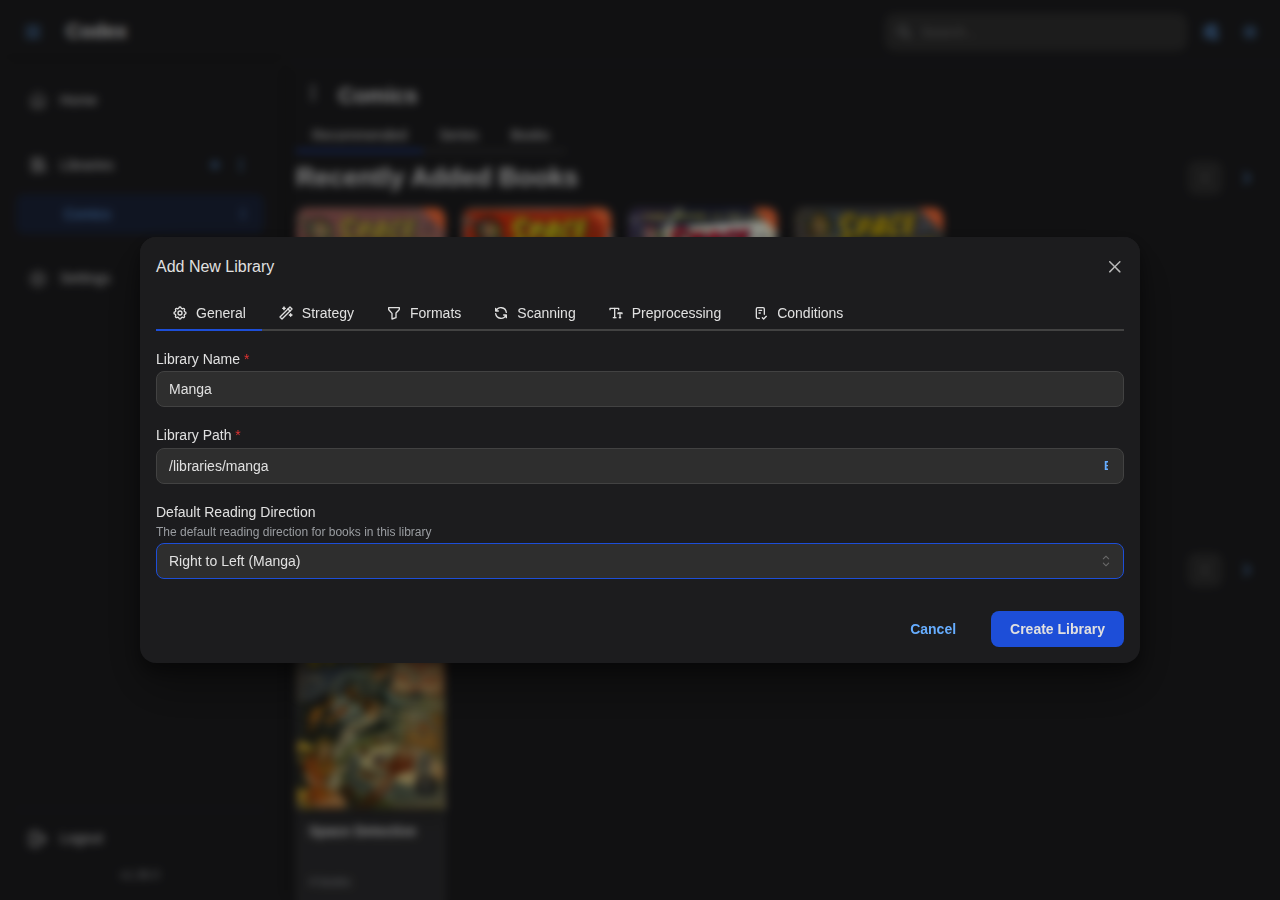
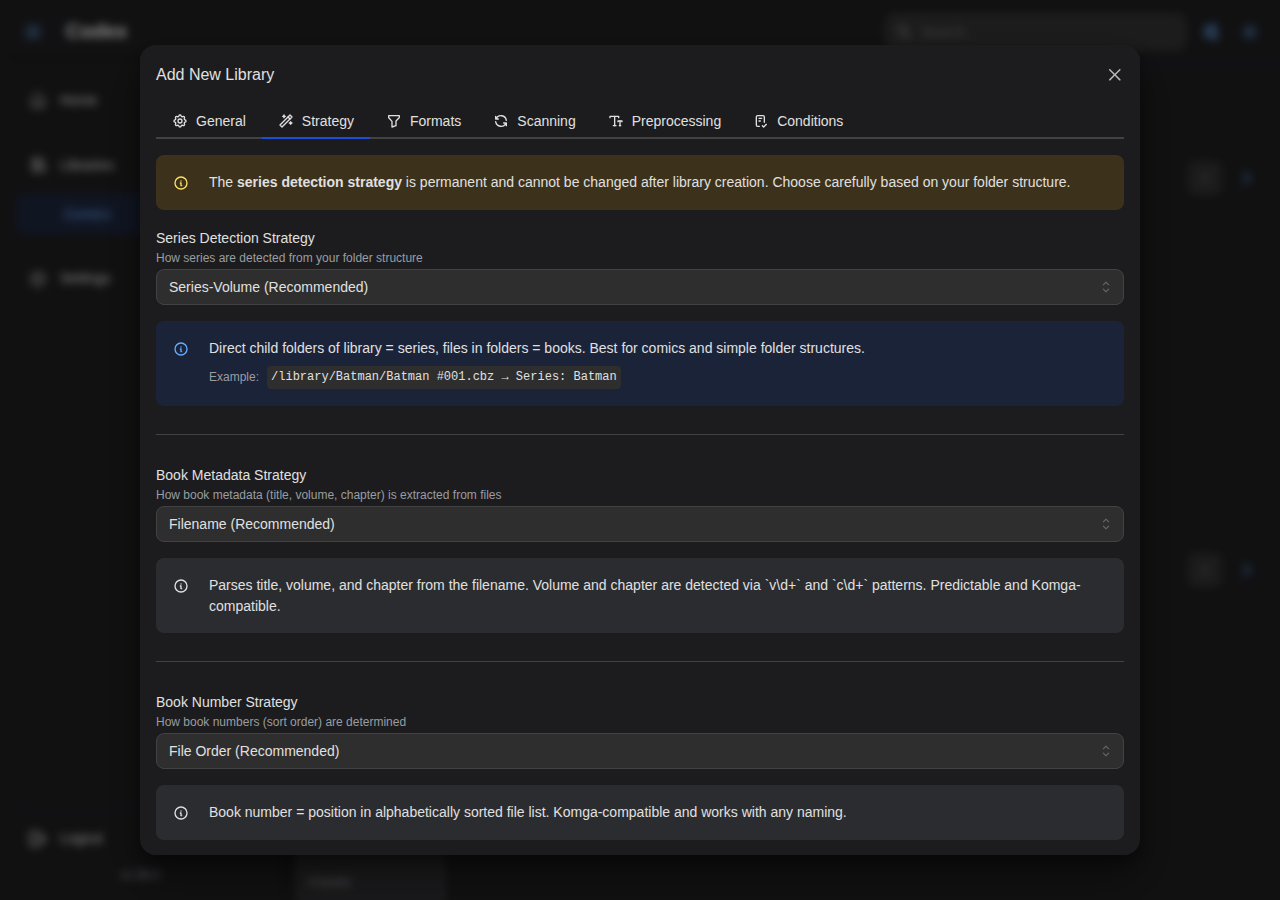
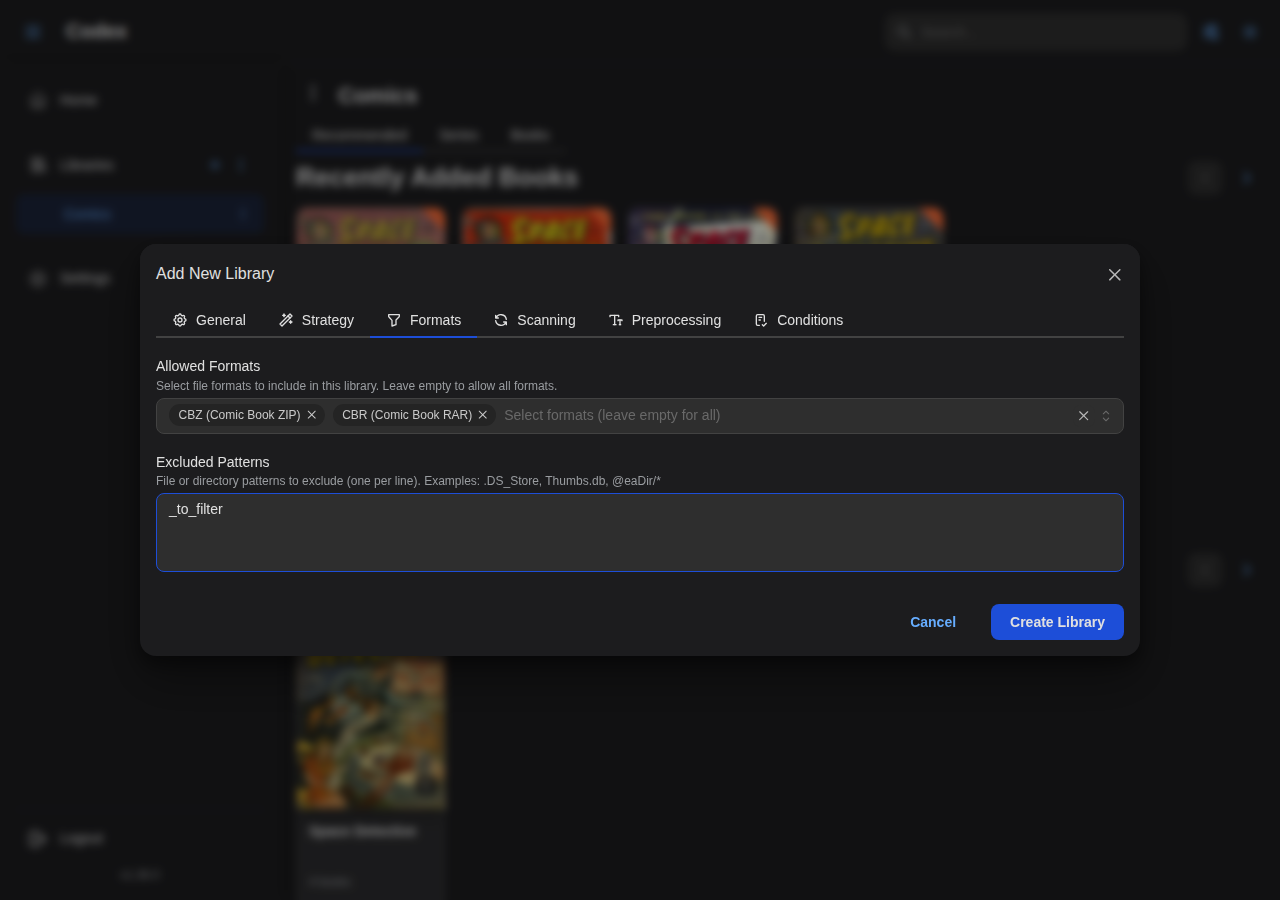
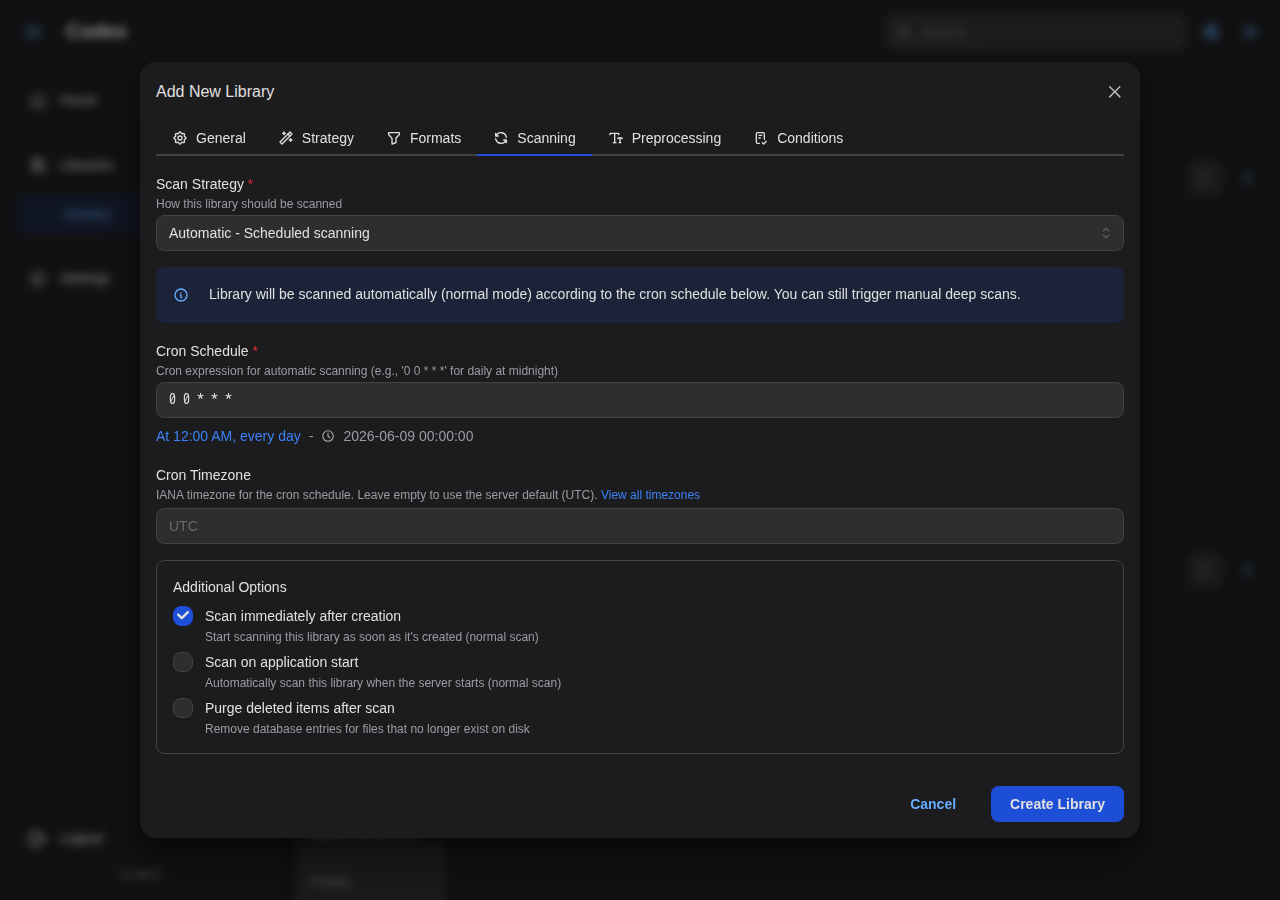
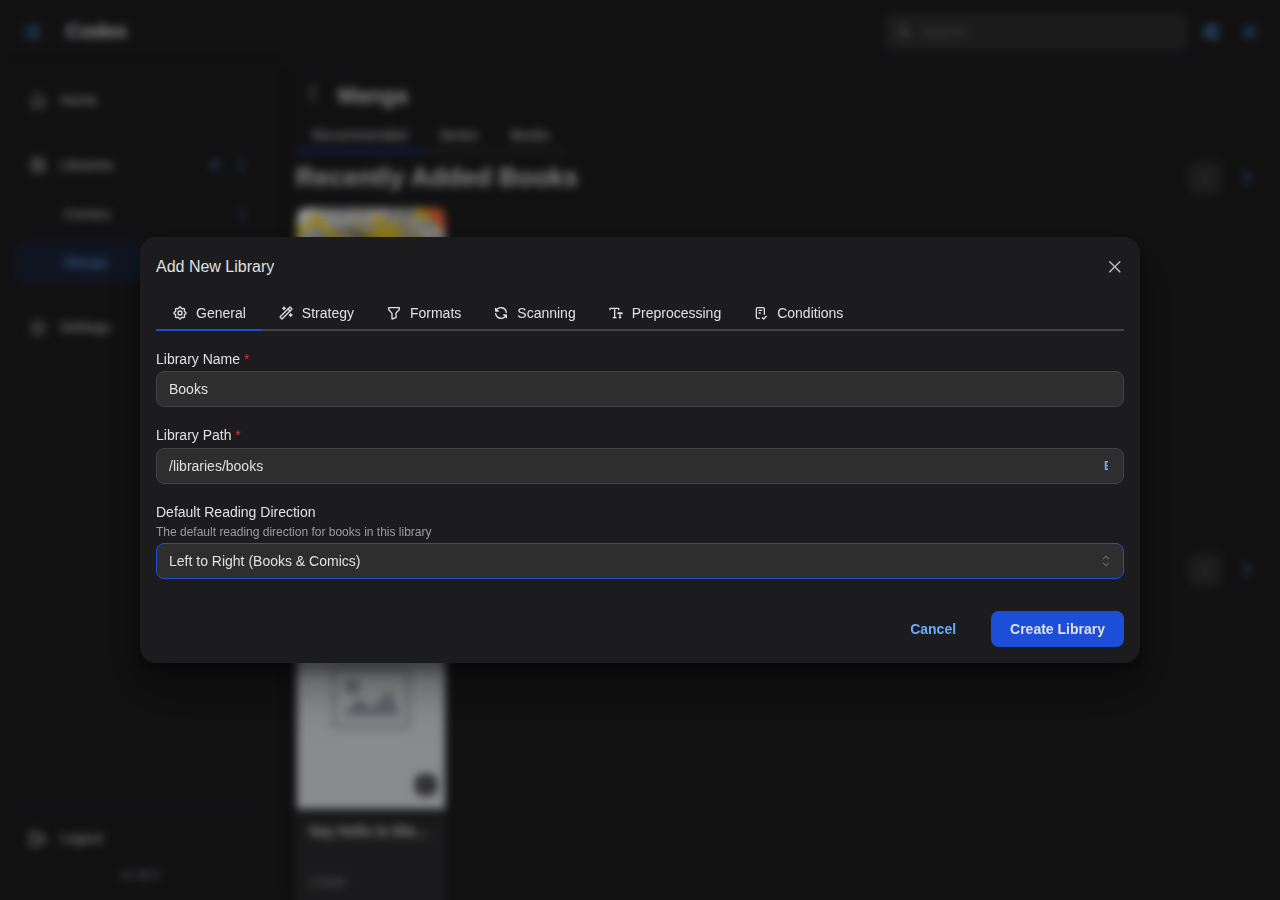
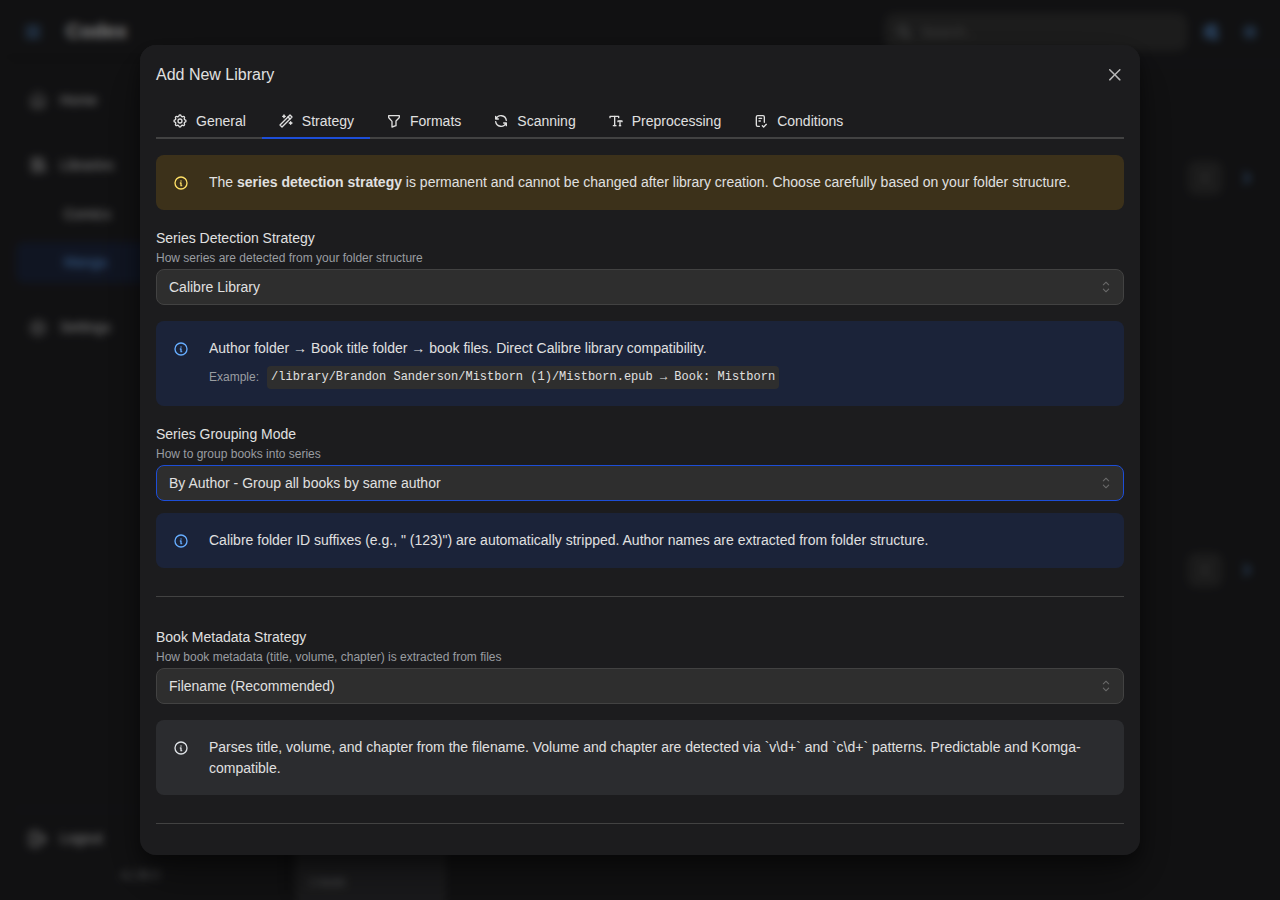
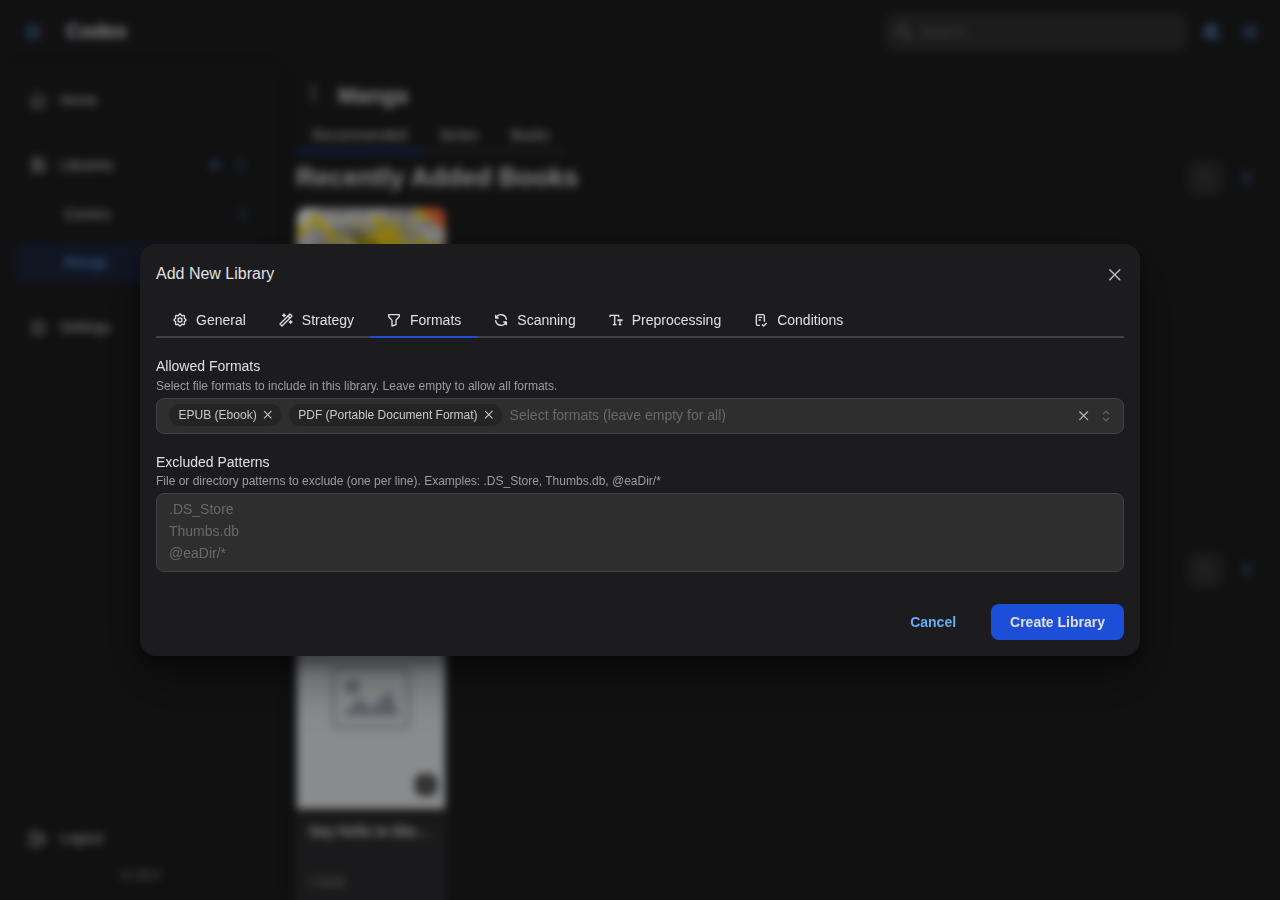
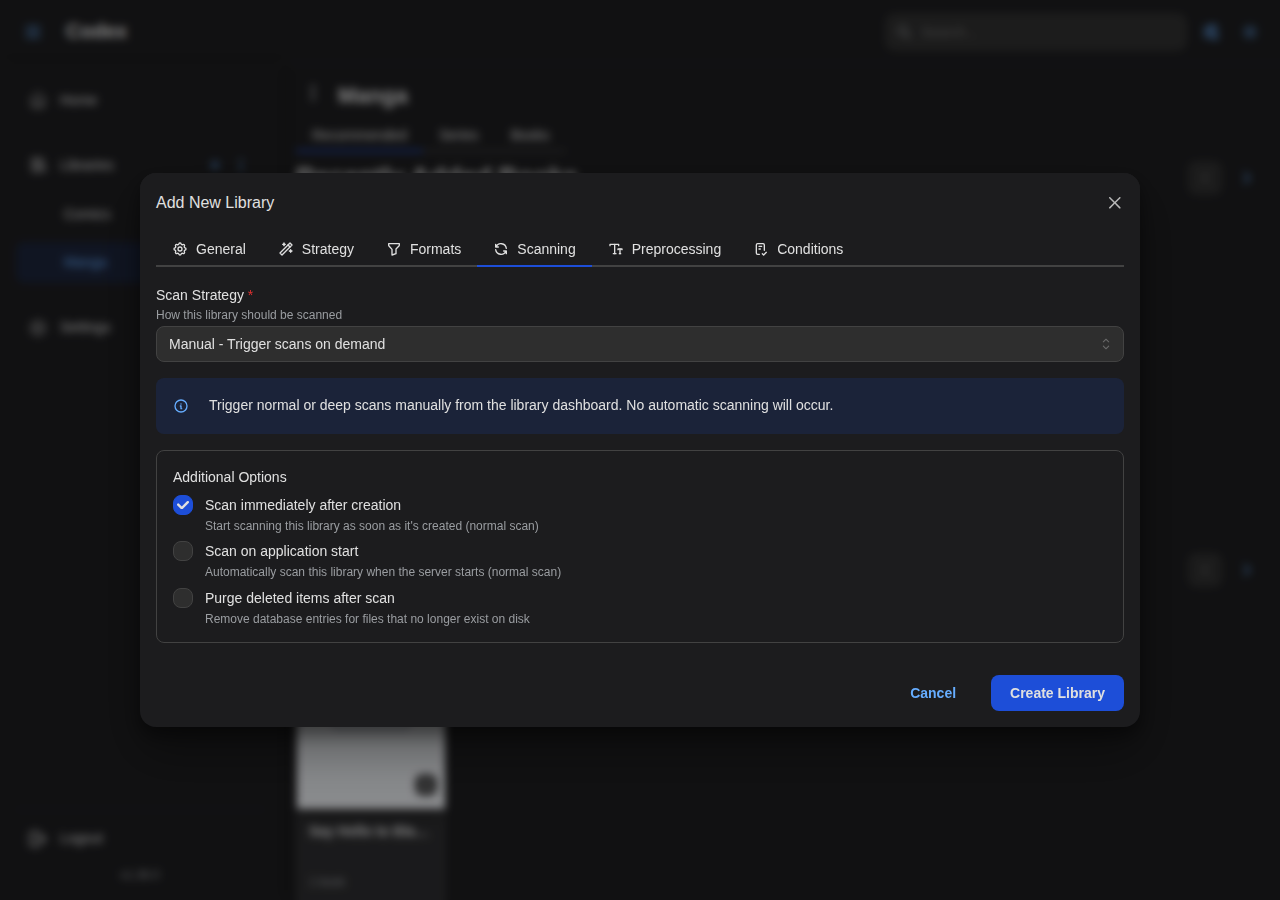
Adding a New Library
Create libraries to organize your comics, manga, and ebooks. Configure general settings, file formats, scanning strategies, and schedules.
Comics Library
Manga Library
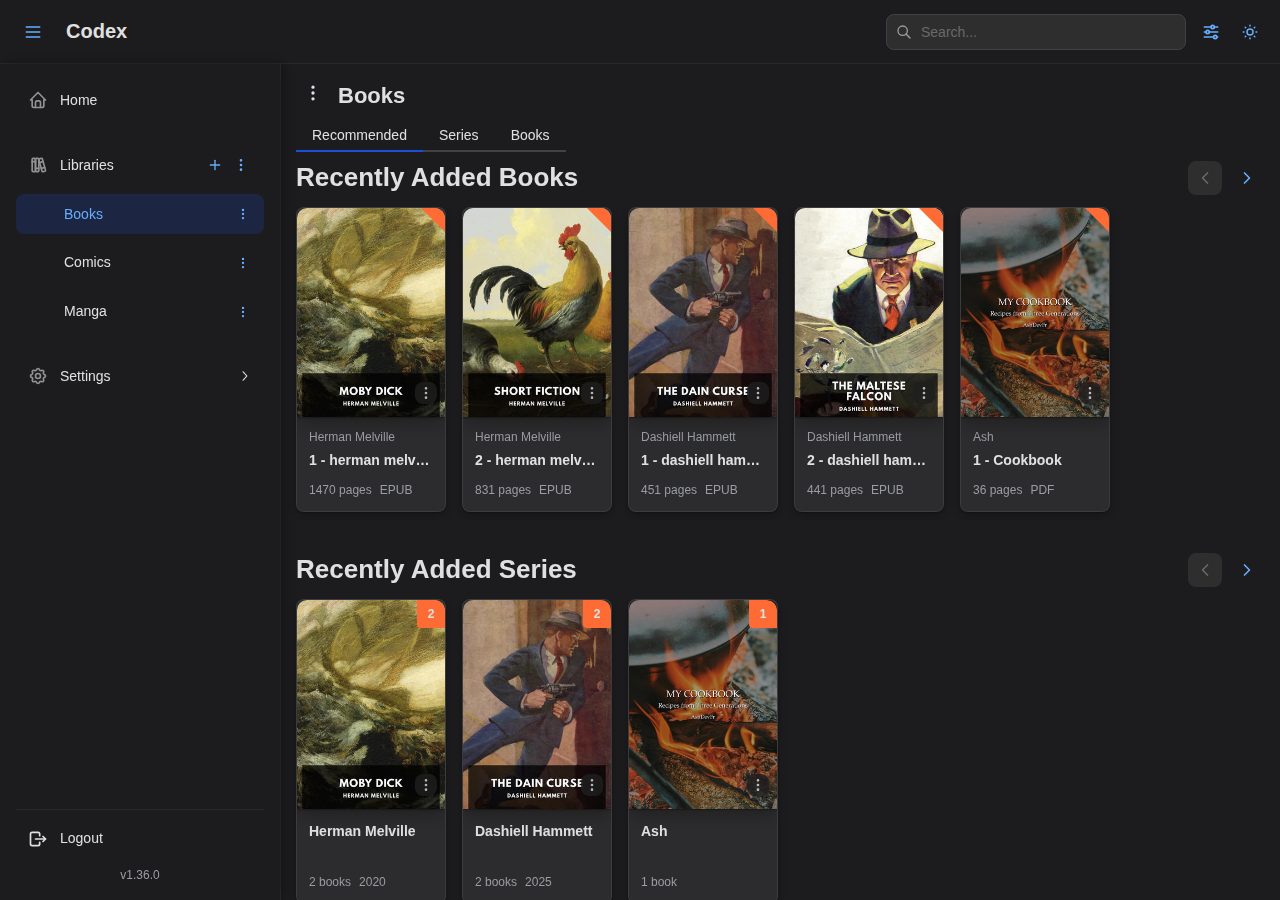
Books Library
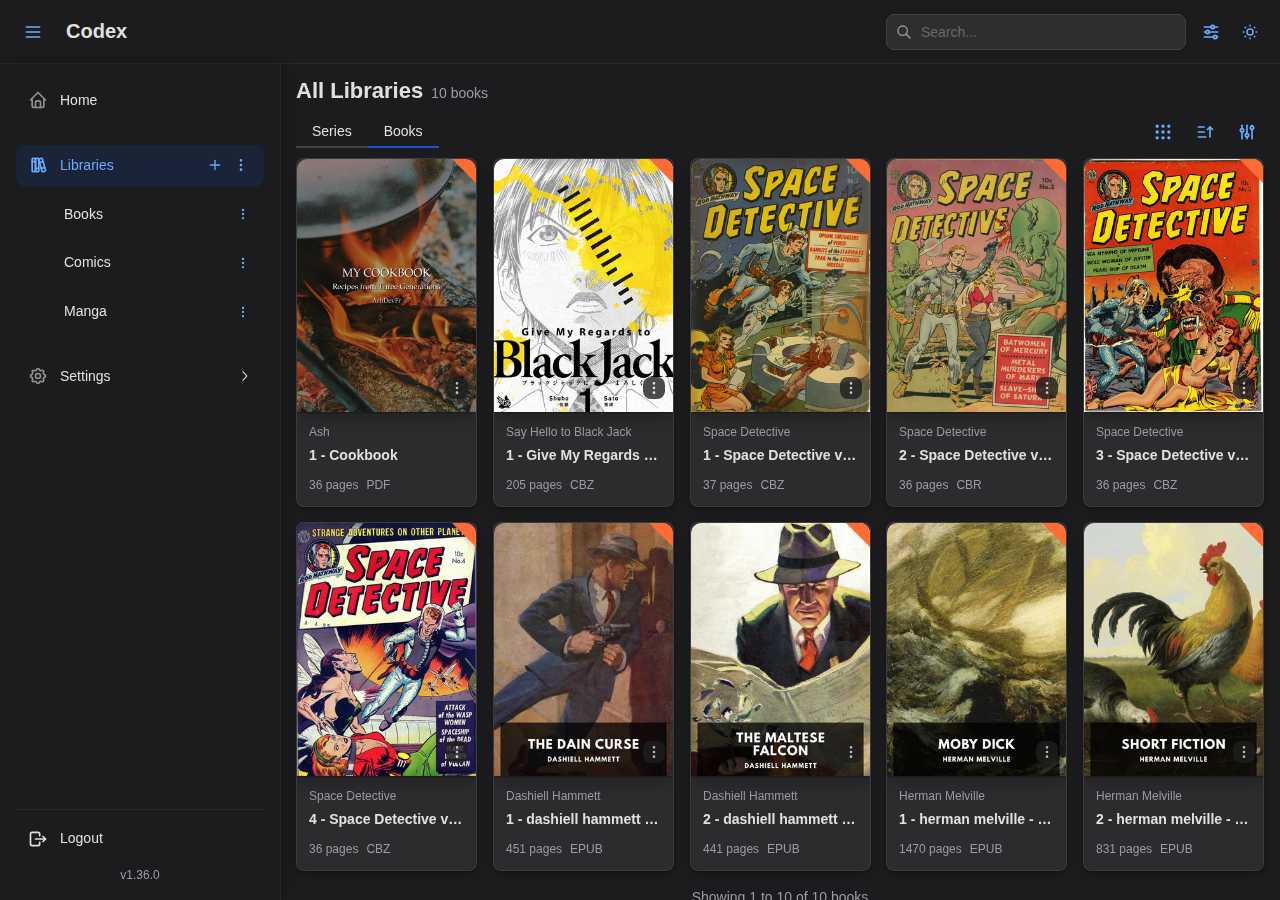
Browsing Libraries
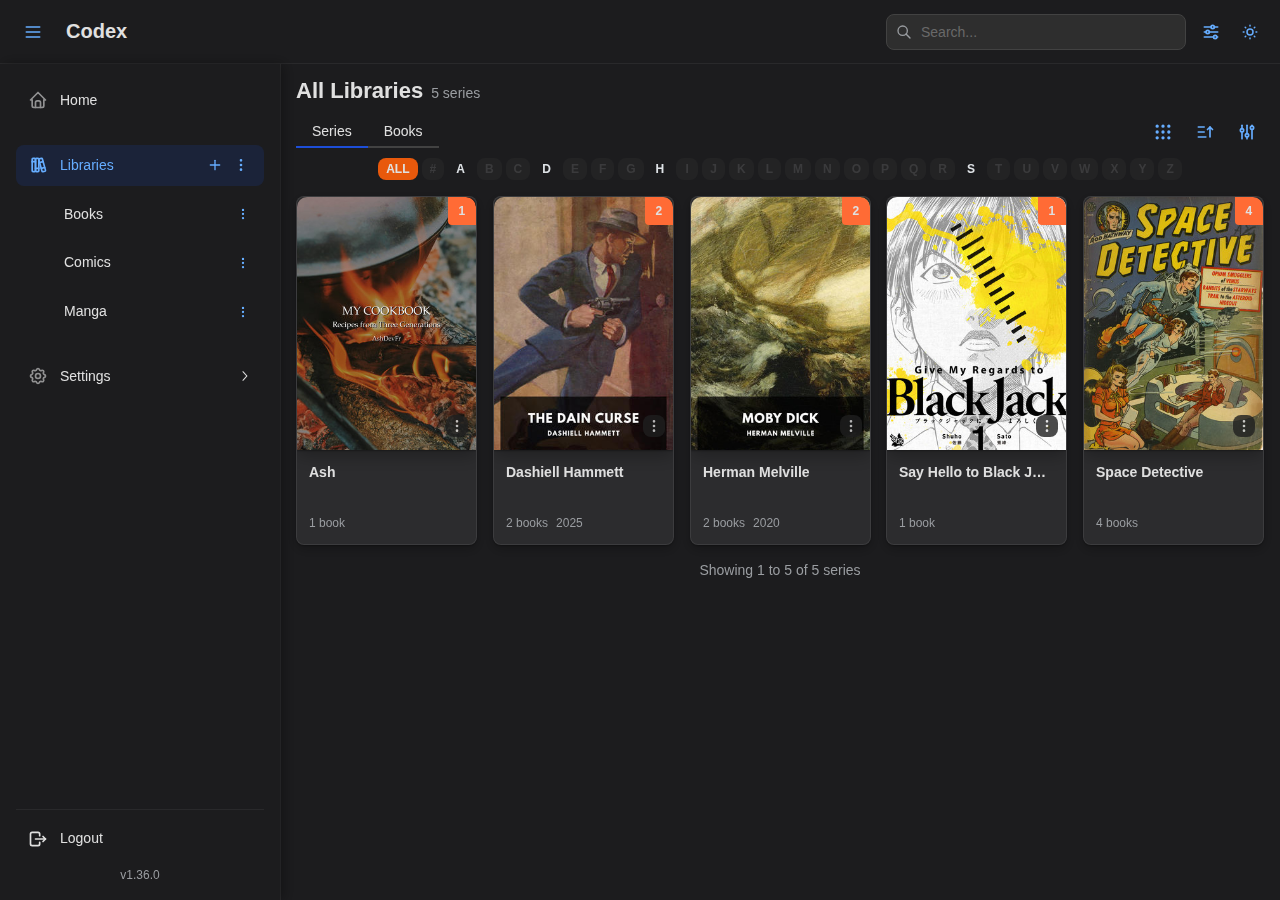
View your libraries by series or books with powerful filtering and sorting options.
Series & Book Details
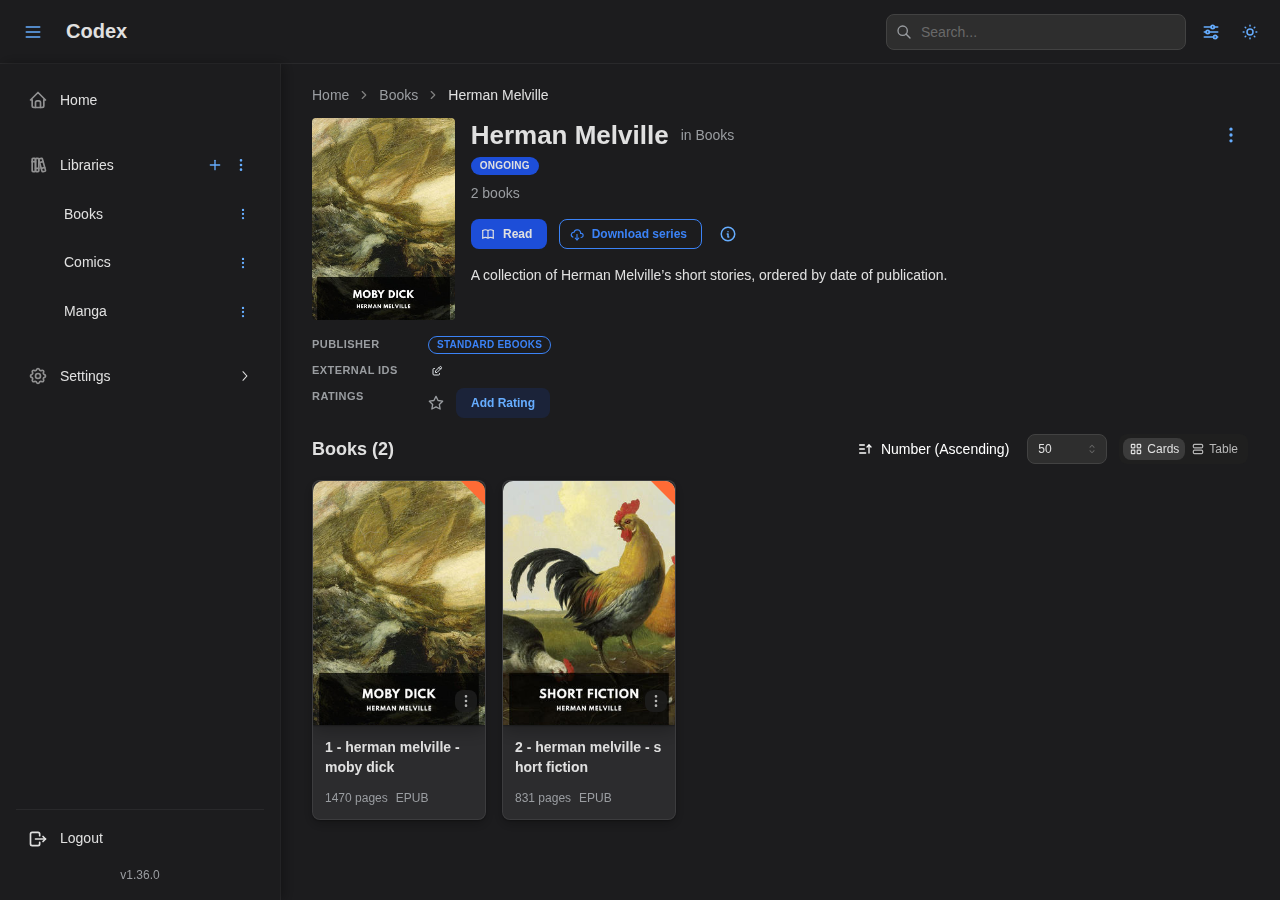
Series Detail Page
View comprehensive information about a series including metadata, books, and reading progress.
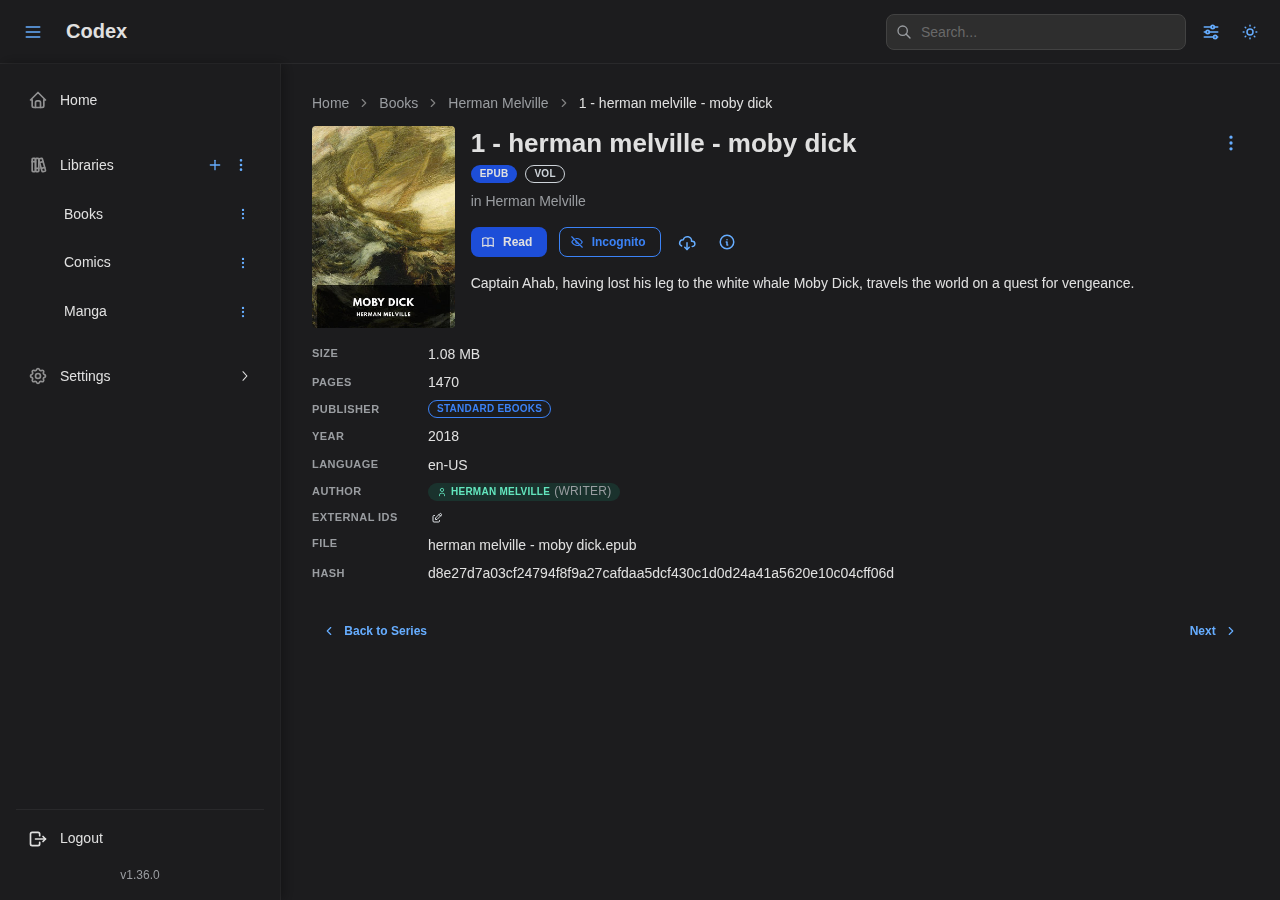
Book Detail Page
View detailed information about a specific book.
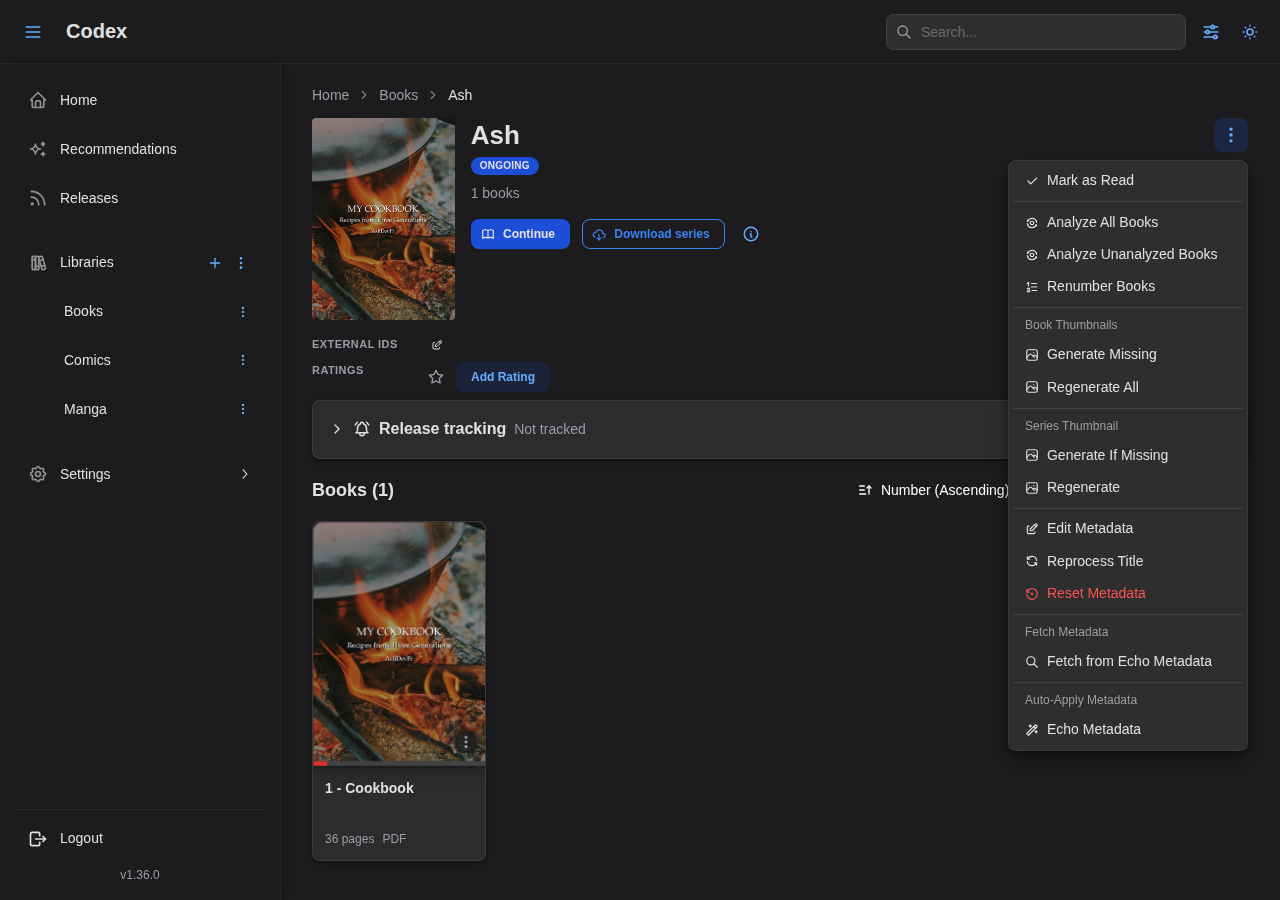
Series Actions Menu
Per-series actions live behind the kebab menu in the series header. See the Managing Series guide for details.
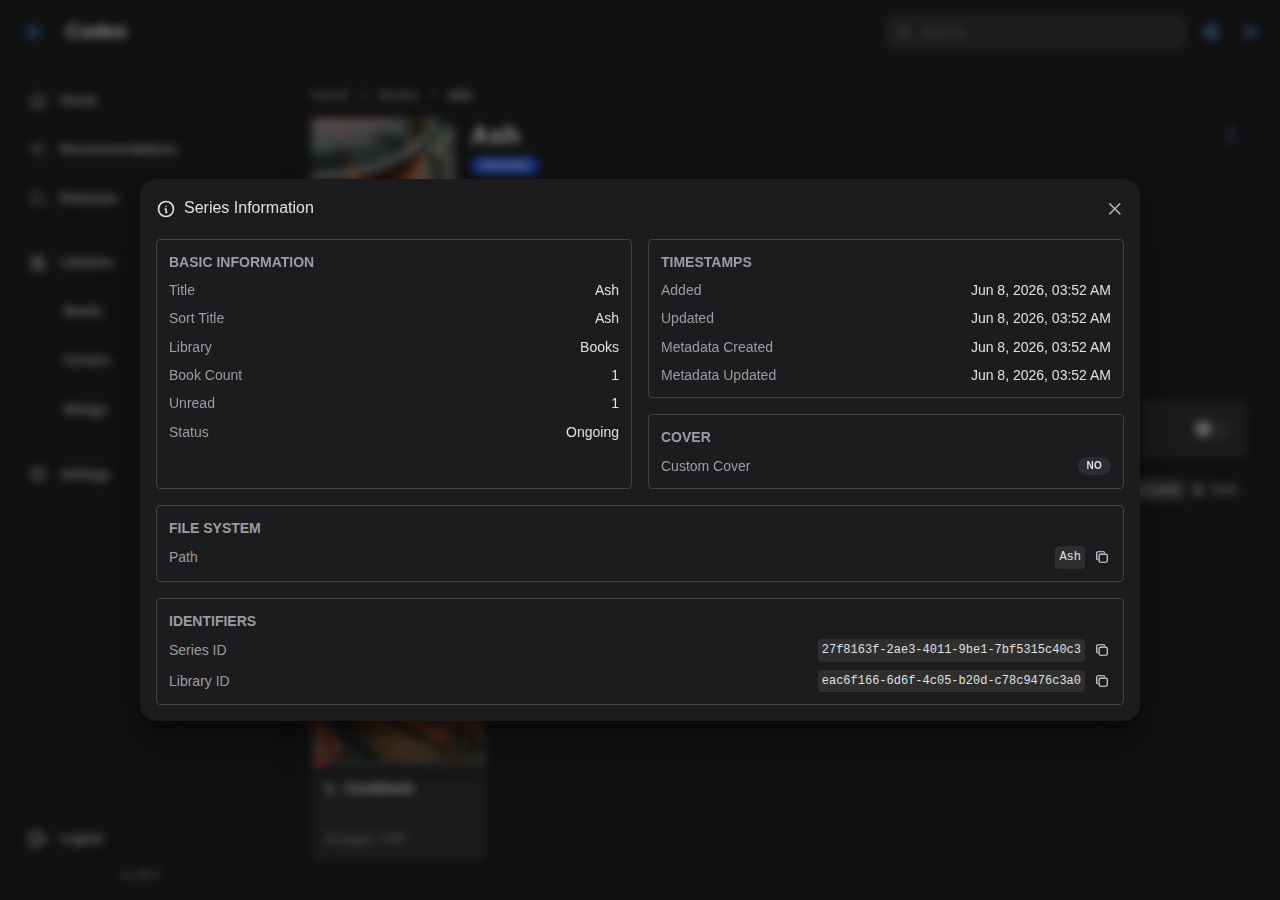
Series Info Modal
Read-only details: UUIDs, file path, timestamps, resolved external IDs.
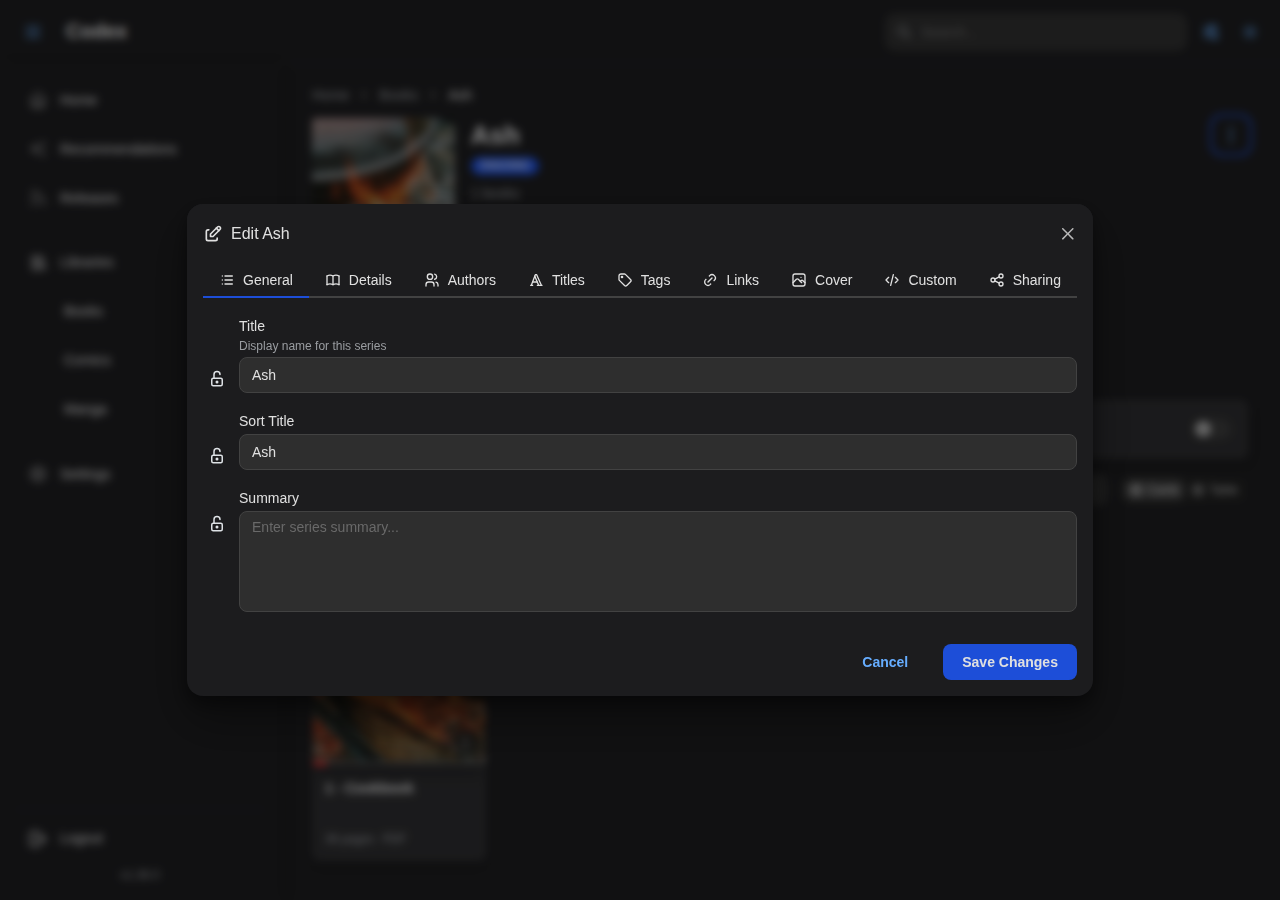
Edit Metadata Modal
The metadata editor opens from the actions menu or any field's edit icon.
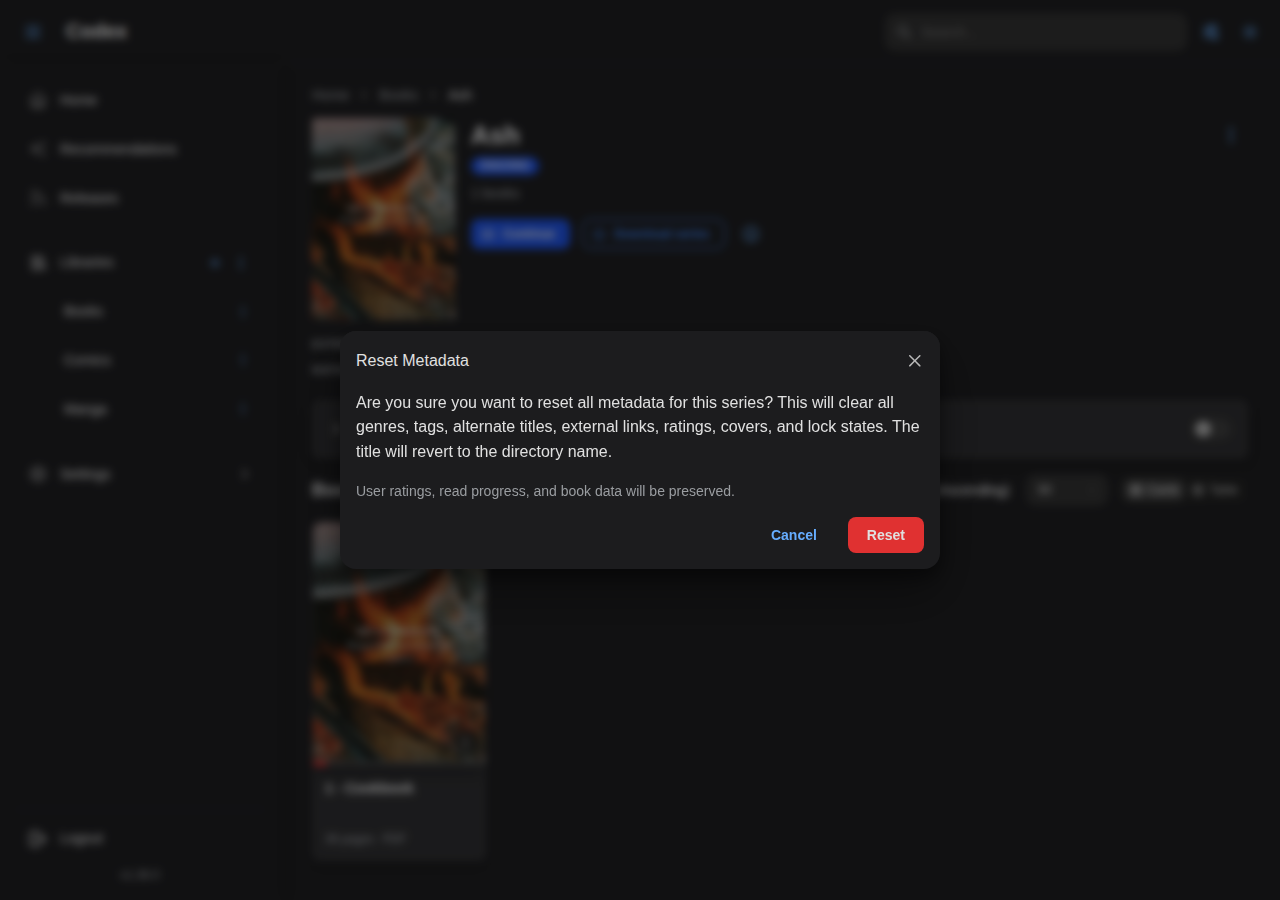
Reset Metadata
Wipe manual edits and revert to scanner / provider values. Confirmation required.
Bulk Operations
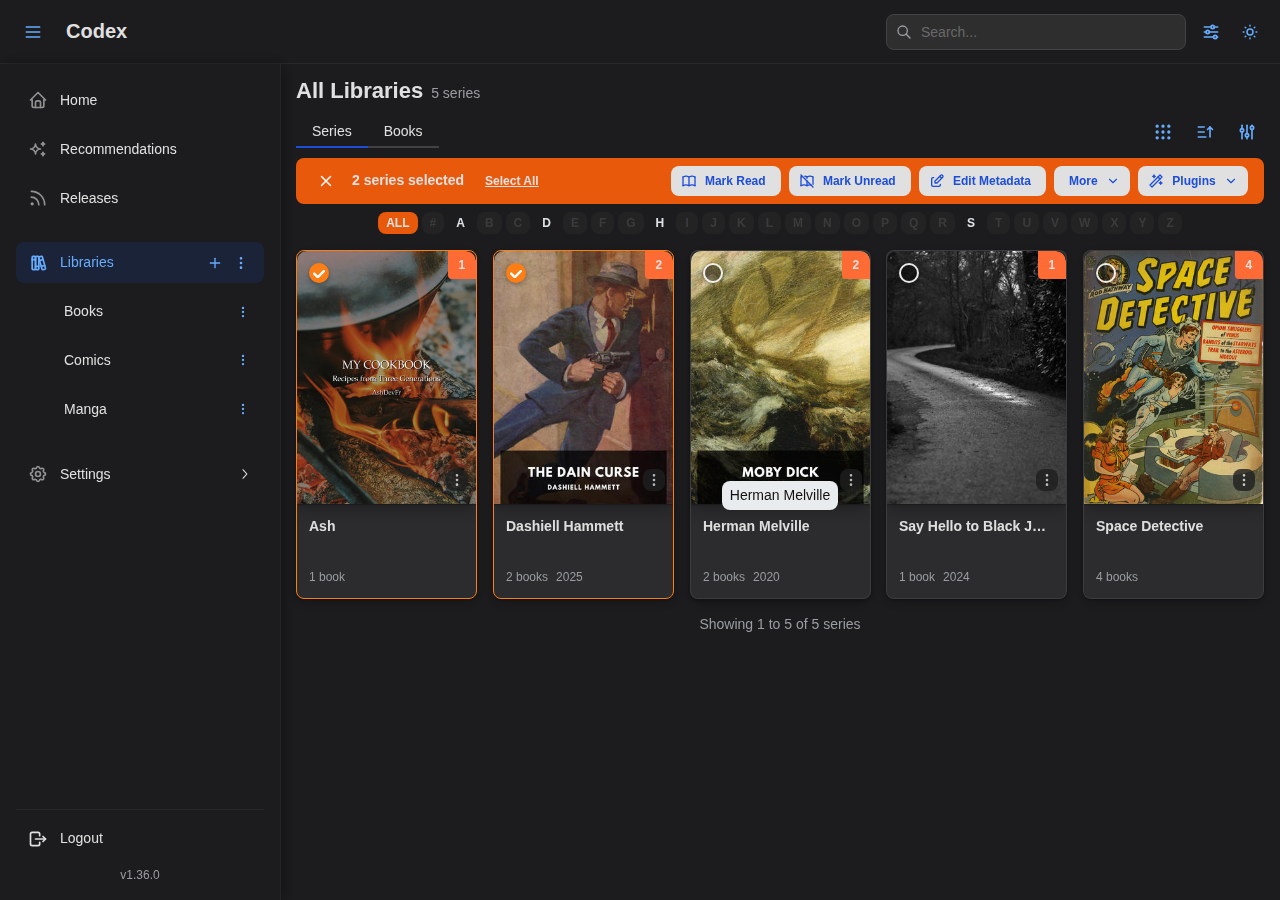
Bulk Selection Toolbar
Multi-select series cards from the library grid; the toolbar surfaces bulk actions.
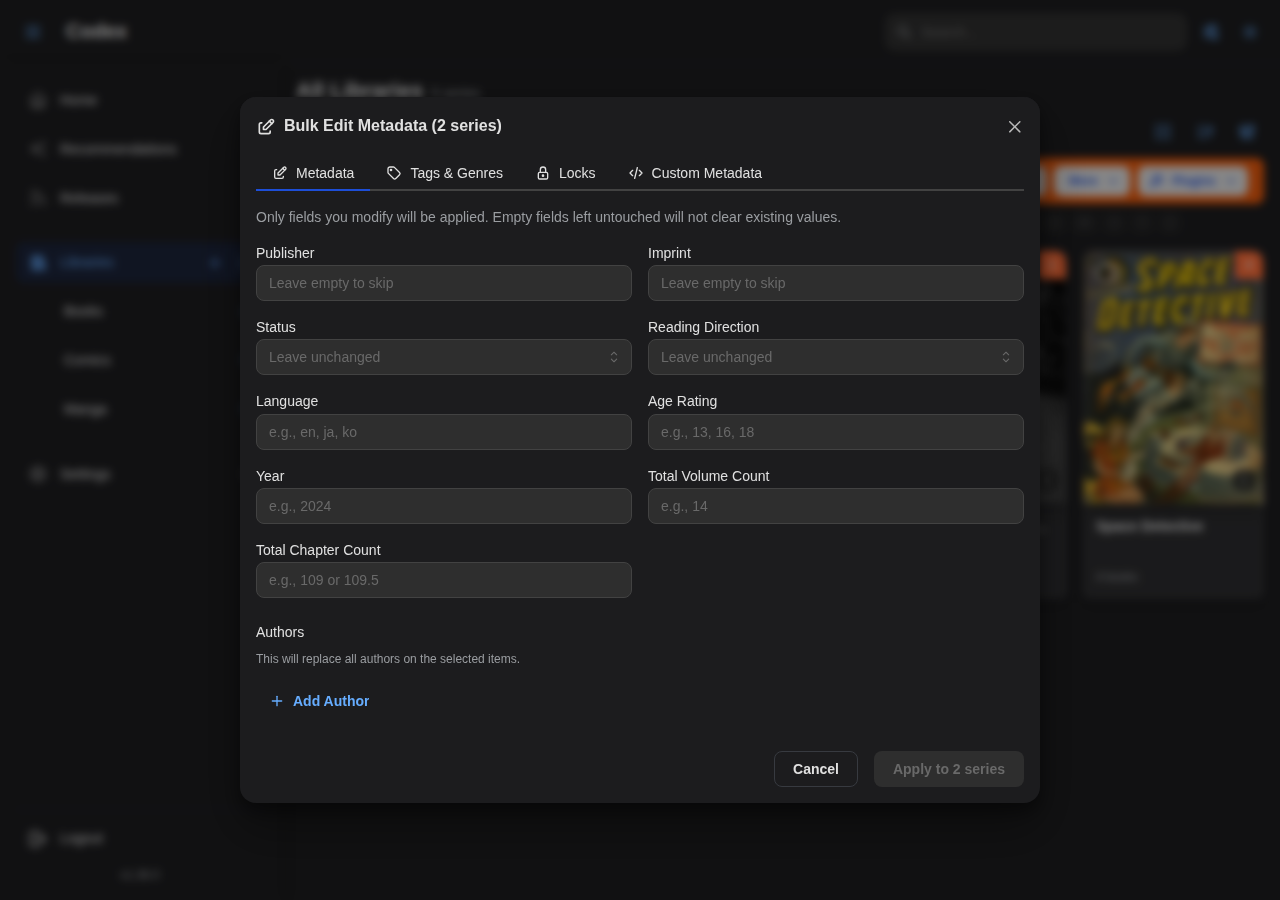
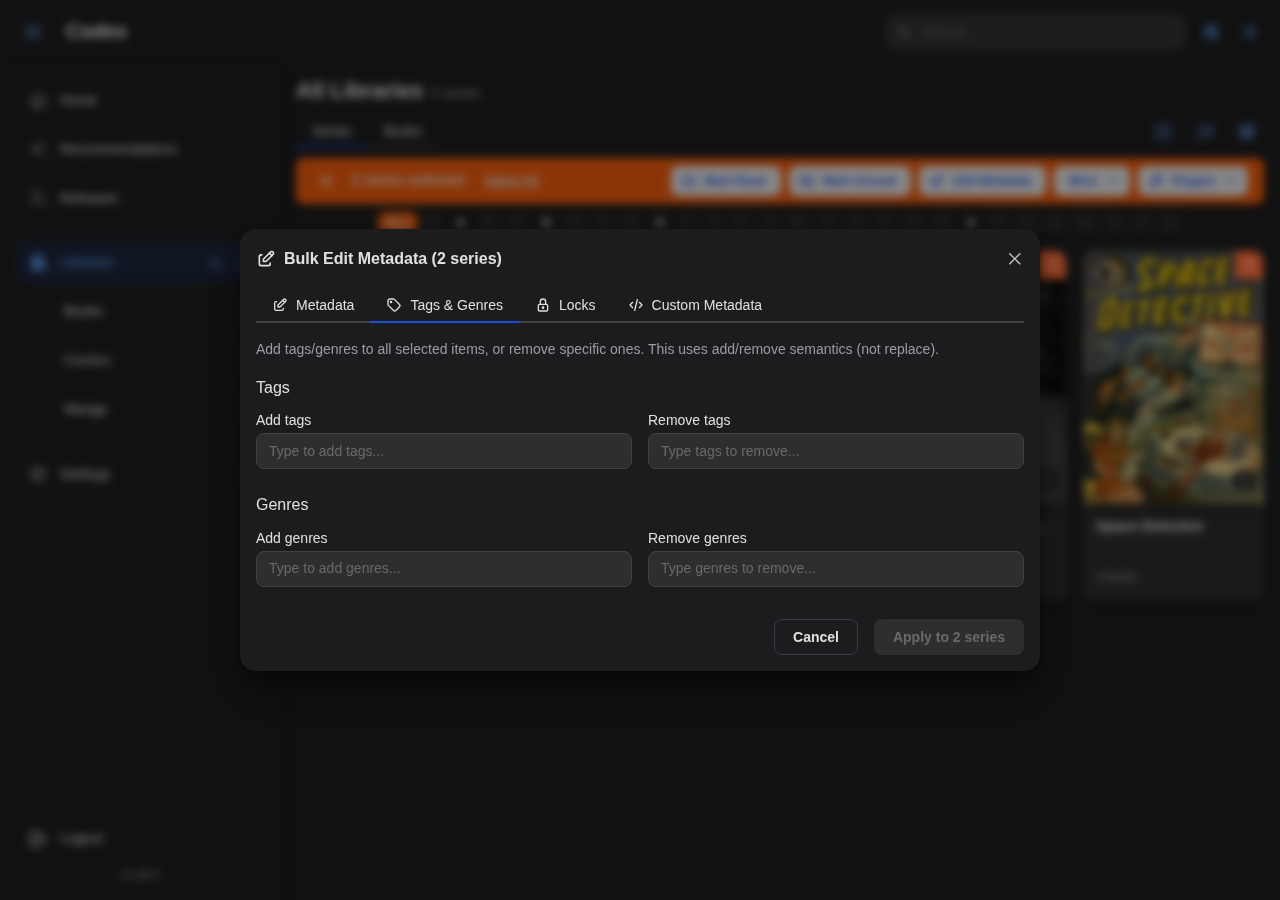
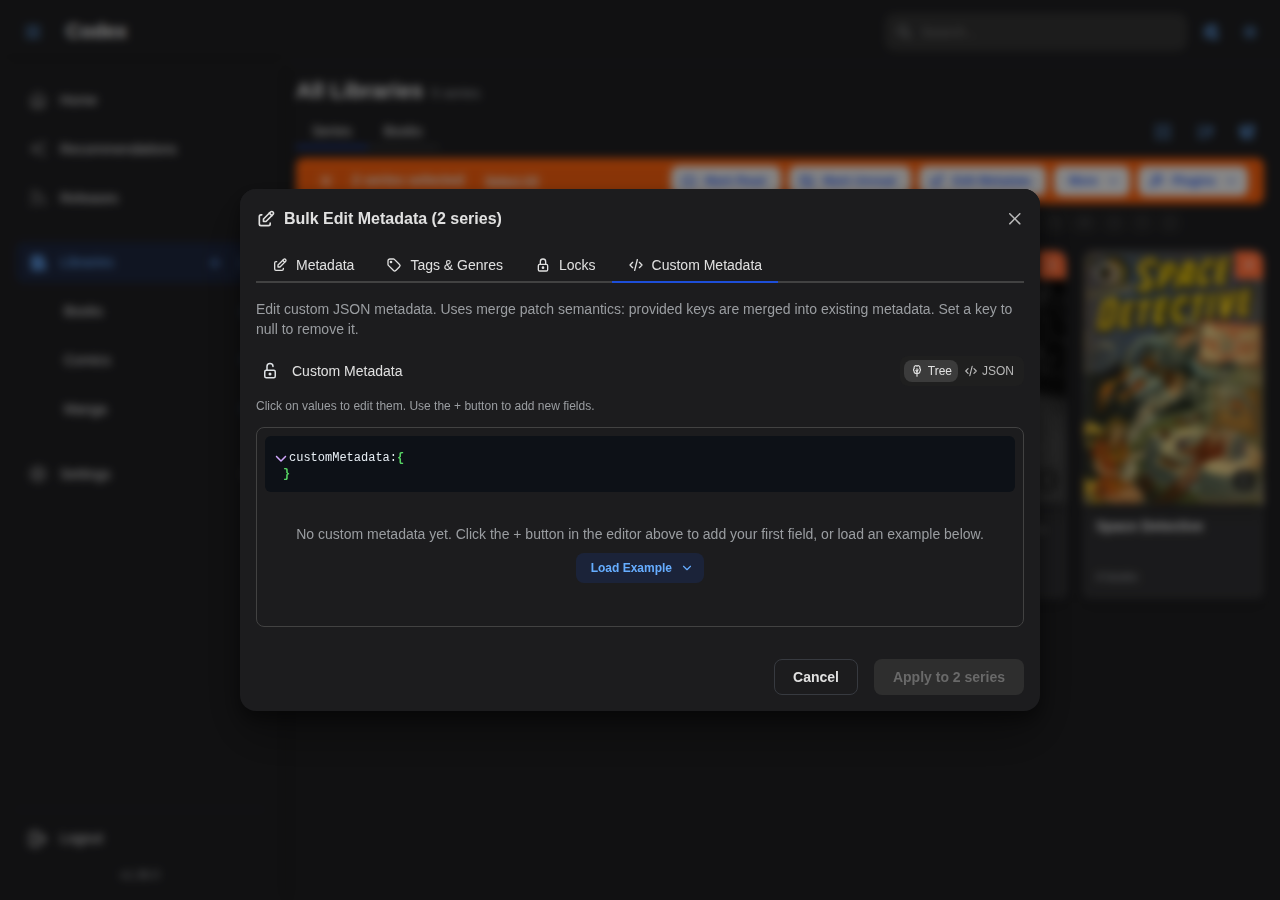
Bulk Metadata Edit
Patch fields across the entire selection. Tabs cover General, Tags, and Custom metadata.
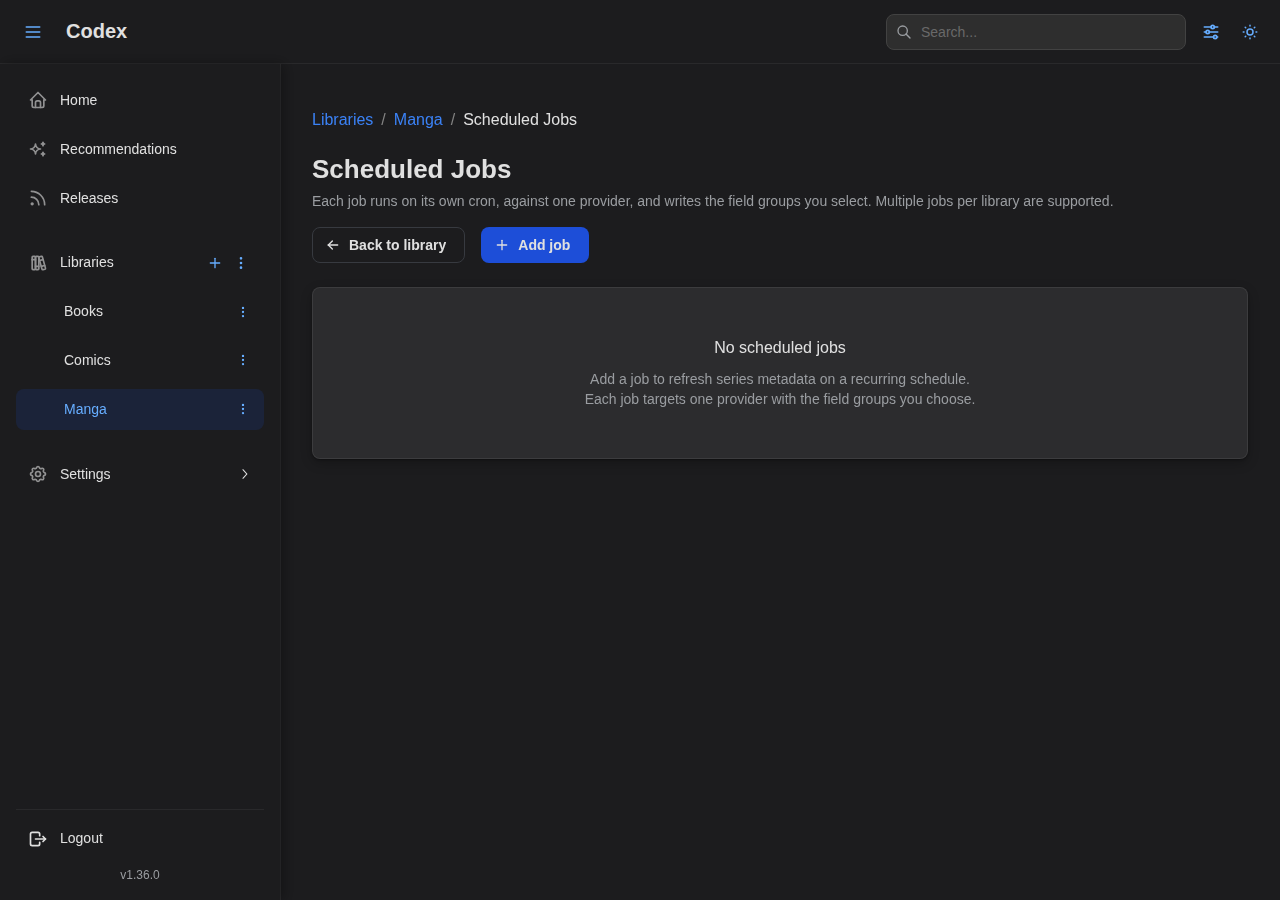
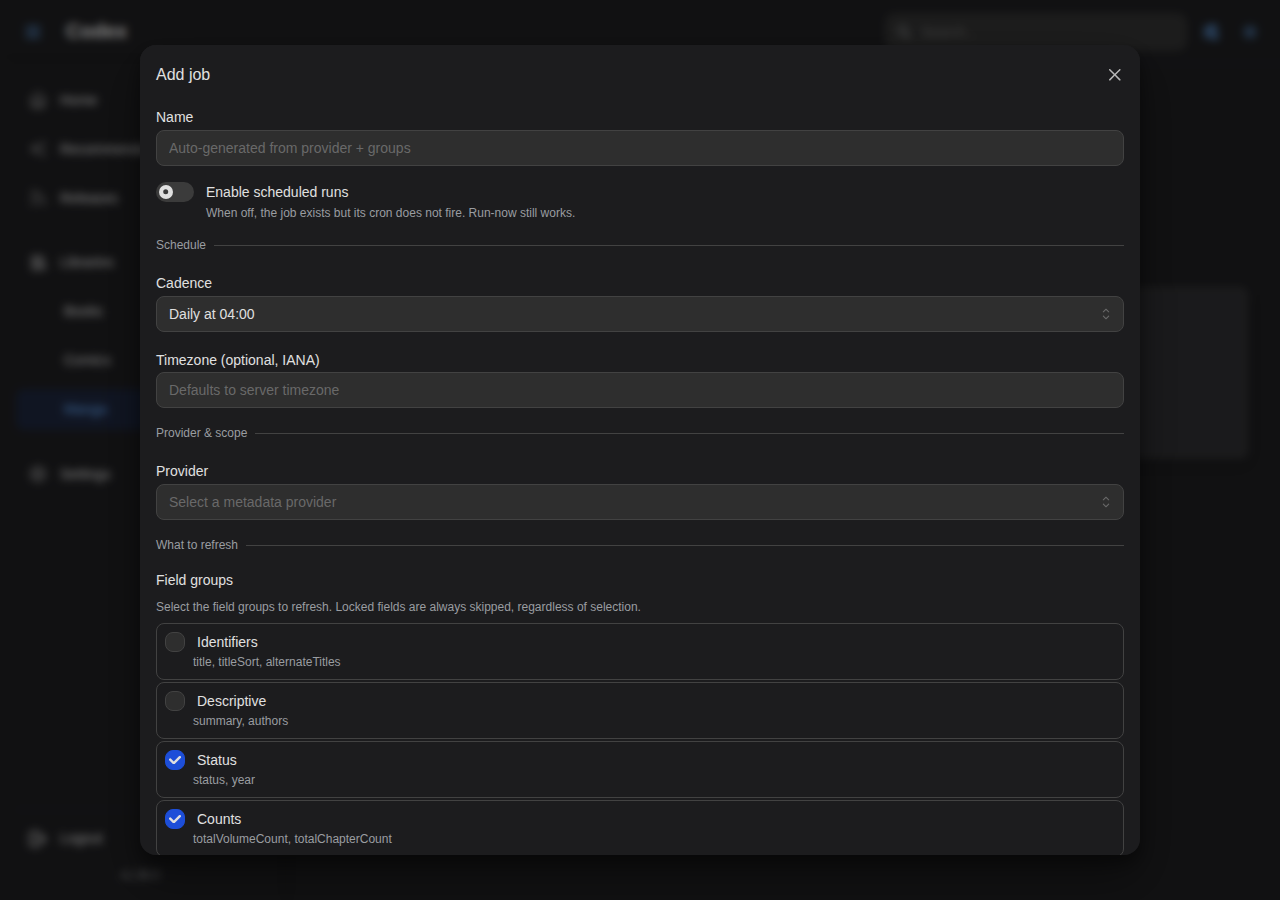
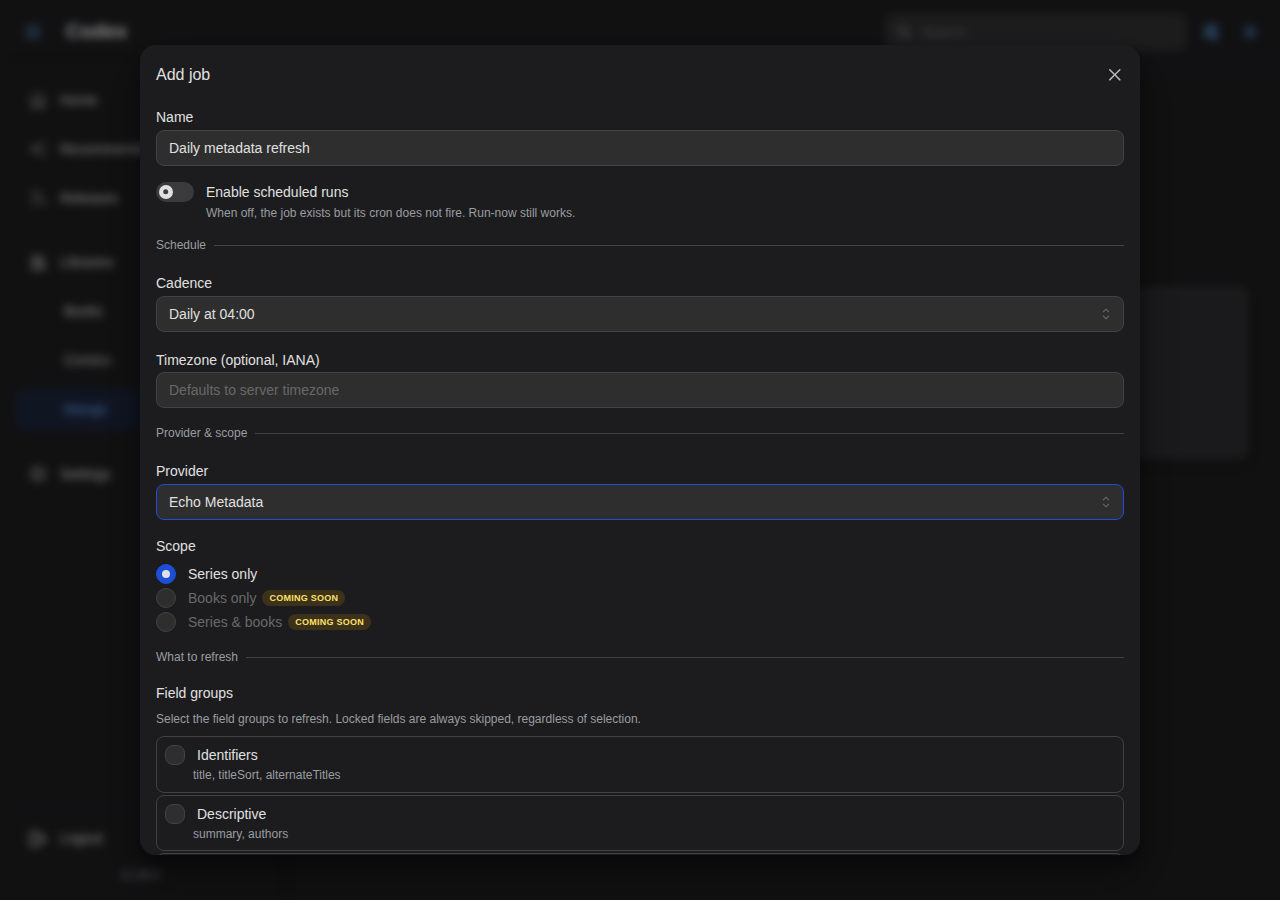
Scheduled Library Jobs
Each library can run periodic metadata refresh jobs against a provider plugin. See the Library Jobs guide.
Release Tracking
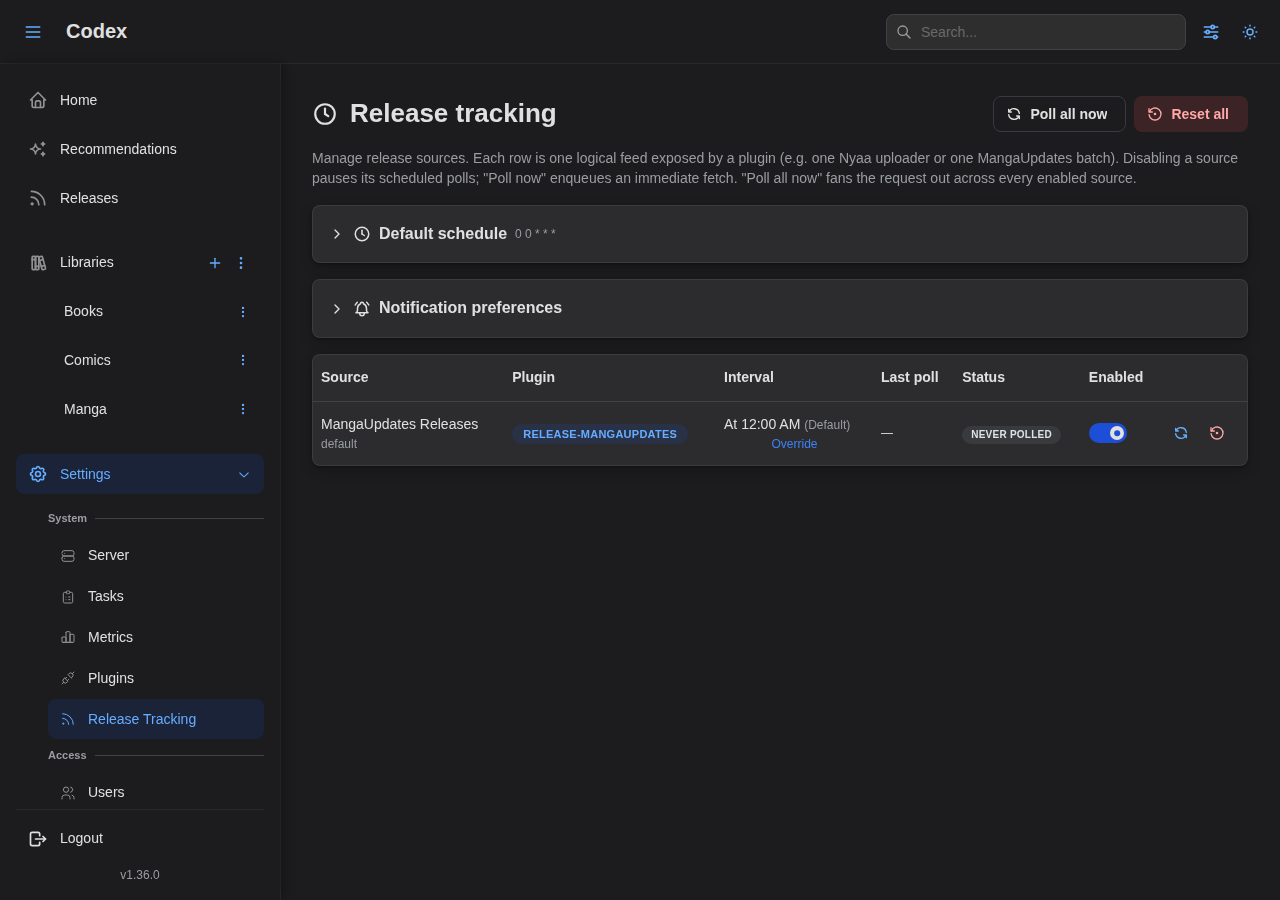
Codex polls external sources and surfaces new chapter / volume announcements in a dedicated inbox. See the Release Tracking guide.
Settings Overview
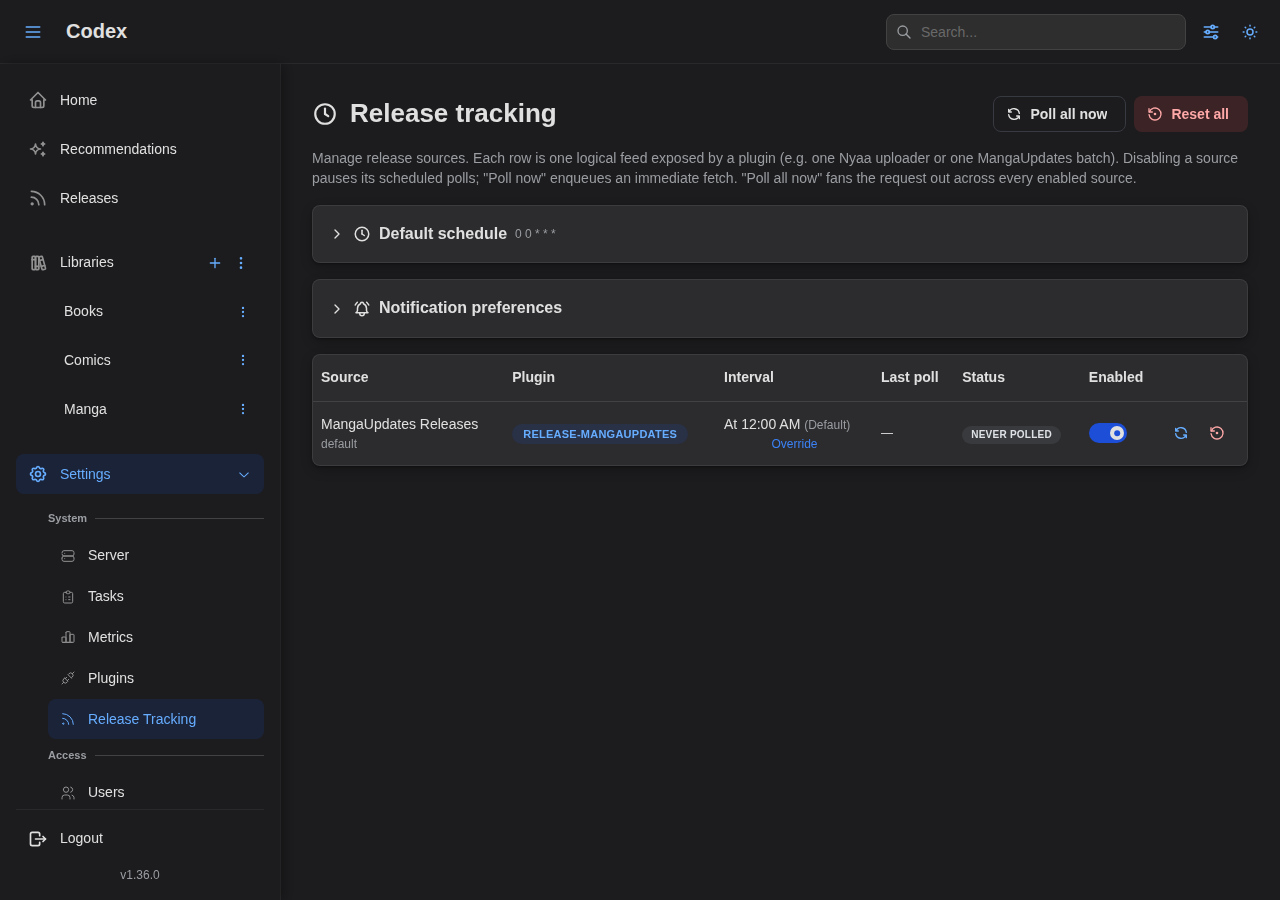
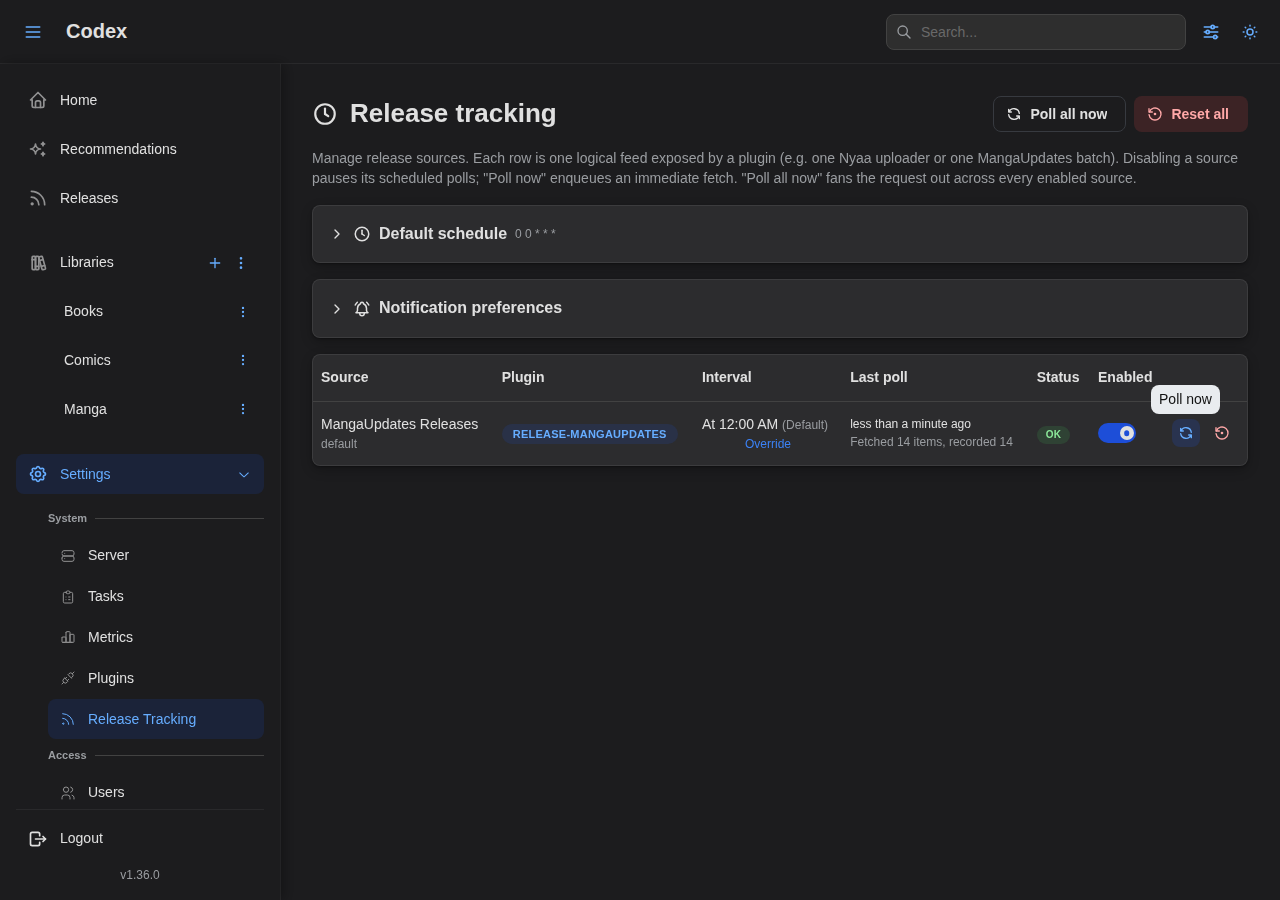
Polling a Source
Trigger an immediate poll on a source row in Settings → Release tracking.
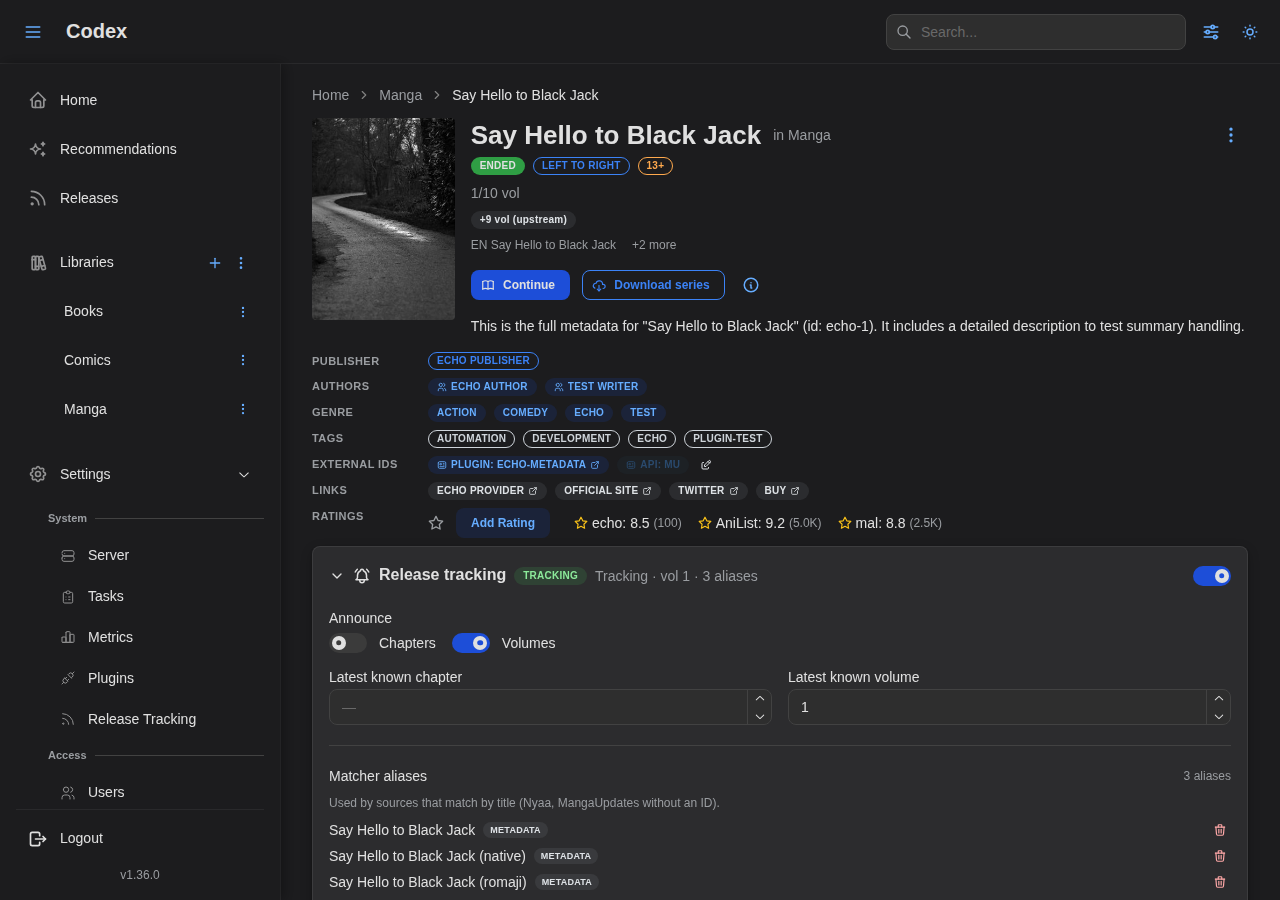
Series Tracking Toggle
Enable tracking on a series; add aliases or external IDs for matching.
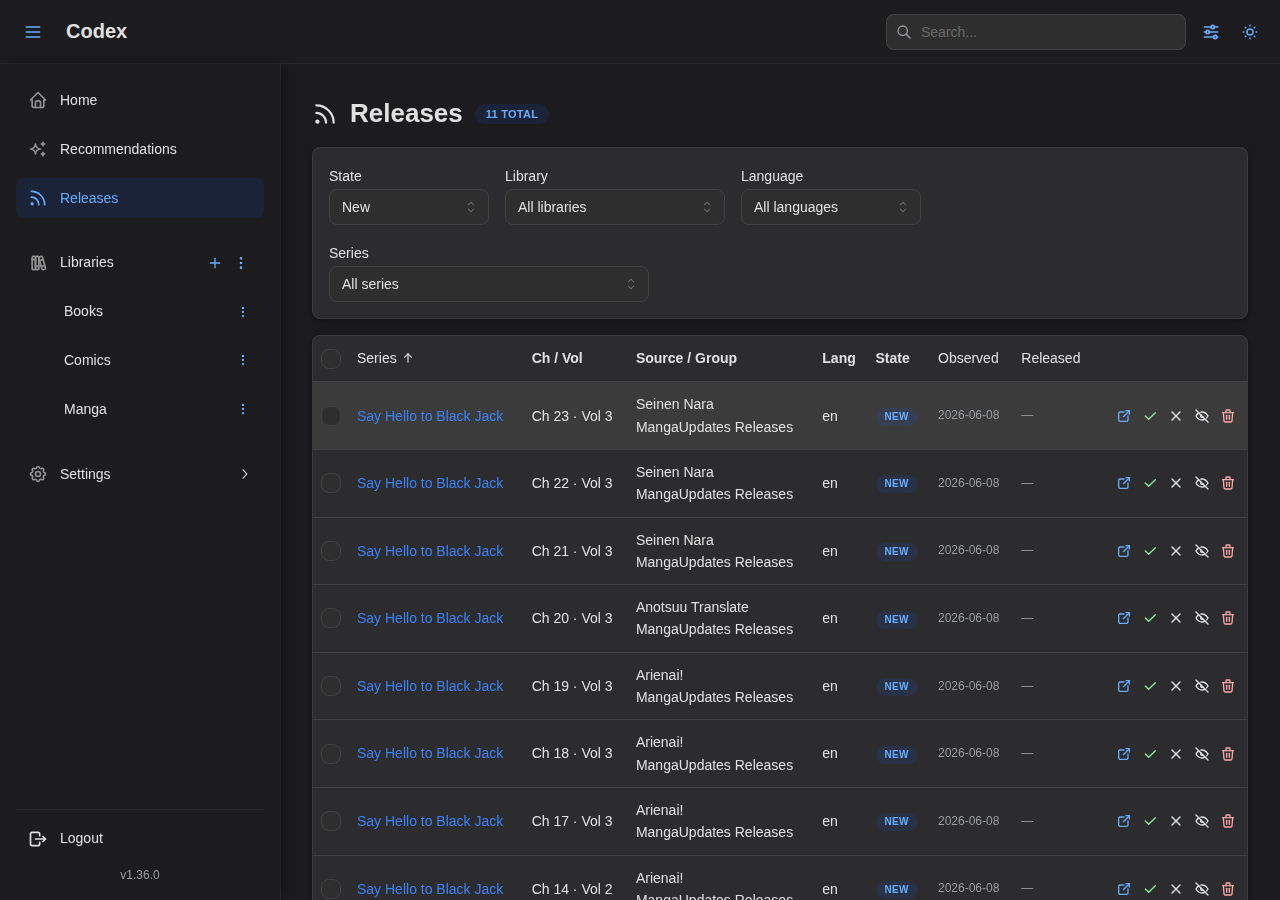
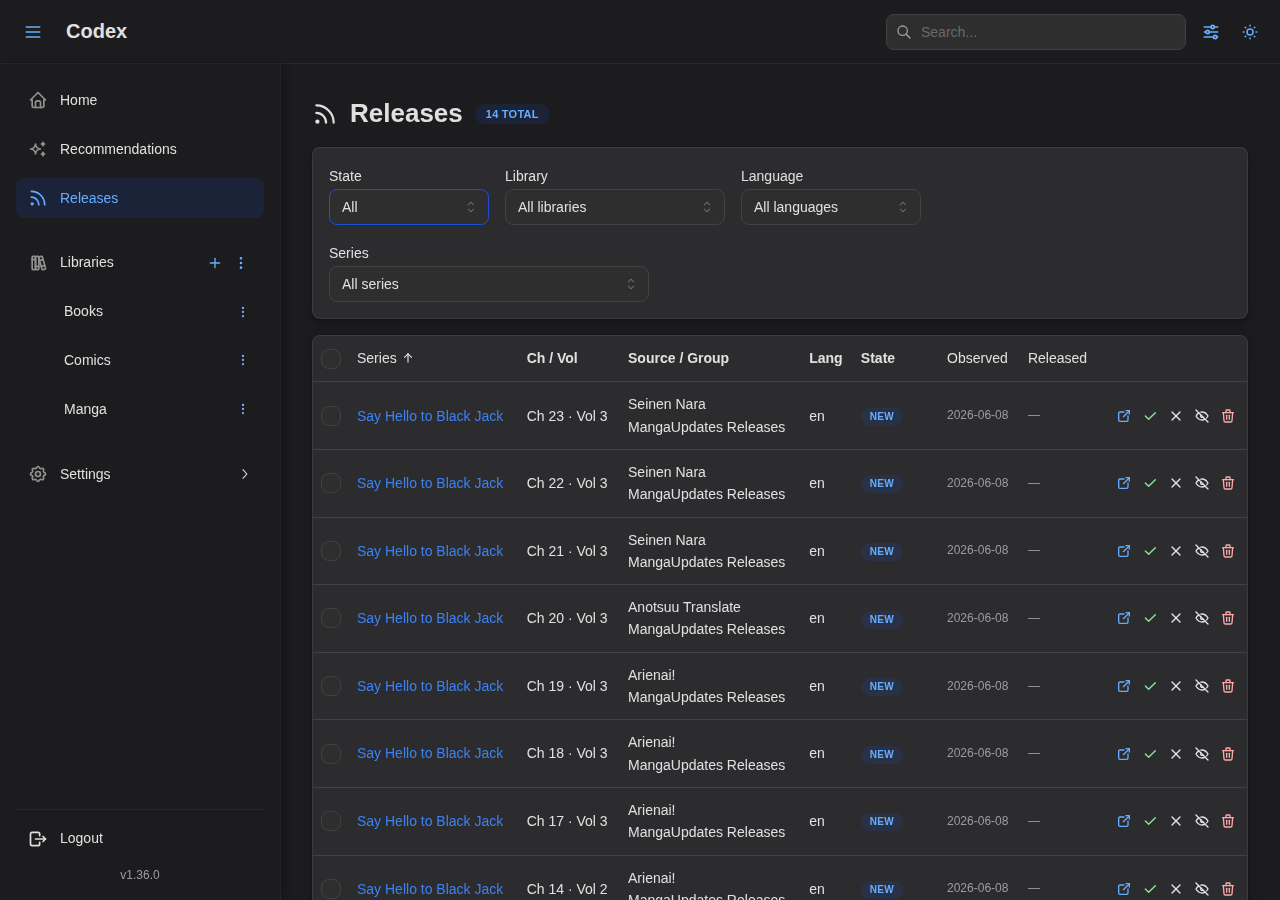
Releases Inbox
The inbox lists every accepted release. Default view shows new entries; the state filter switches to All / Acquired / Dismissed.
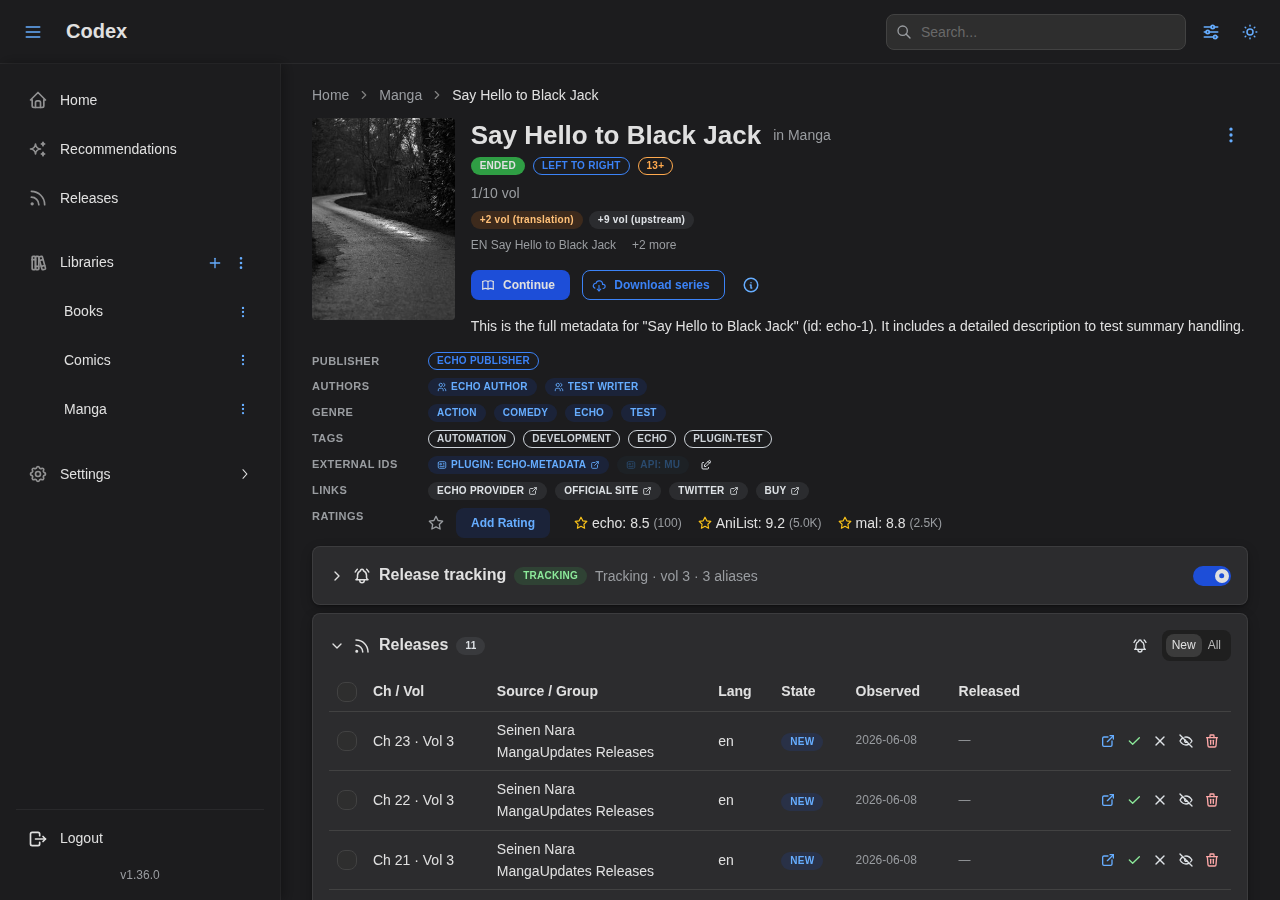
Series Releases Panel
Each tracked series exposes a per-series view of the same ledger.
Readers
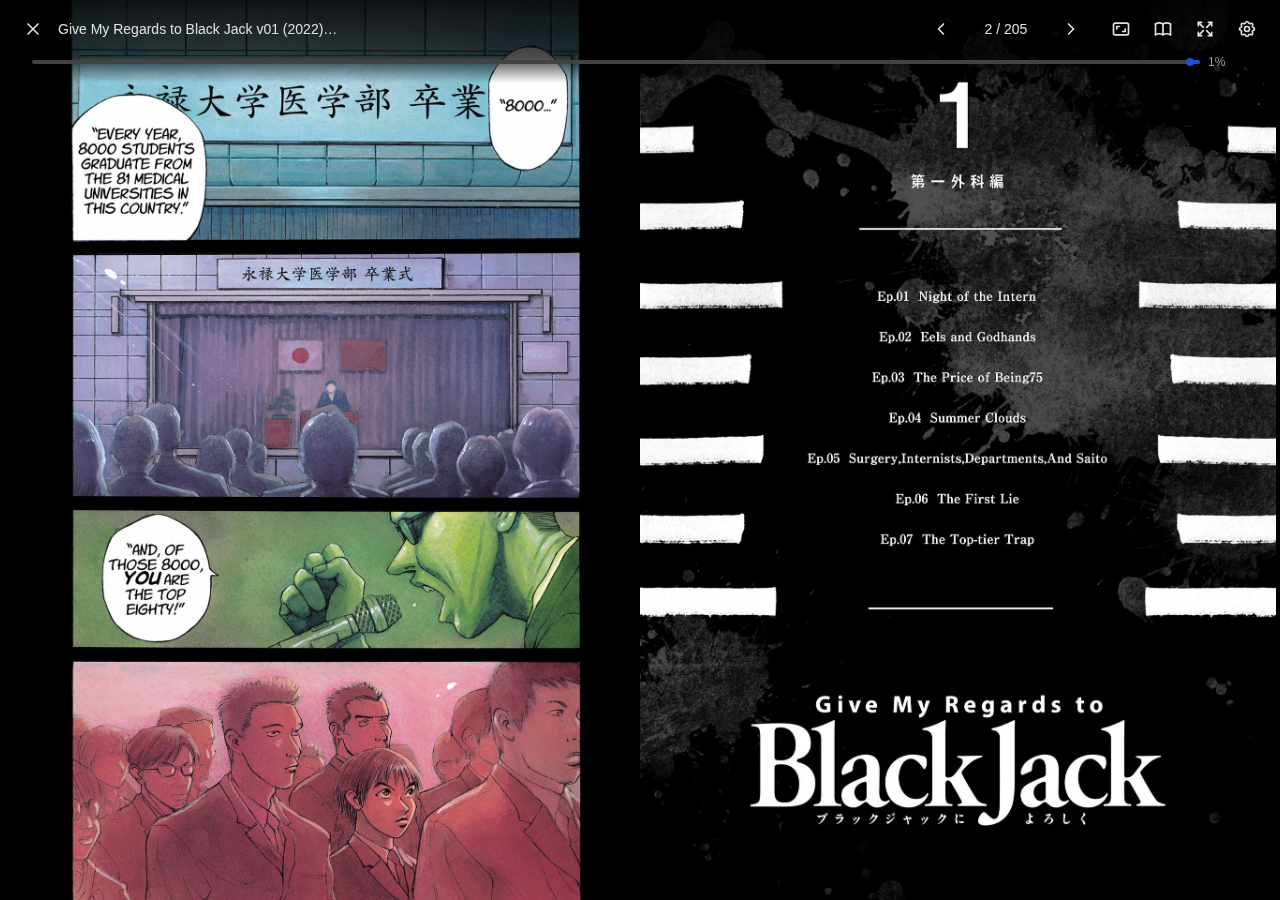
Comic Reader
A powerful comic reader with customizable display settings.

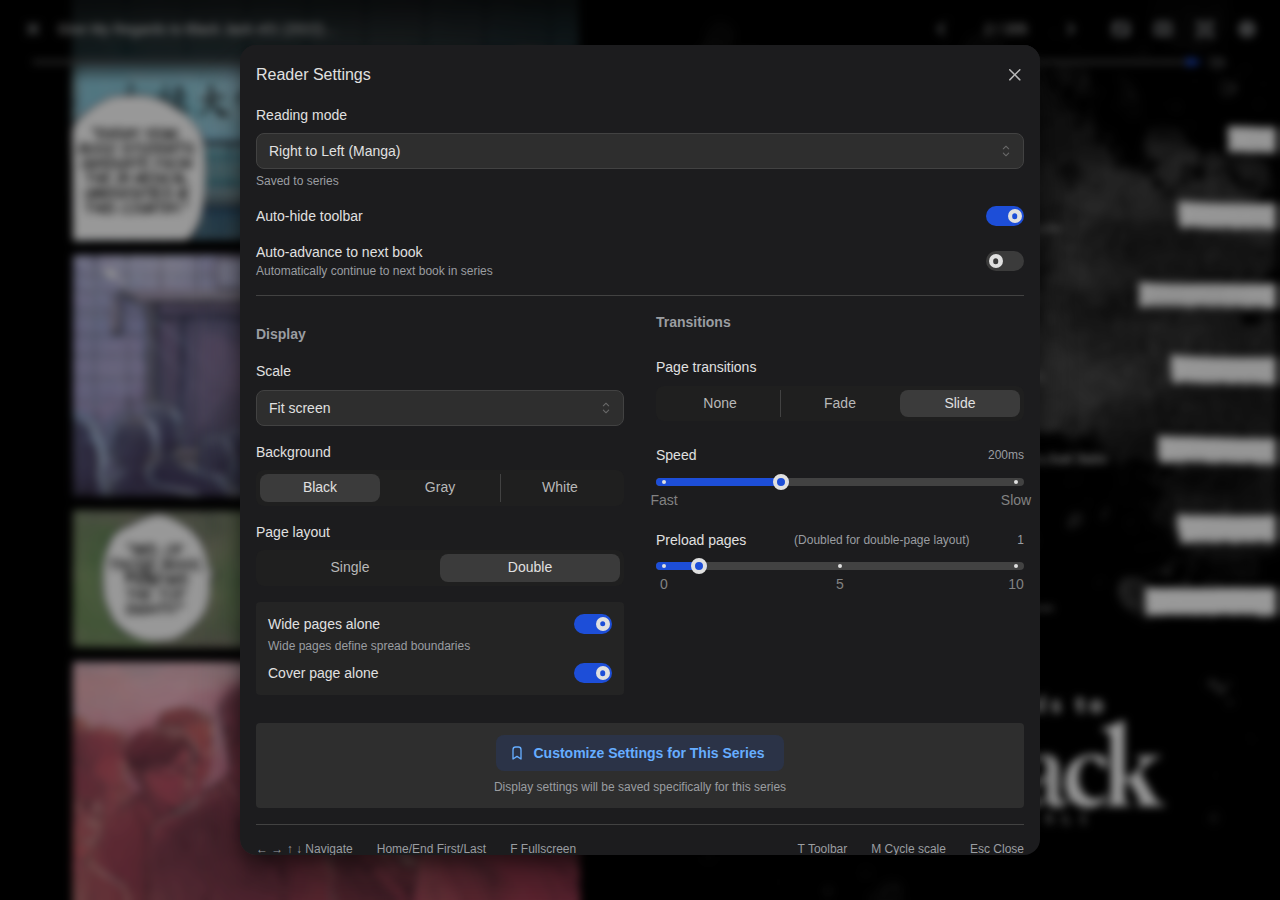
Comic Reader Settings
Customize reading mode, scale, background, and page layout.
EPUB Reader
A beautiful EPUB reader with extensive typography controls and themes.

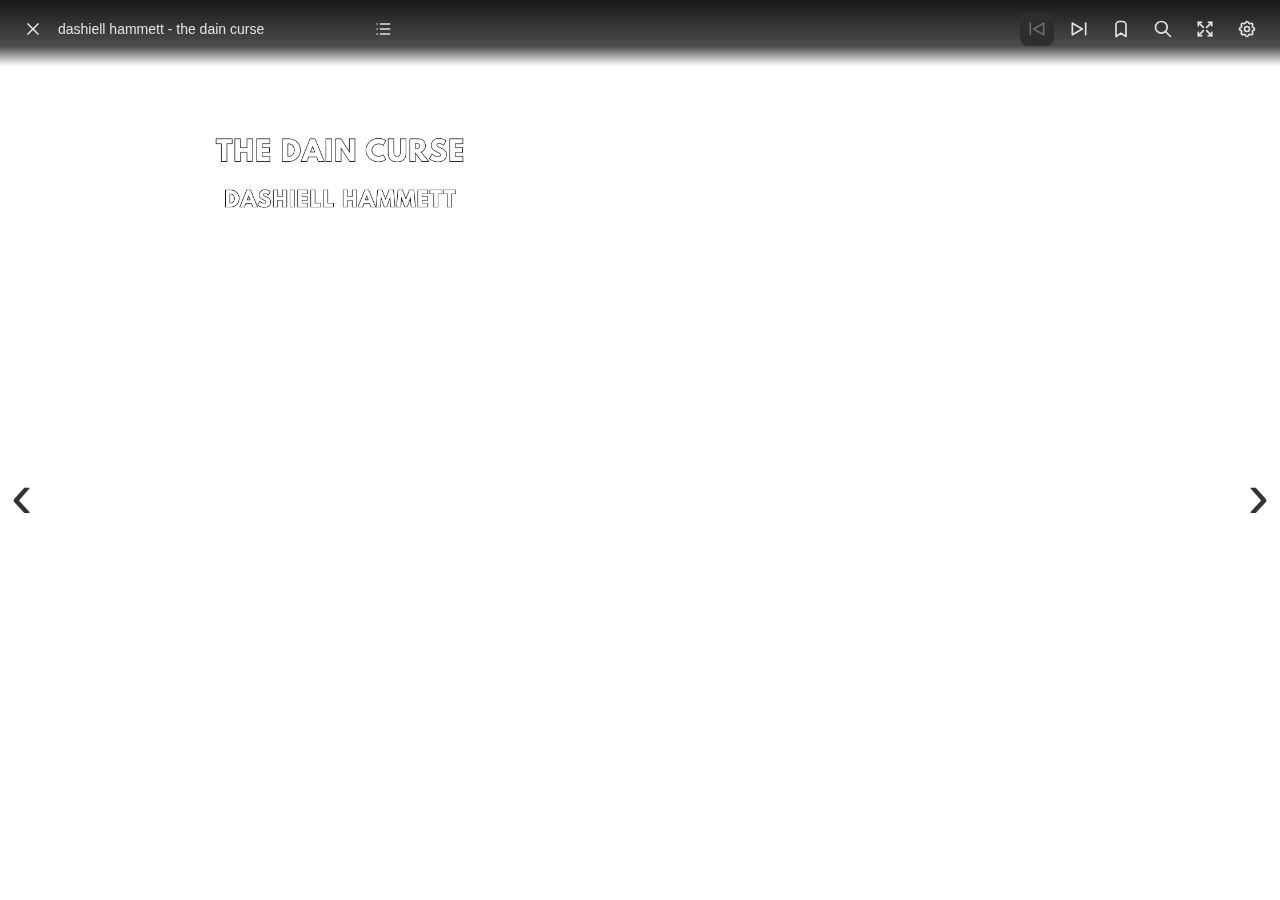
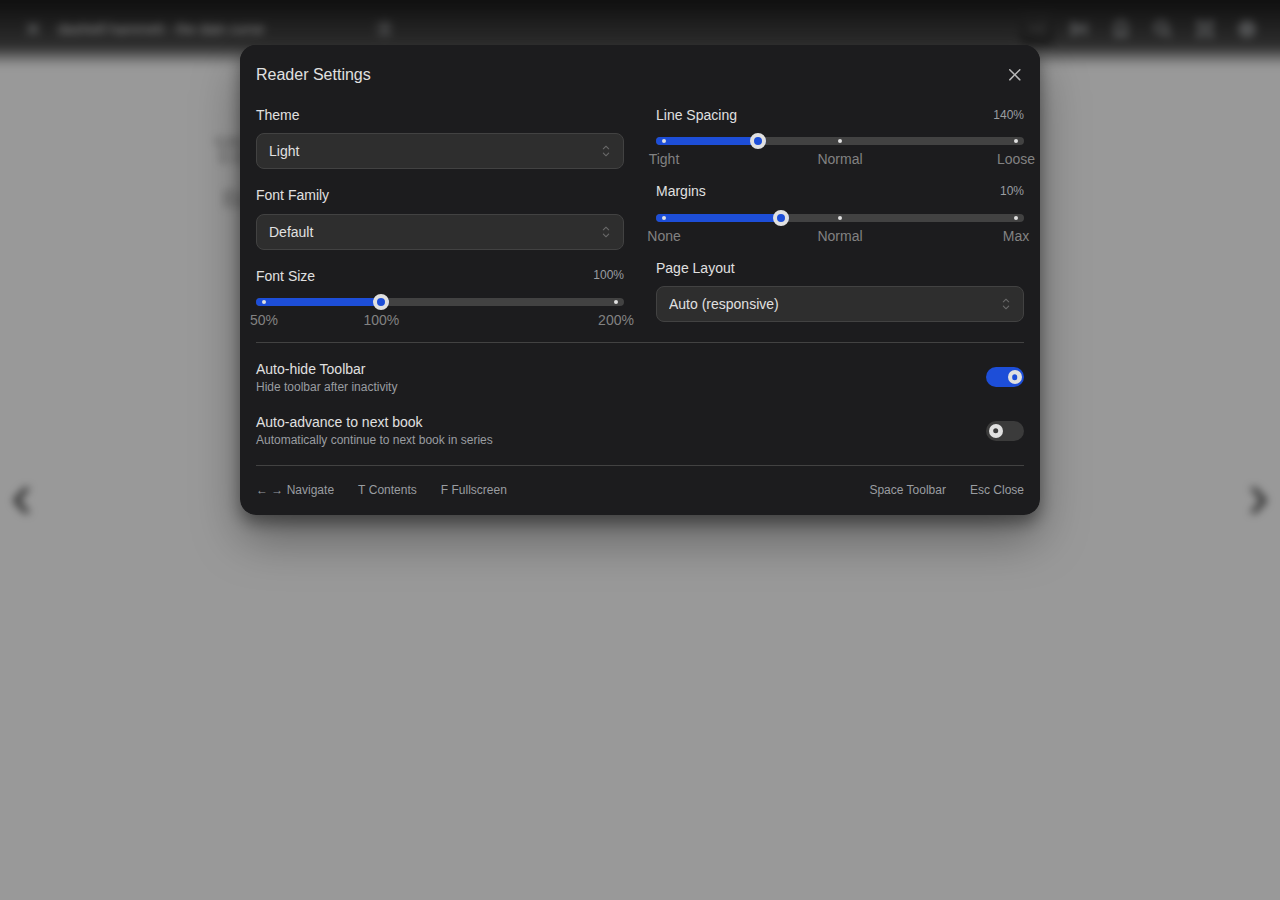
EPUB Settings
Configure fonts, themes, margins, and more.
PDF Reader
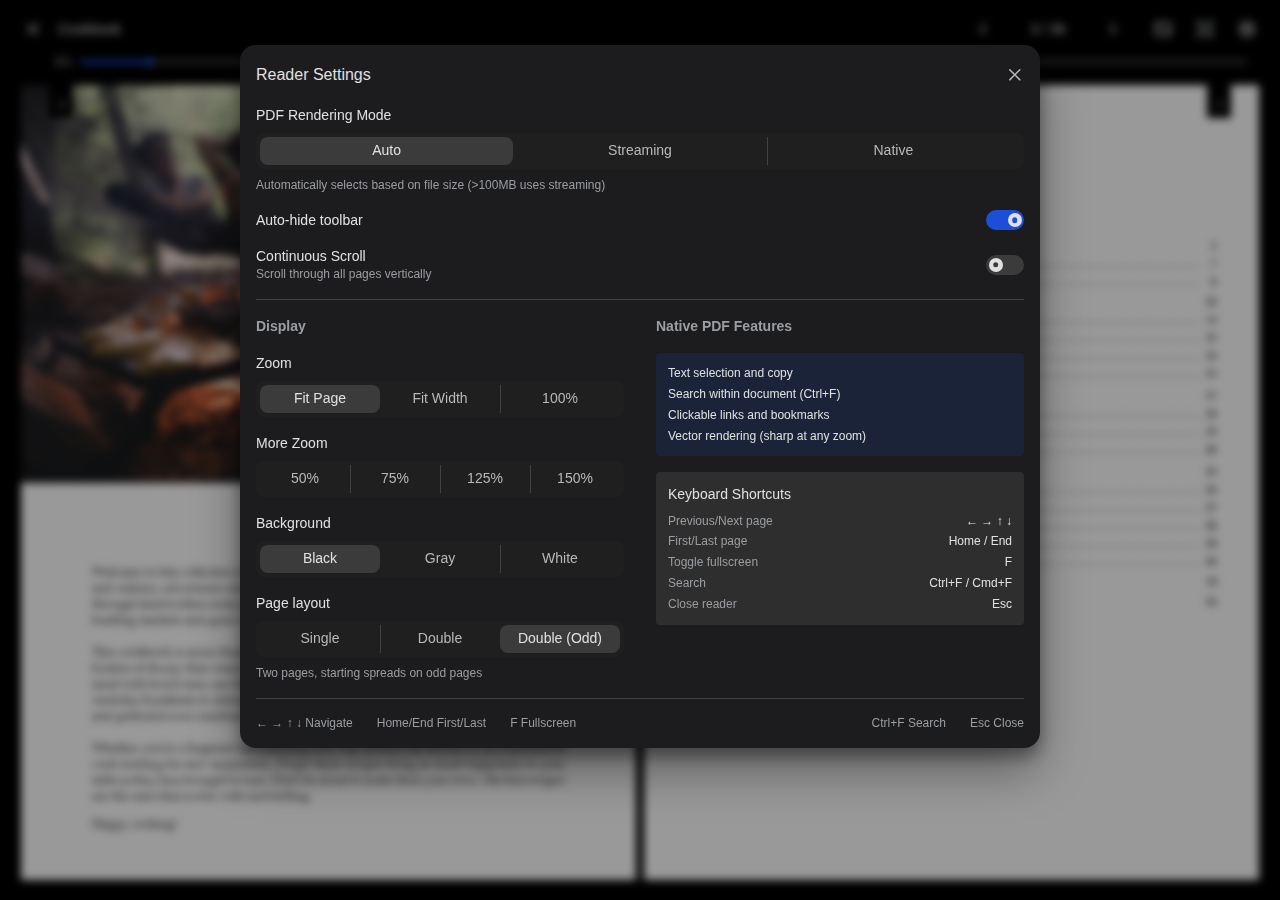
A native PDF reader with zoom controls and page spread options.


PDF Settings
Configure zoom levels and page spread modes.
Mobile & PWA
Codex is a progressive web app: install it to your home screen for a full-screen experience and offline reading. The xs-breakpoint layout collapses the sidebar into a drawer, surfaces a full-screen search sheet, and reflows toolbars and admin tables for one-handed use. See the Offline Reading guide for the download model and storage caveats.
| Home dashboard at iPhone width | Series list at iPhone width |
|---|---|
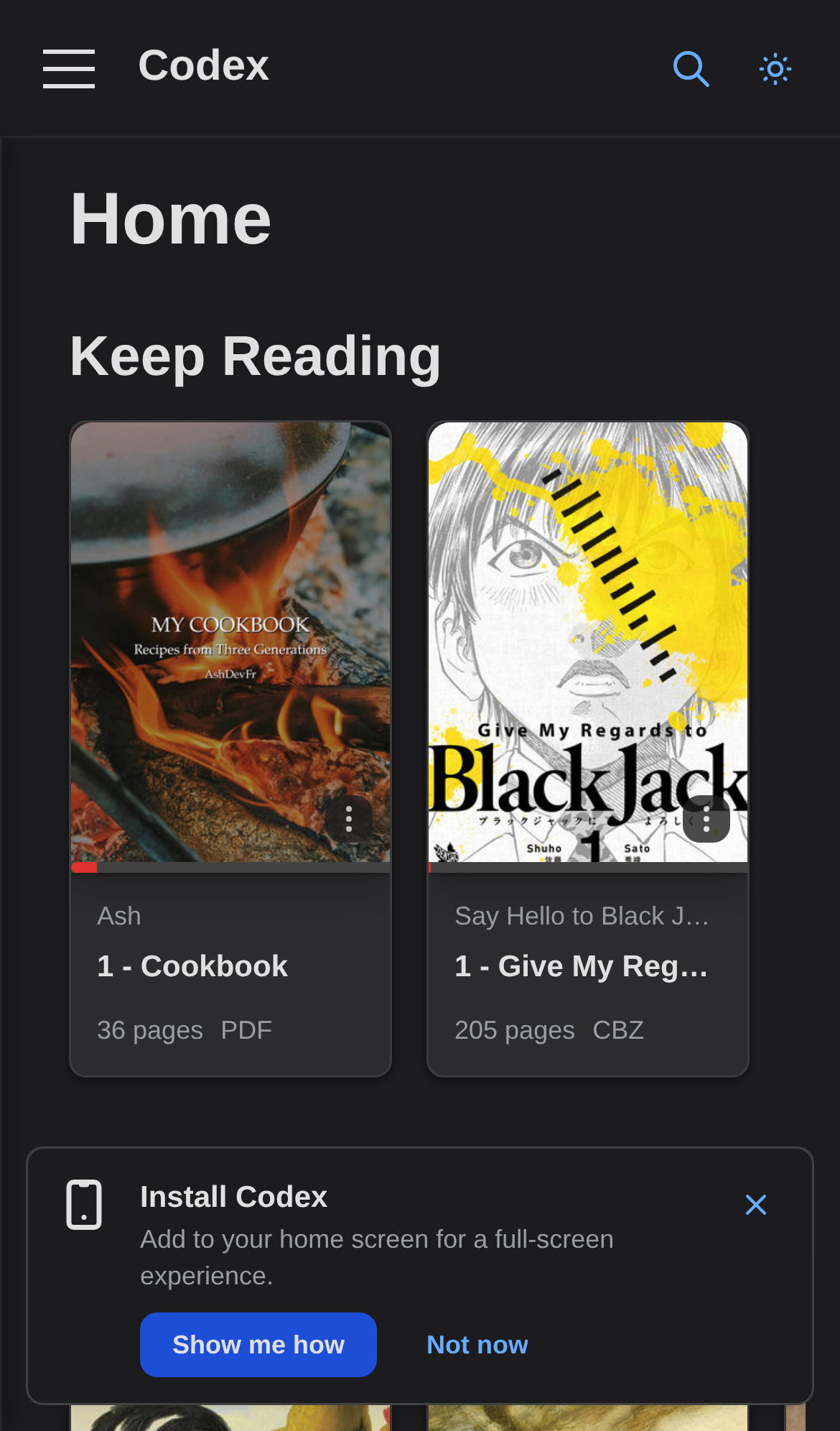 | 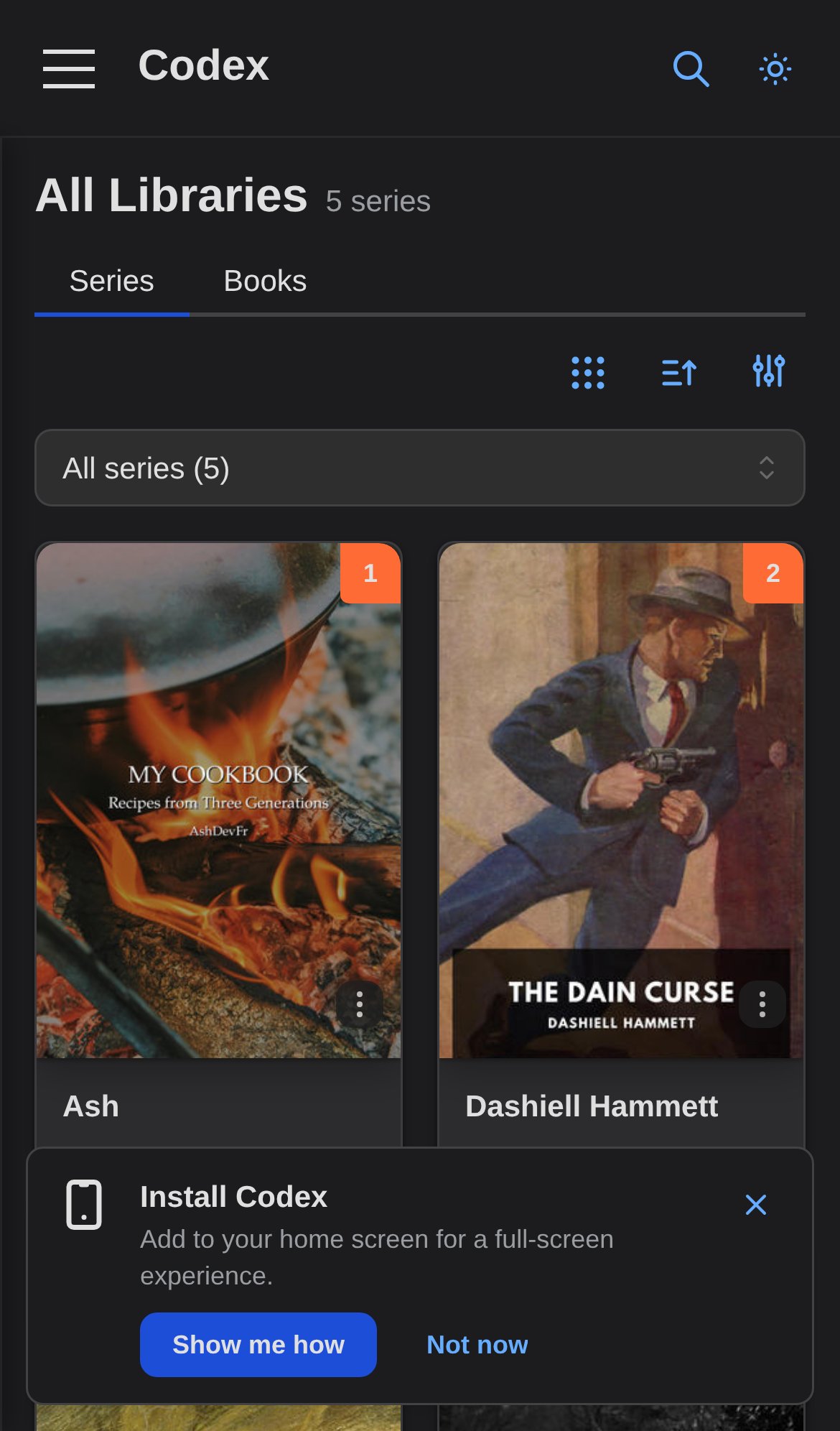 |
The Install Codex prompt nudges first-time iOS Safari visitors toward "Add to Home Screen", which is required for durable offline storage on iOS.
Settings & Administration
System
Server
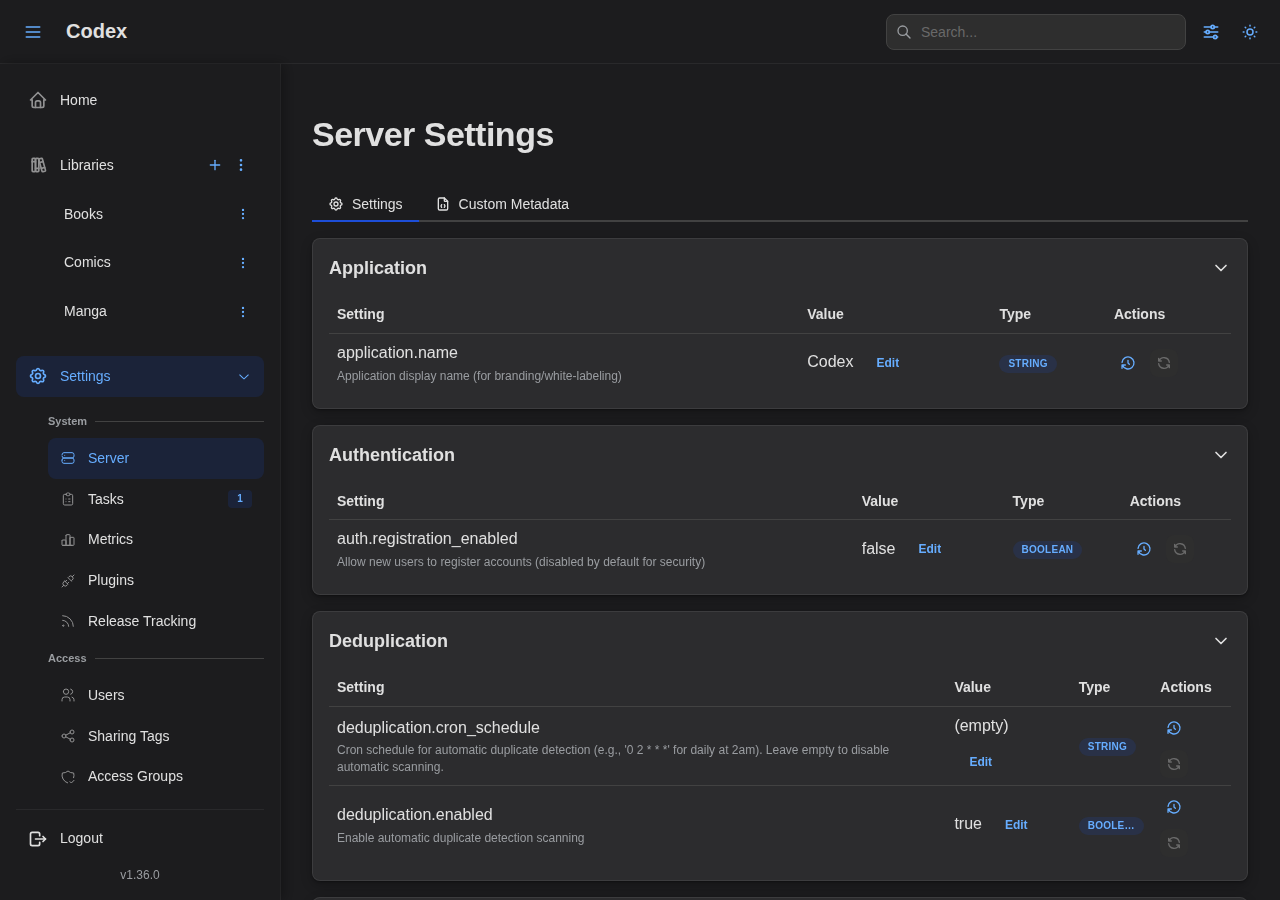
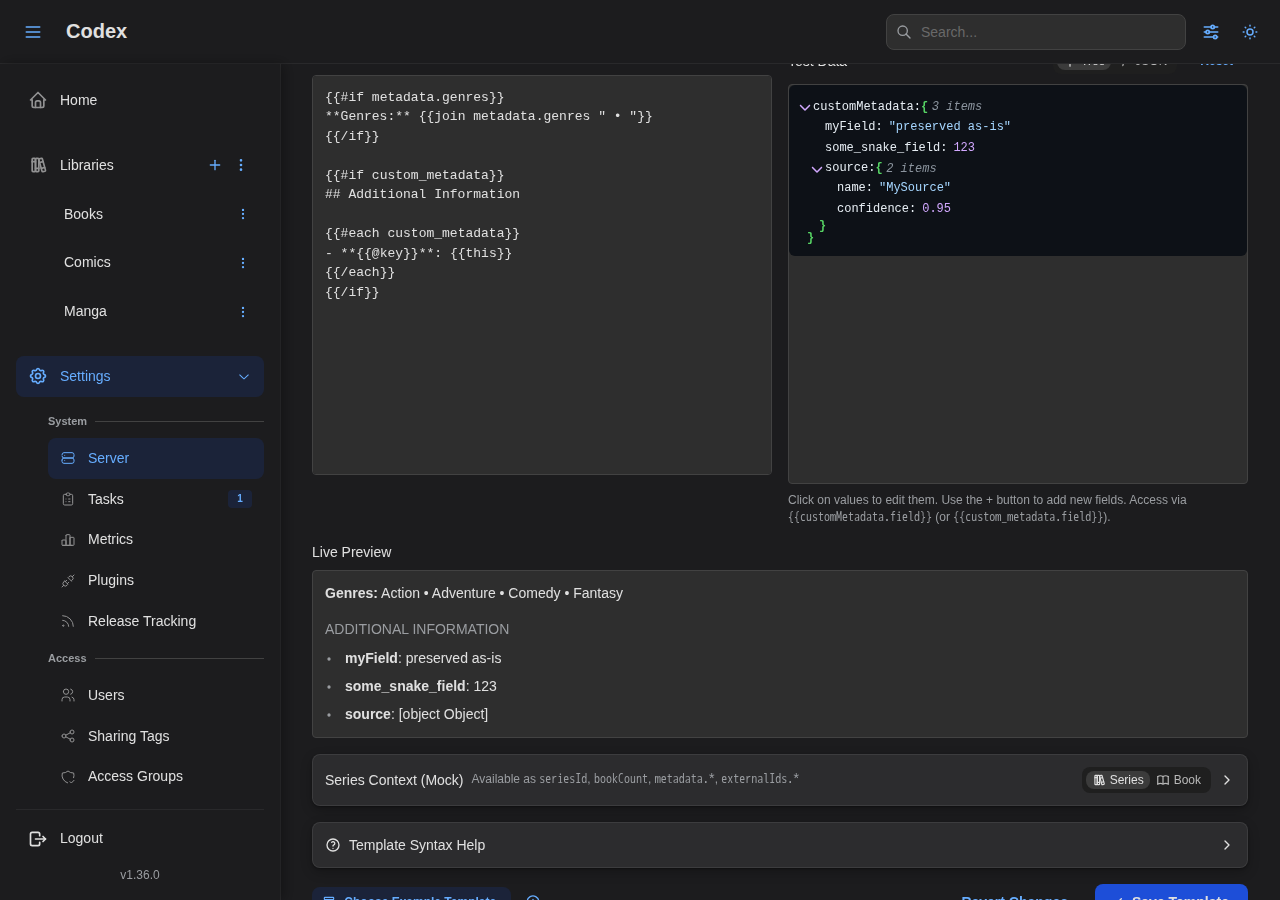
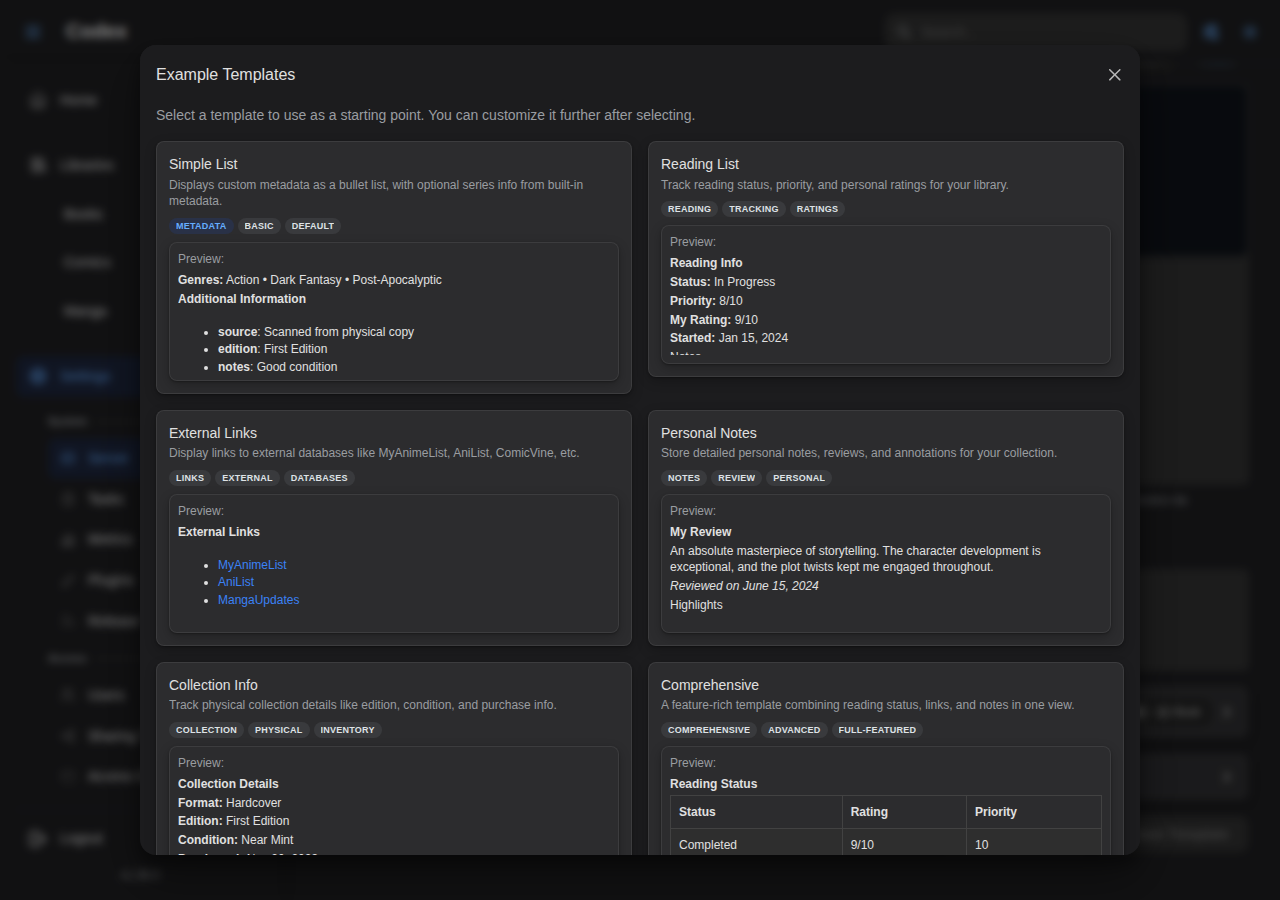
Configure server-wide options and custom metadata templates.
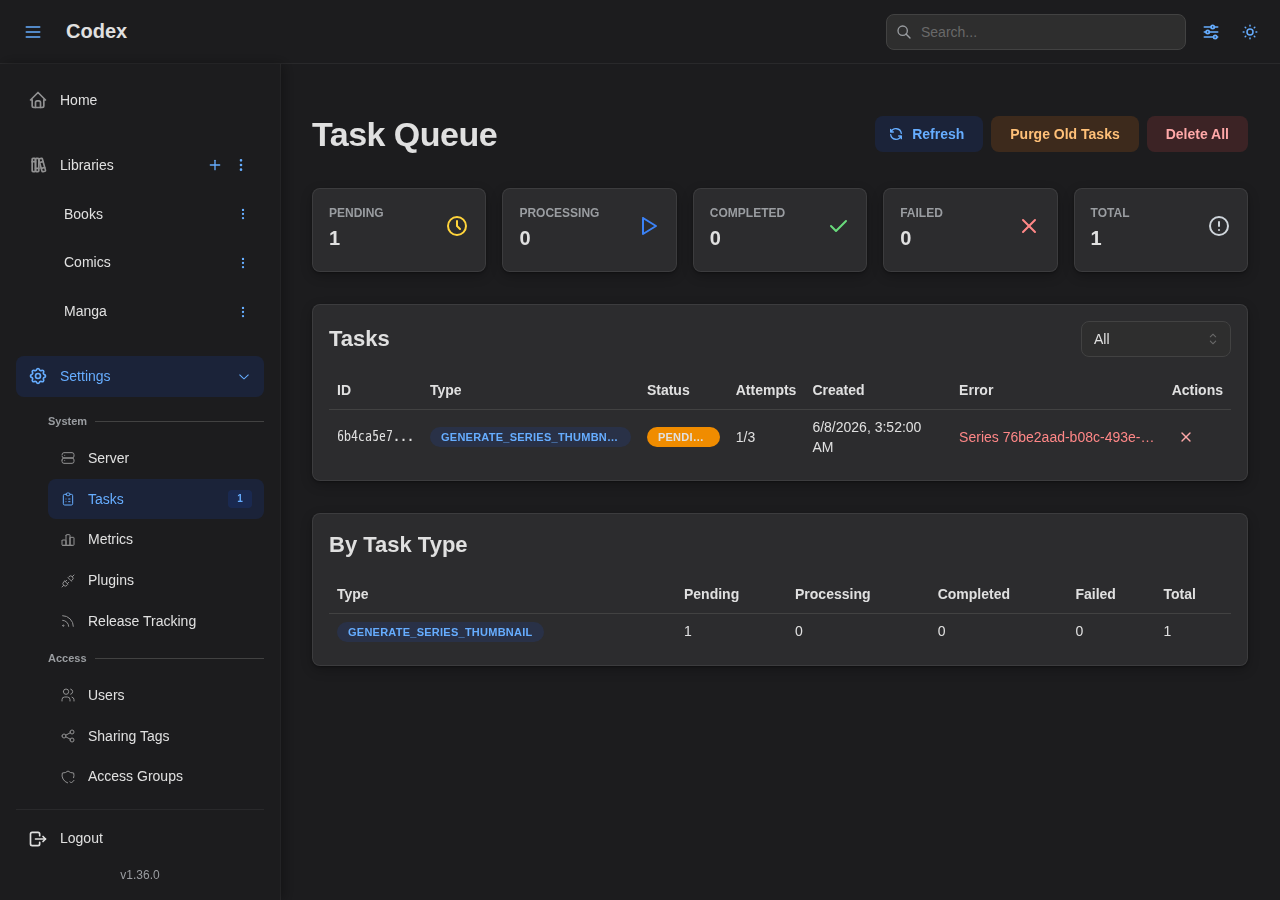
Tasks
Monitor and manage background tasks like scanning and thumbnail generation.
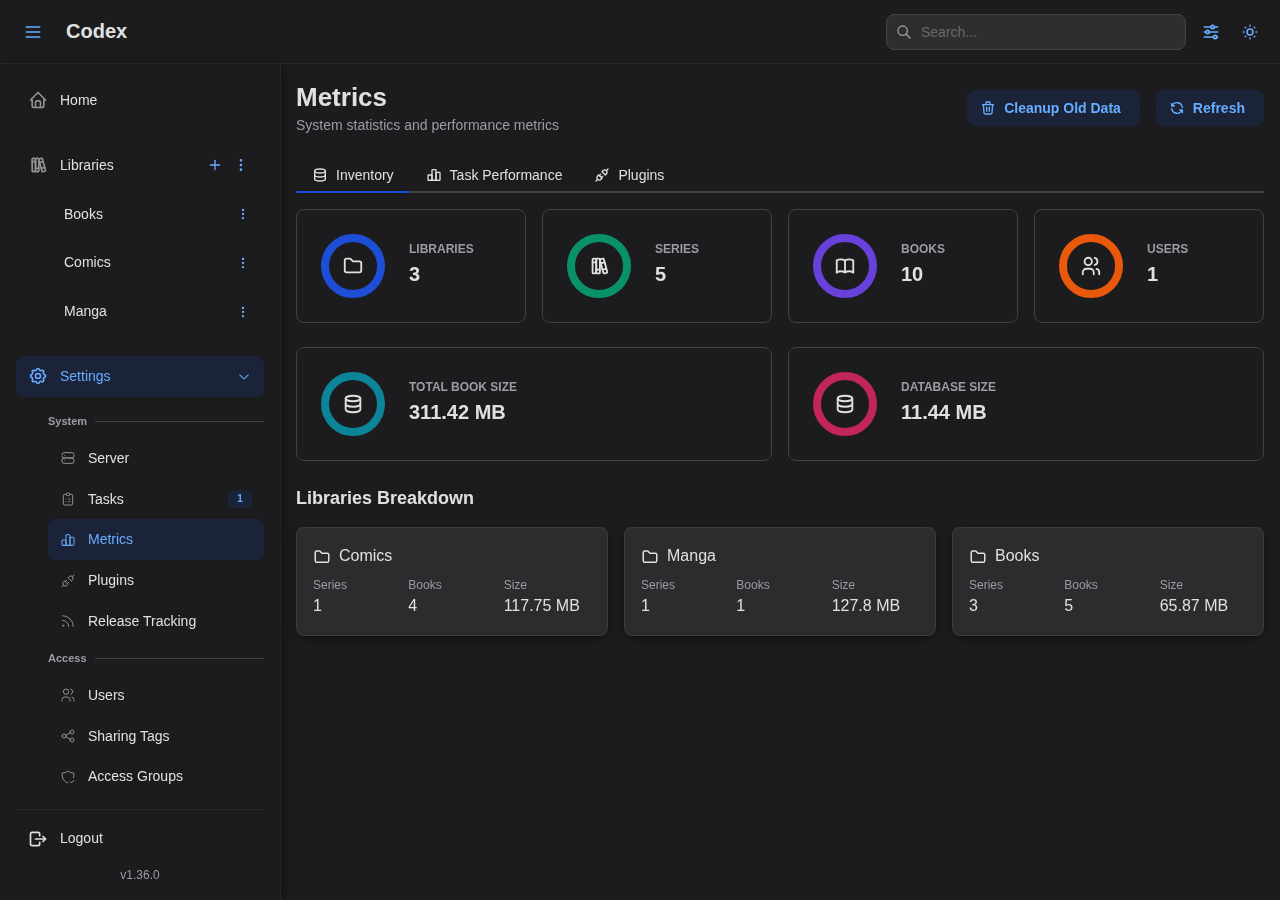
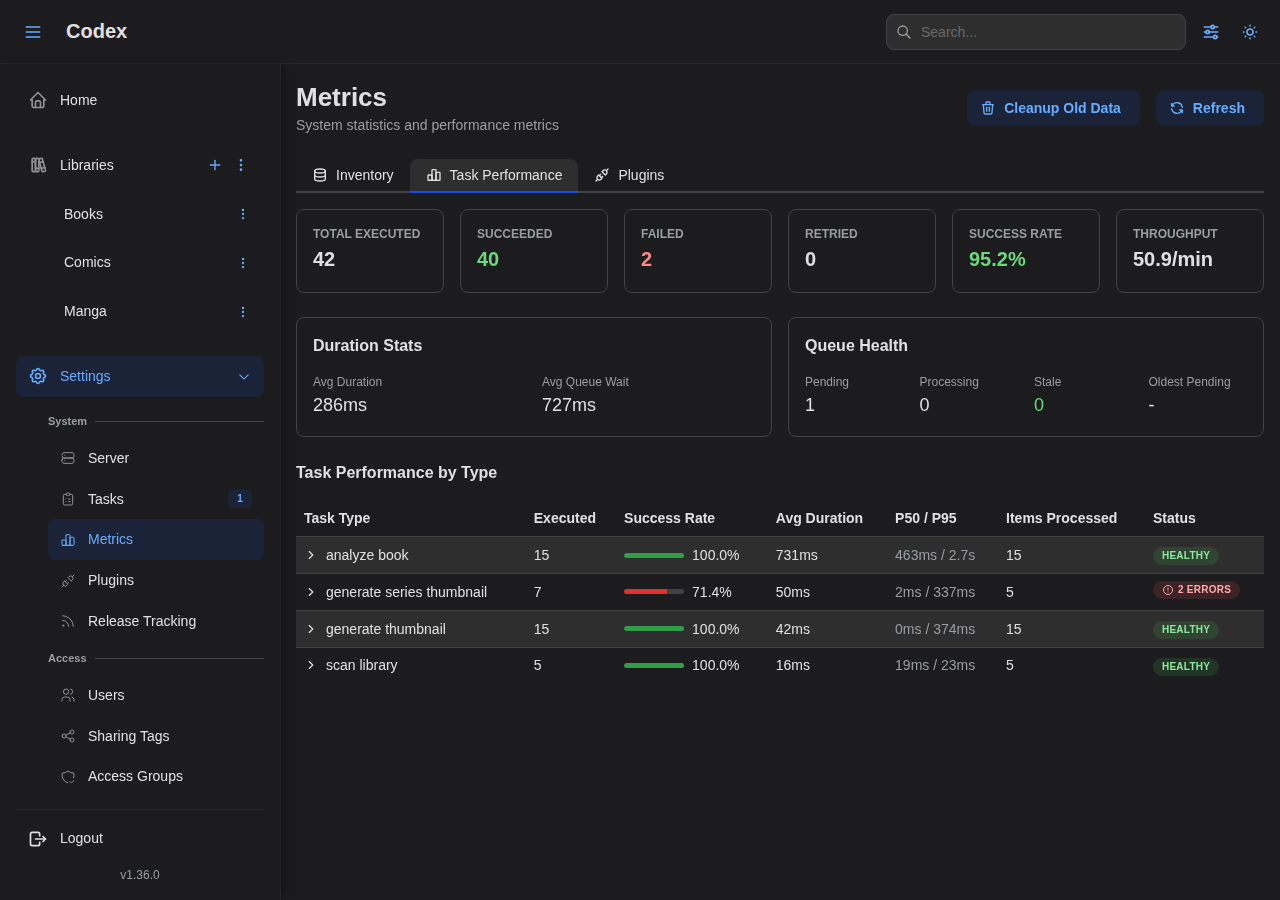
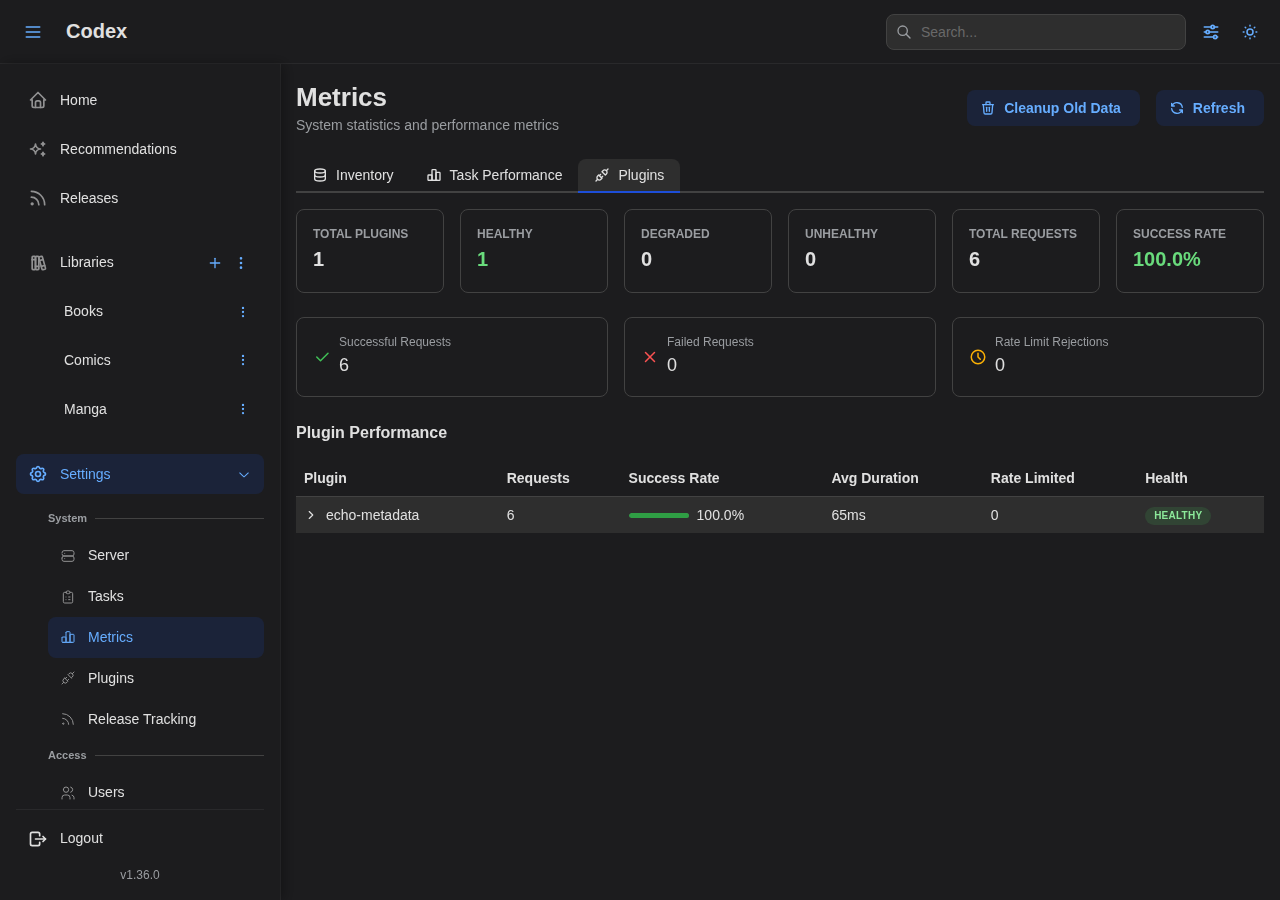
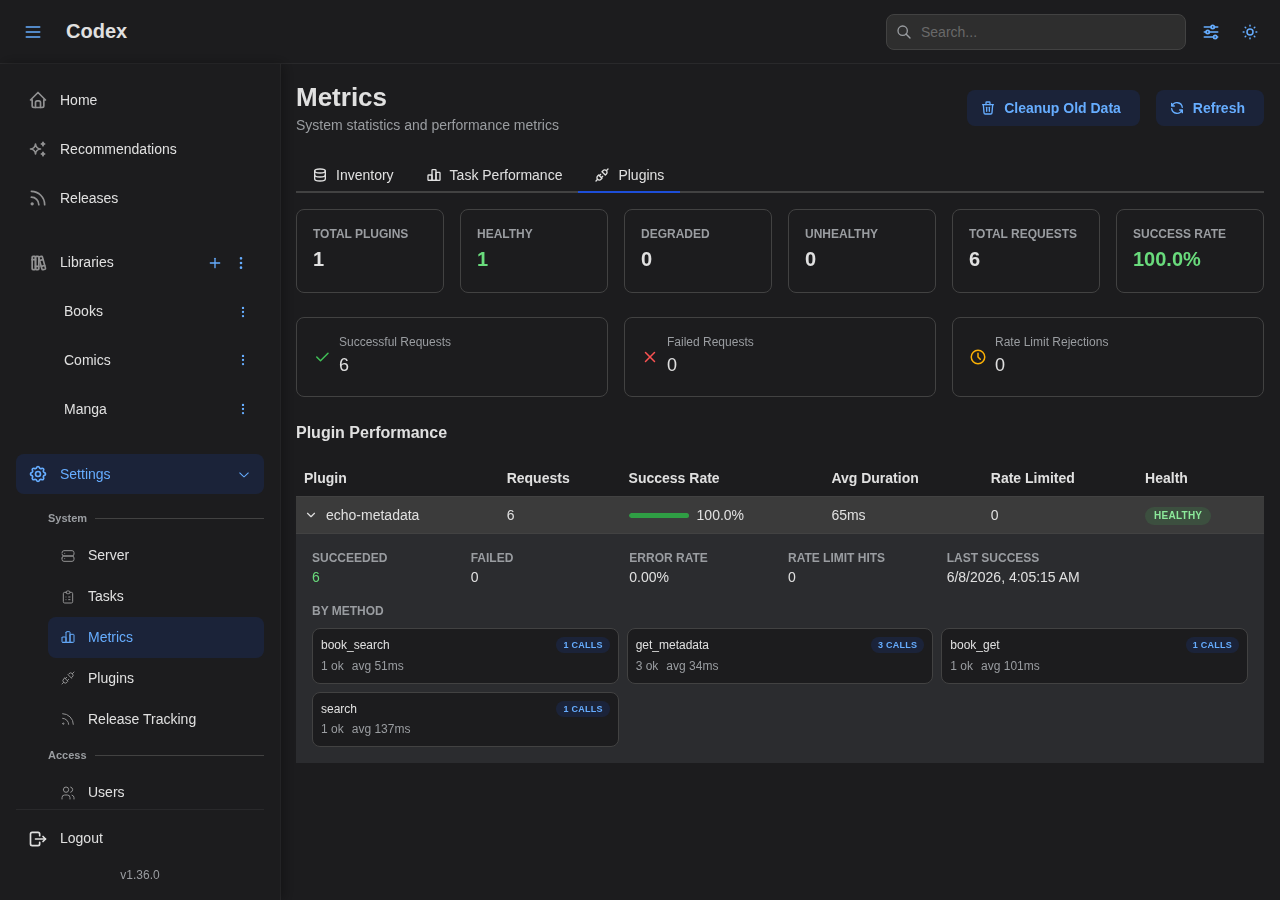
Metrics
View statistics about your library contents and monitor performance.
Plugins
See the Plugins section below for the full plugin showcase.
Access
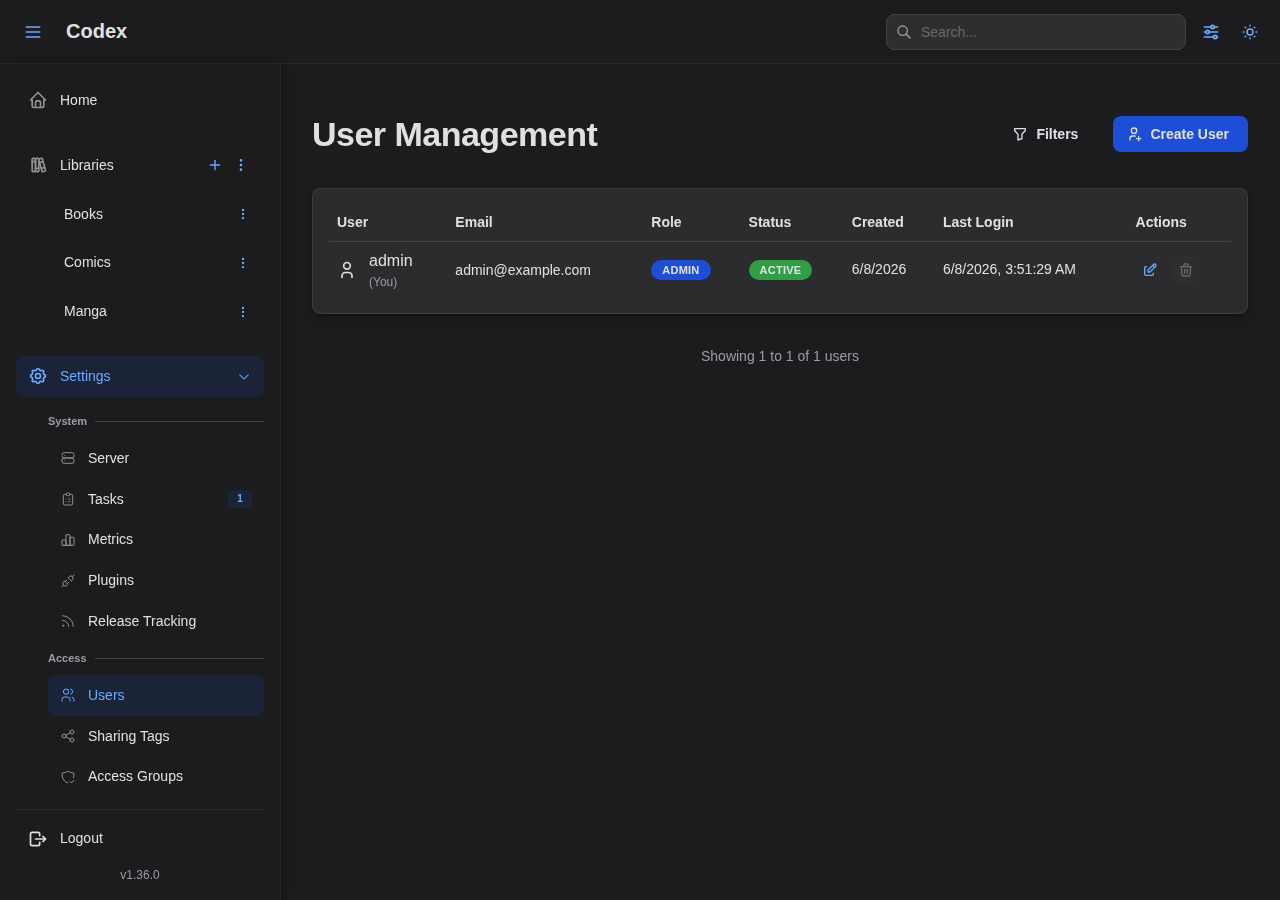
Users
Manage users and their permissions.
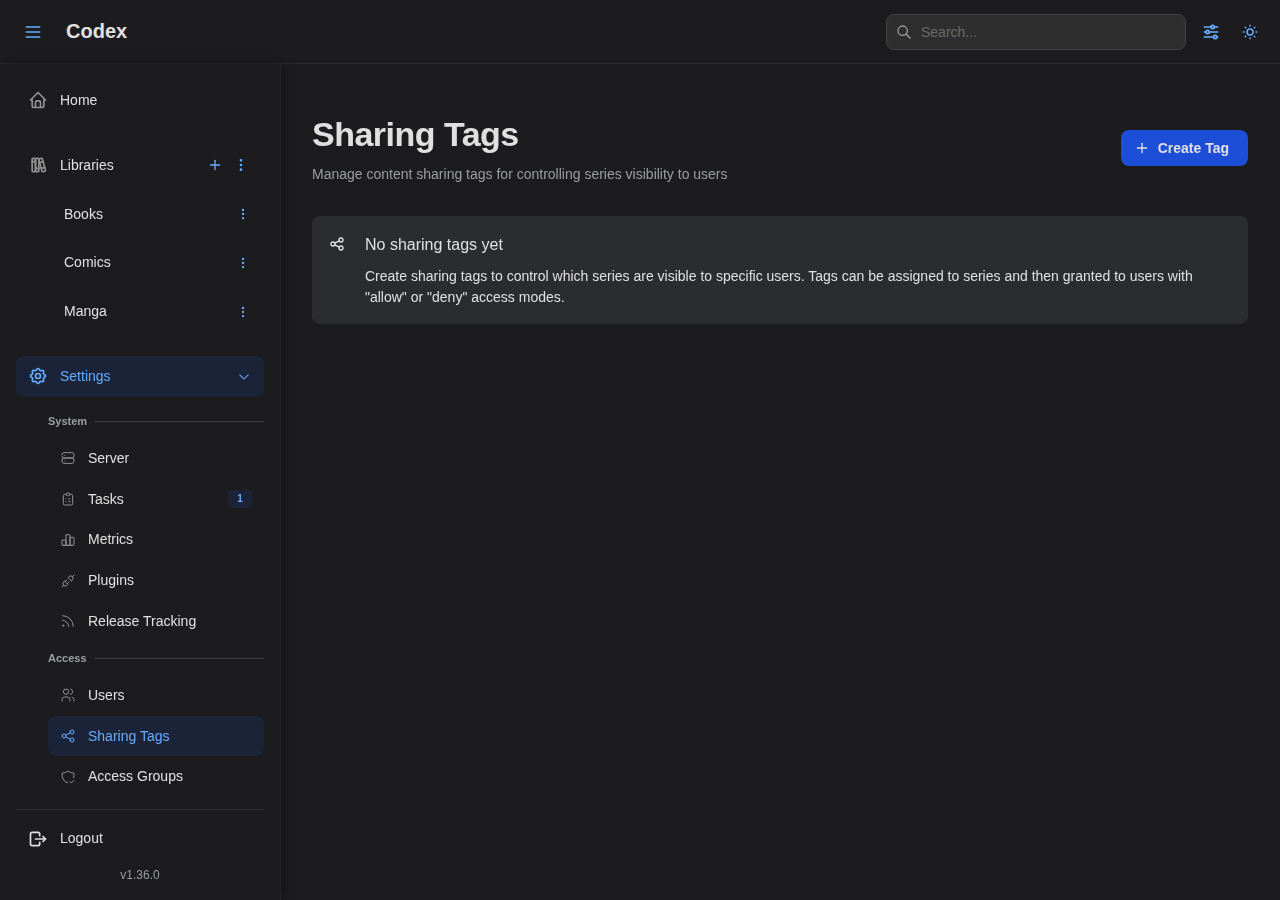
Sharing Tags
Configure sharing tags for library access control.
Library Health
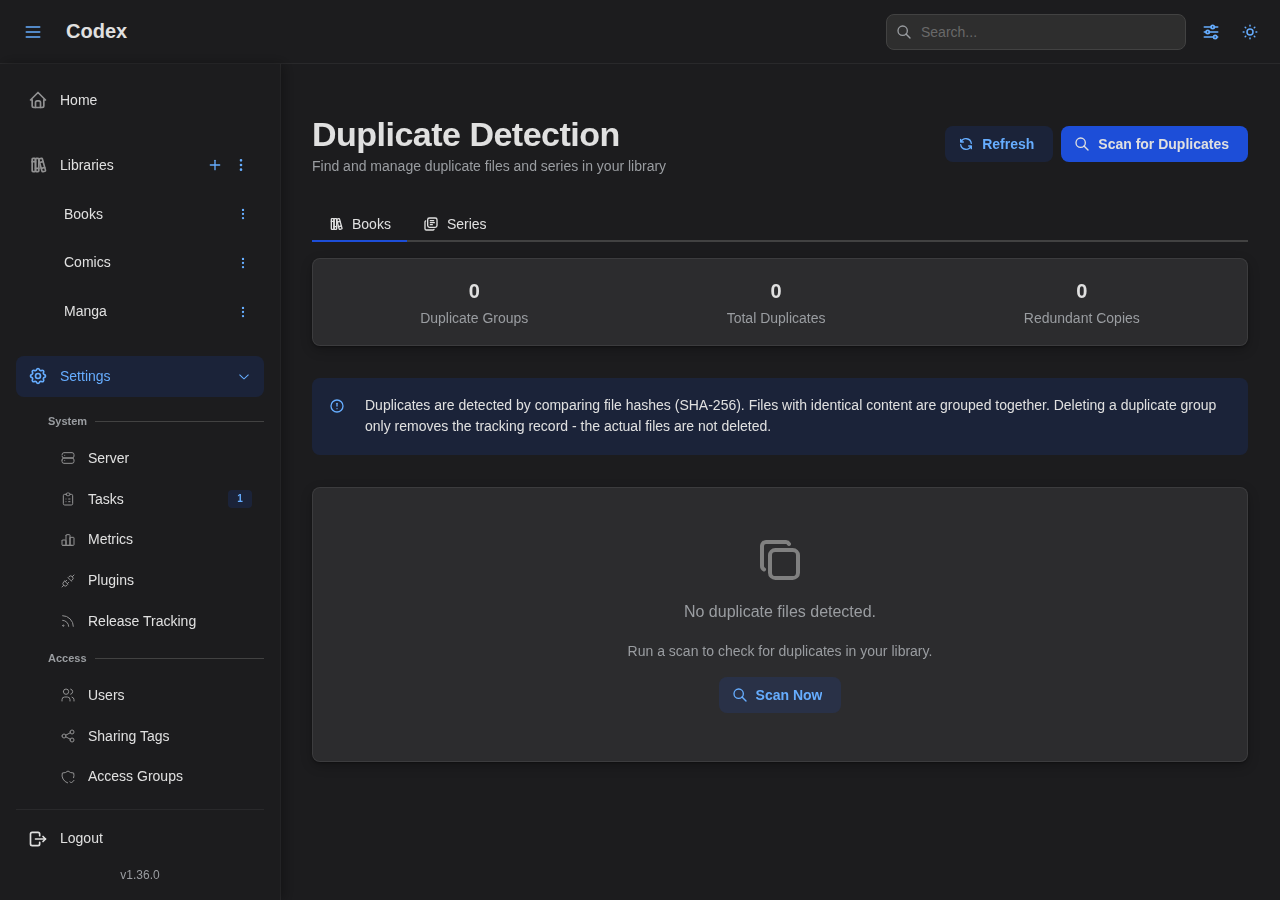
Duplicates
Find and manage duplicate files across your libraries.
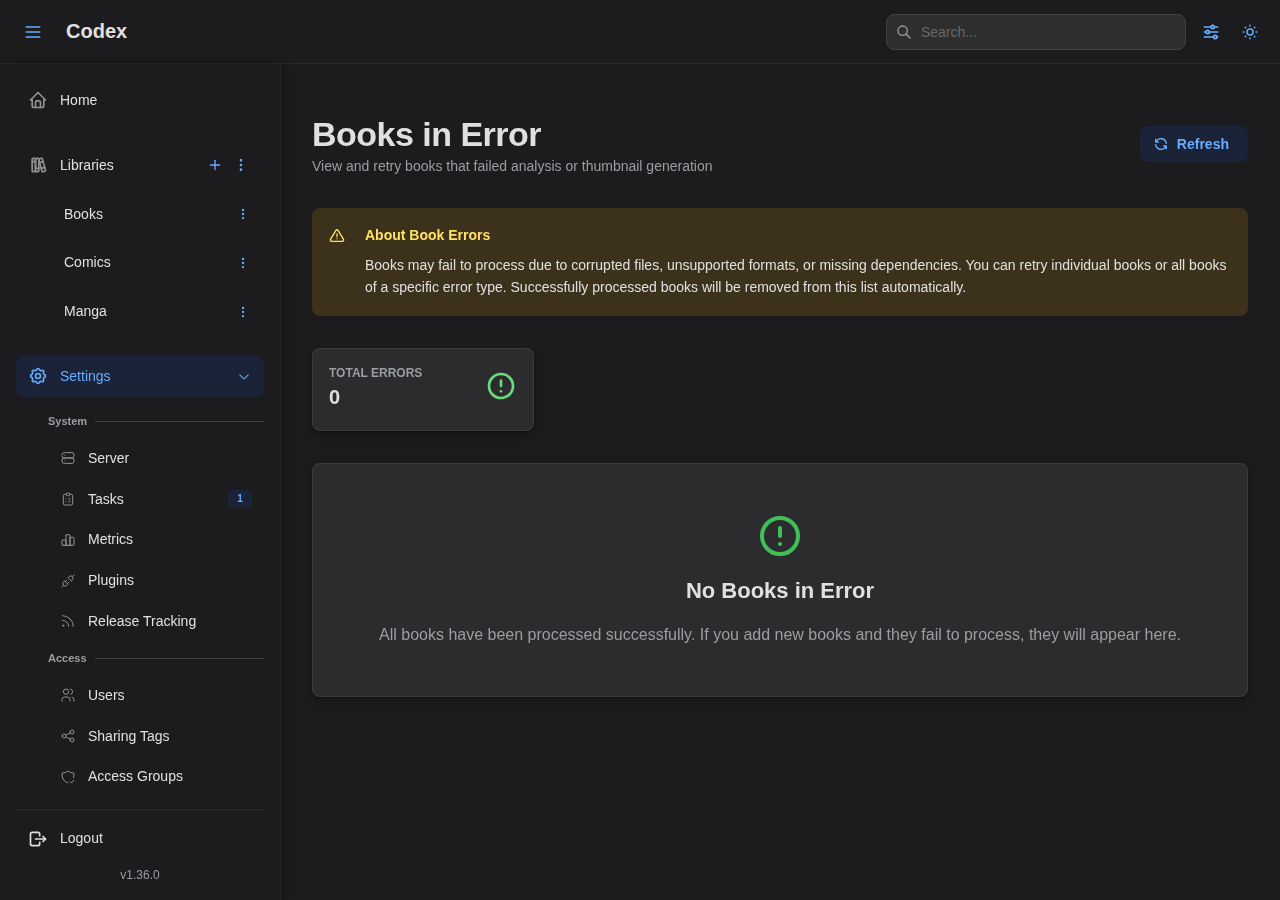
Book Errors
View and manage books with parsing or processing errors.
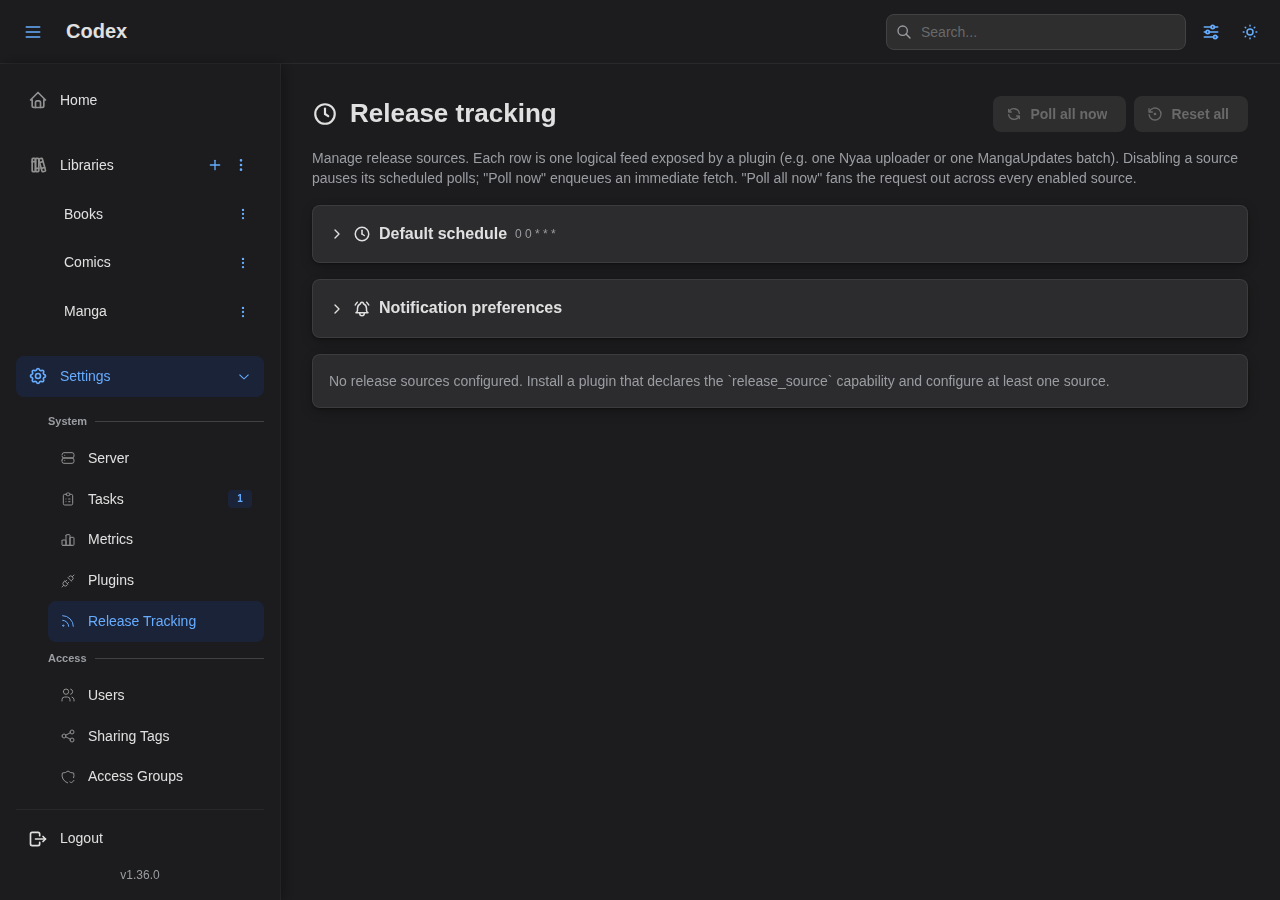
Release Tracking
Configure external sources that announce new chapter and volume releases for tracked series. See the Release tracking guide for the full walkthrough.
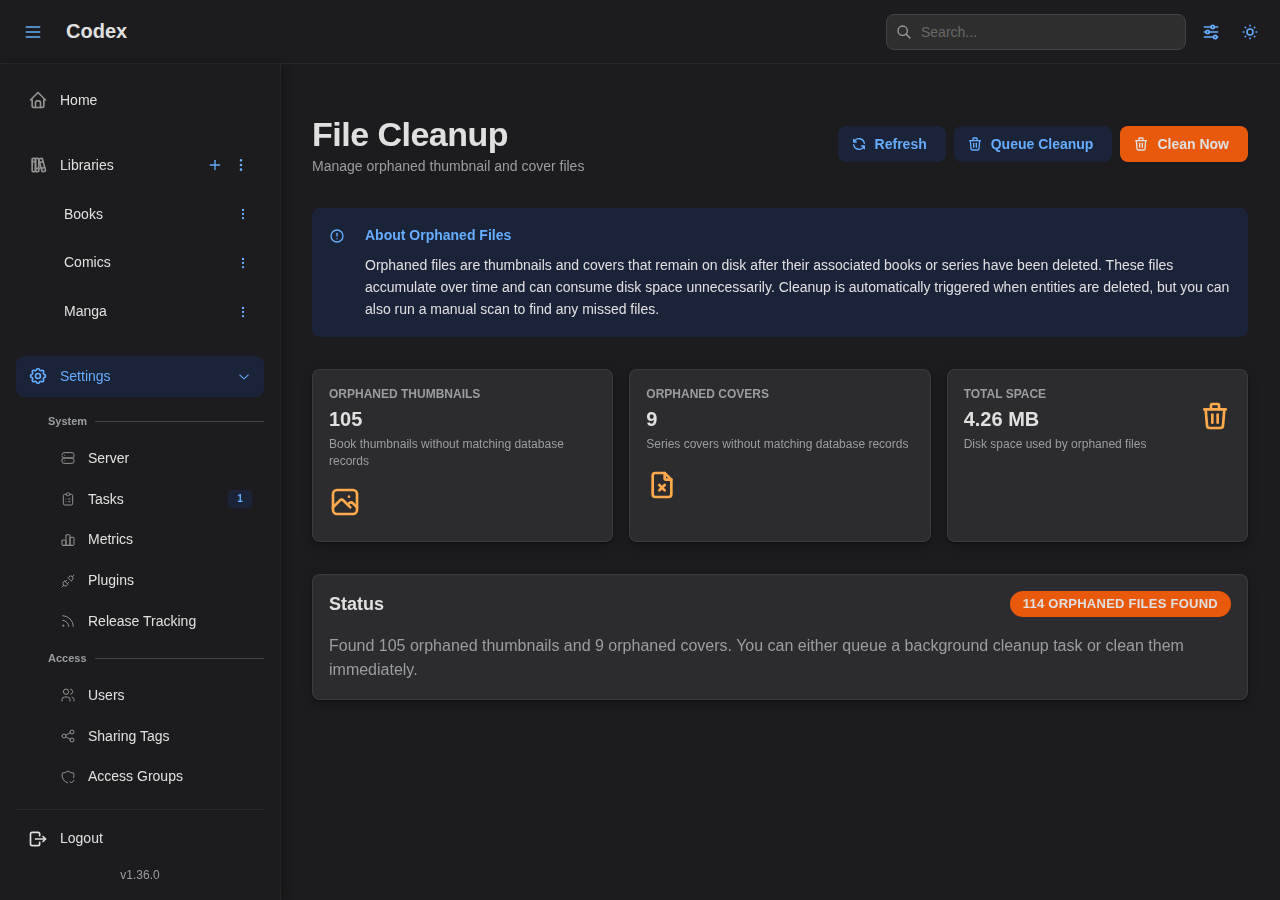
Storage
Thumbnails
Clean up orphaned thumbnail files and database entries.
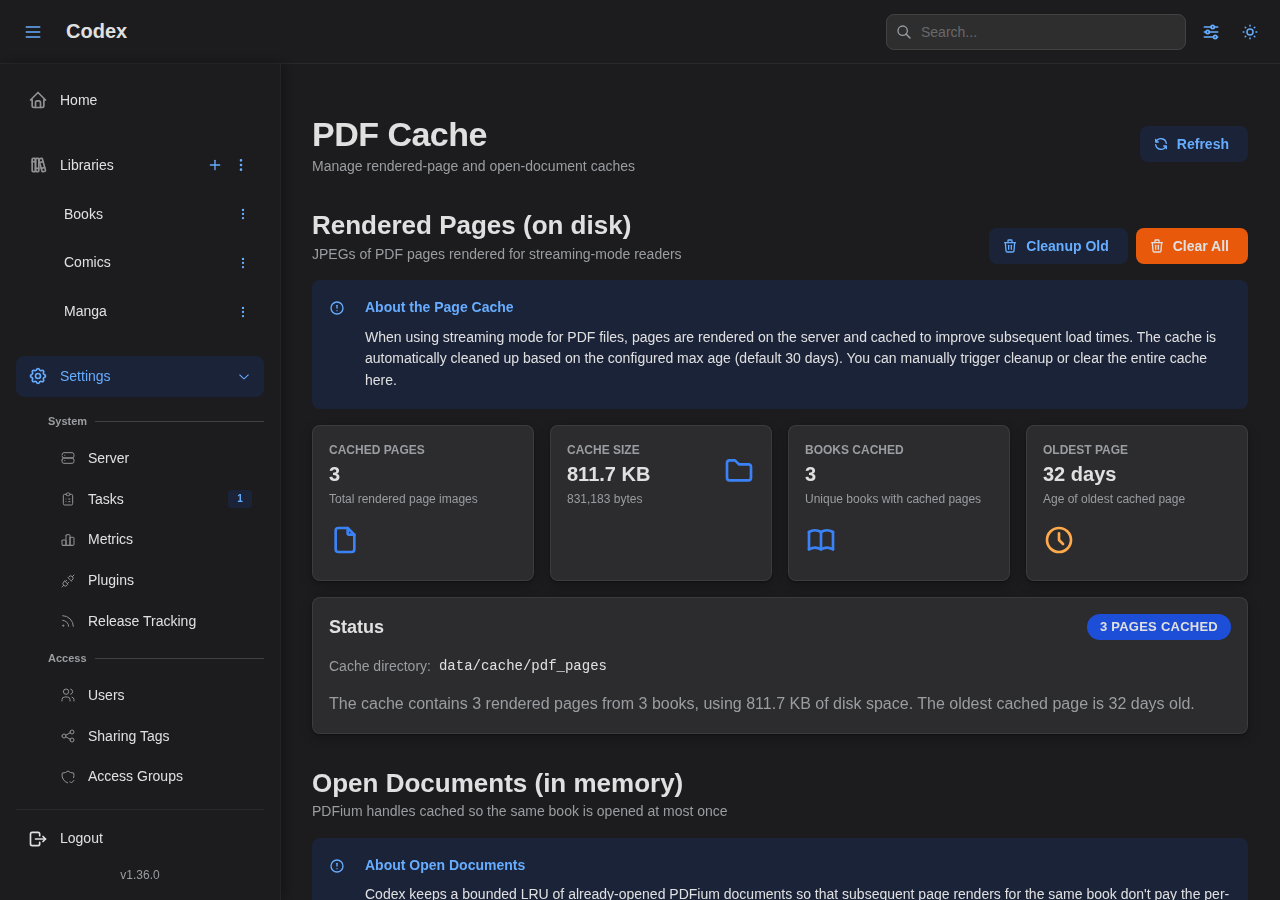
Page Cache
Manage the PDF rendering cache.
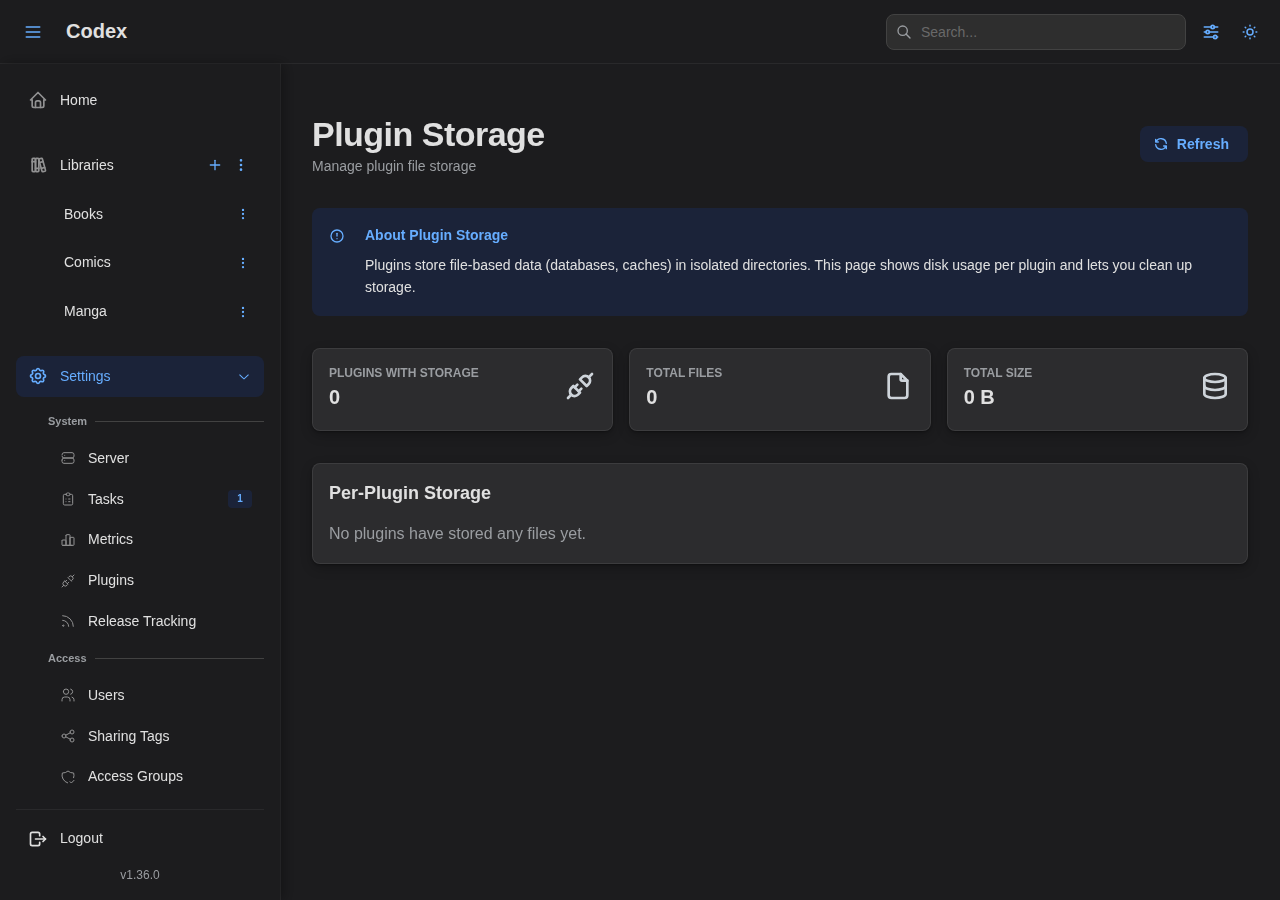
Plugin Storage
Inspect and reclaim disk space used by plugin file storage.
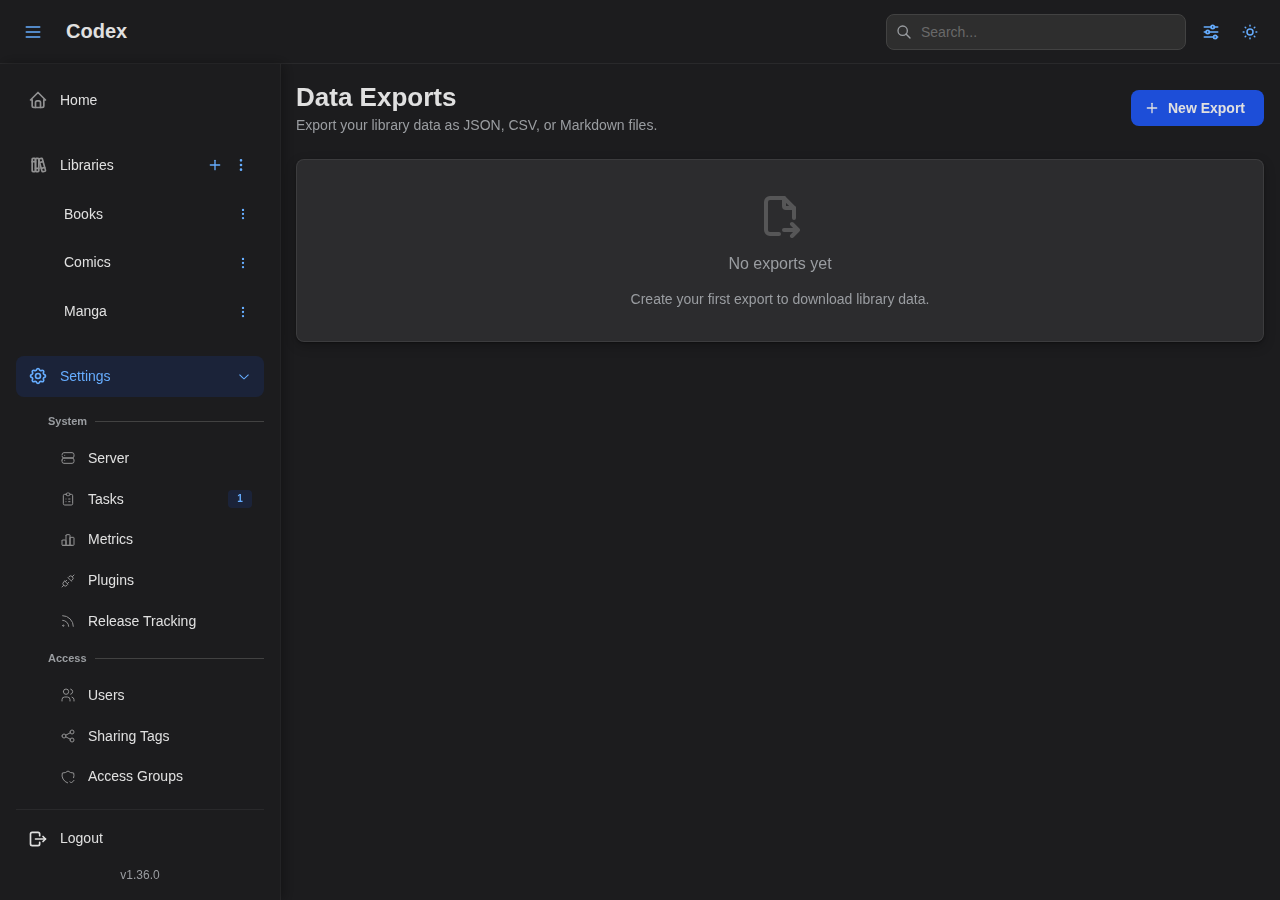
Data Exports
Export your library catalog as JSON, CSV, or Markdown. See the Data Exports guide for details.
Account
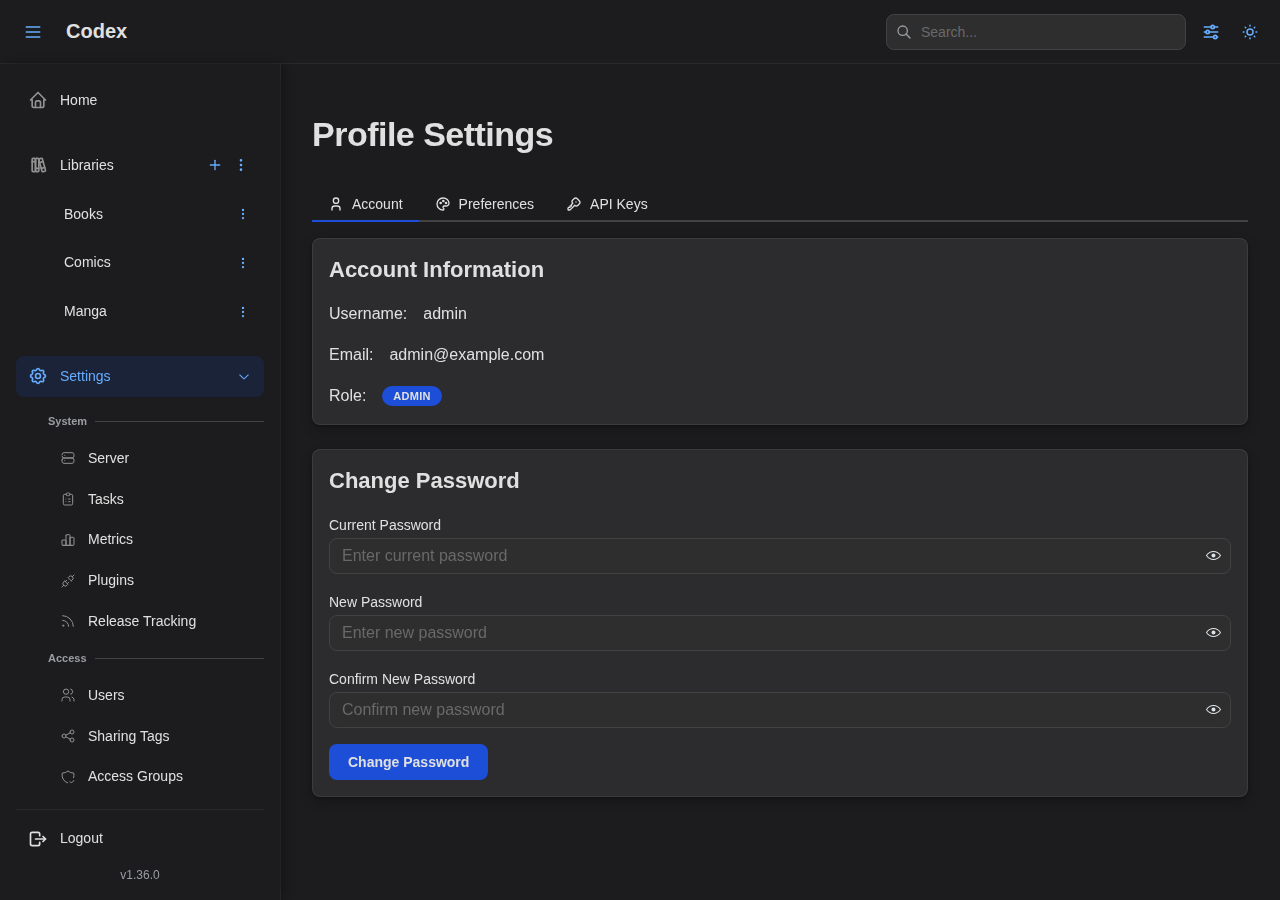
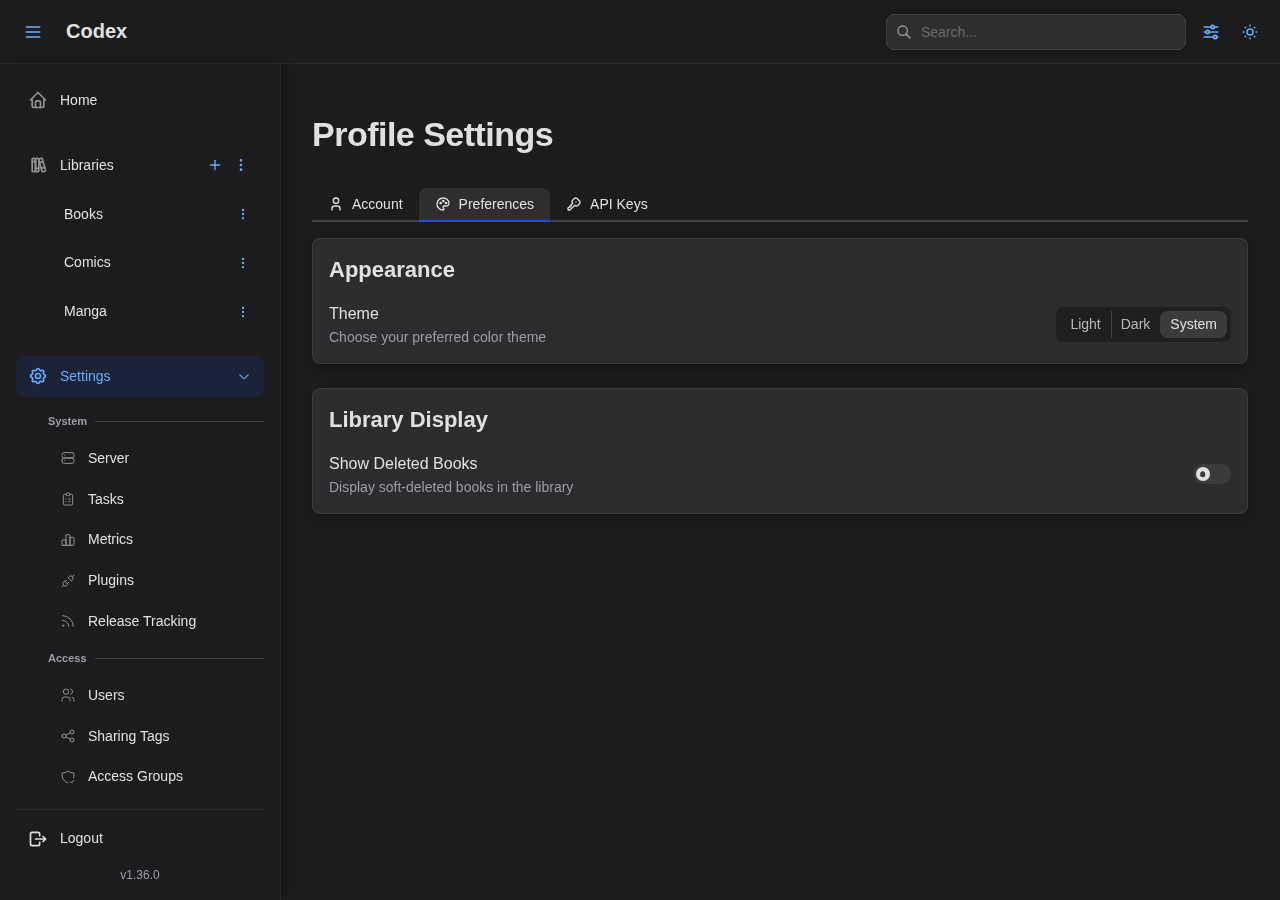
Profile
Manage your account details and preferences.
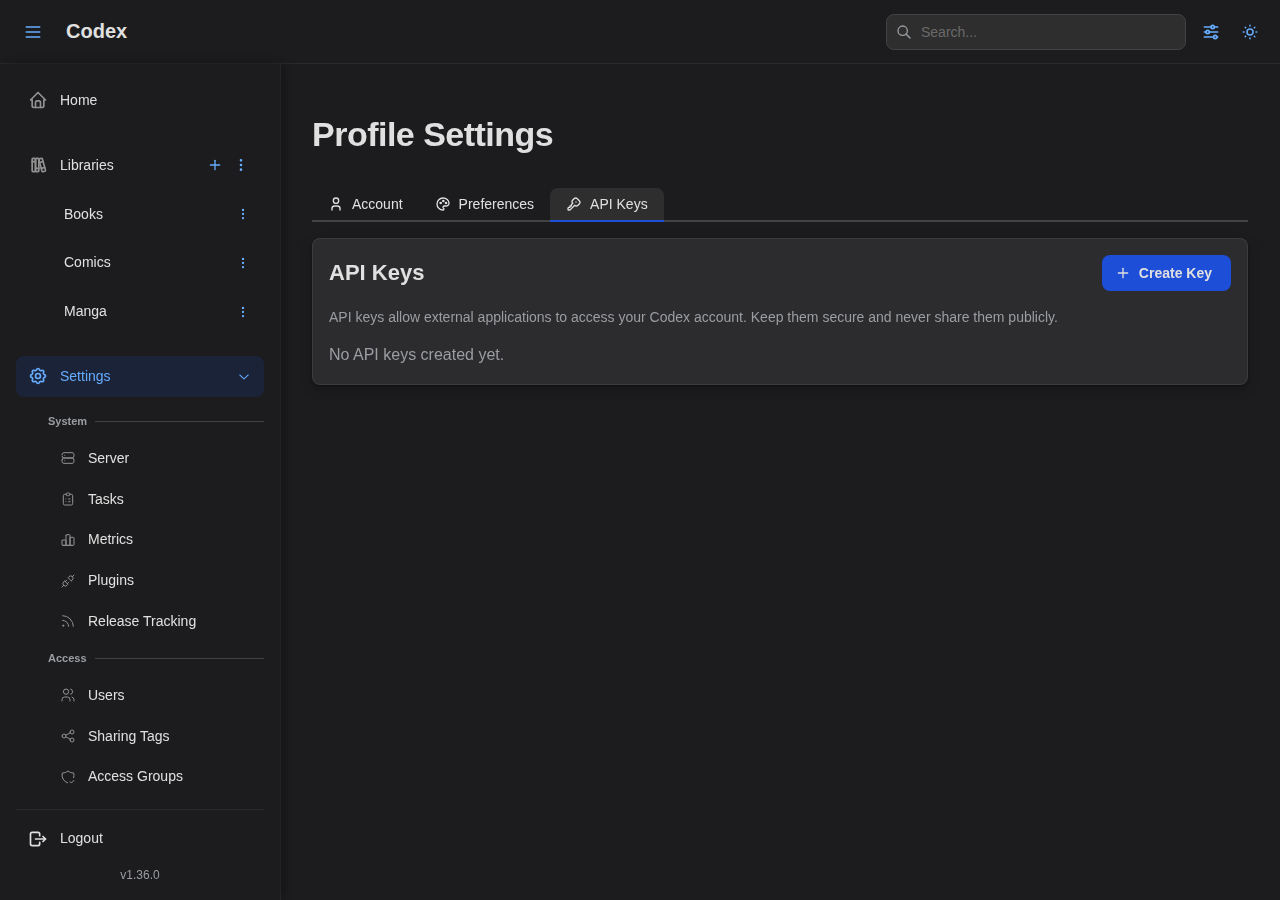
API Keys
Generate and manage API keys for integrations.
Integrations
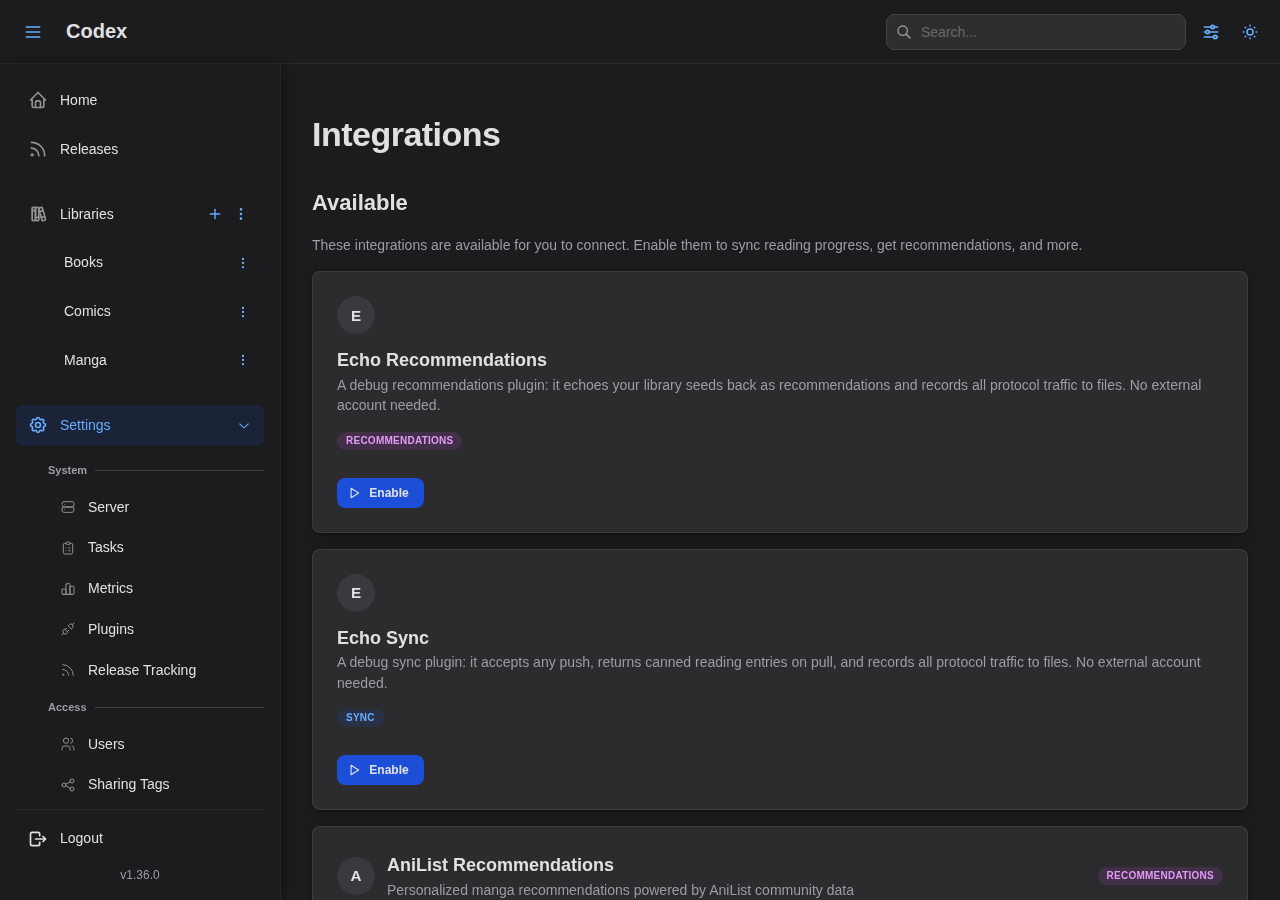
Users connect plugin integrations (sync, recommendations) from this page.
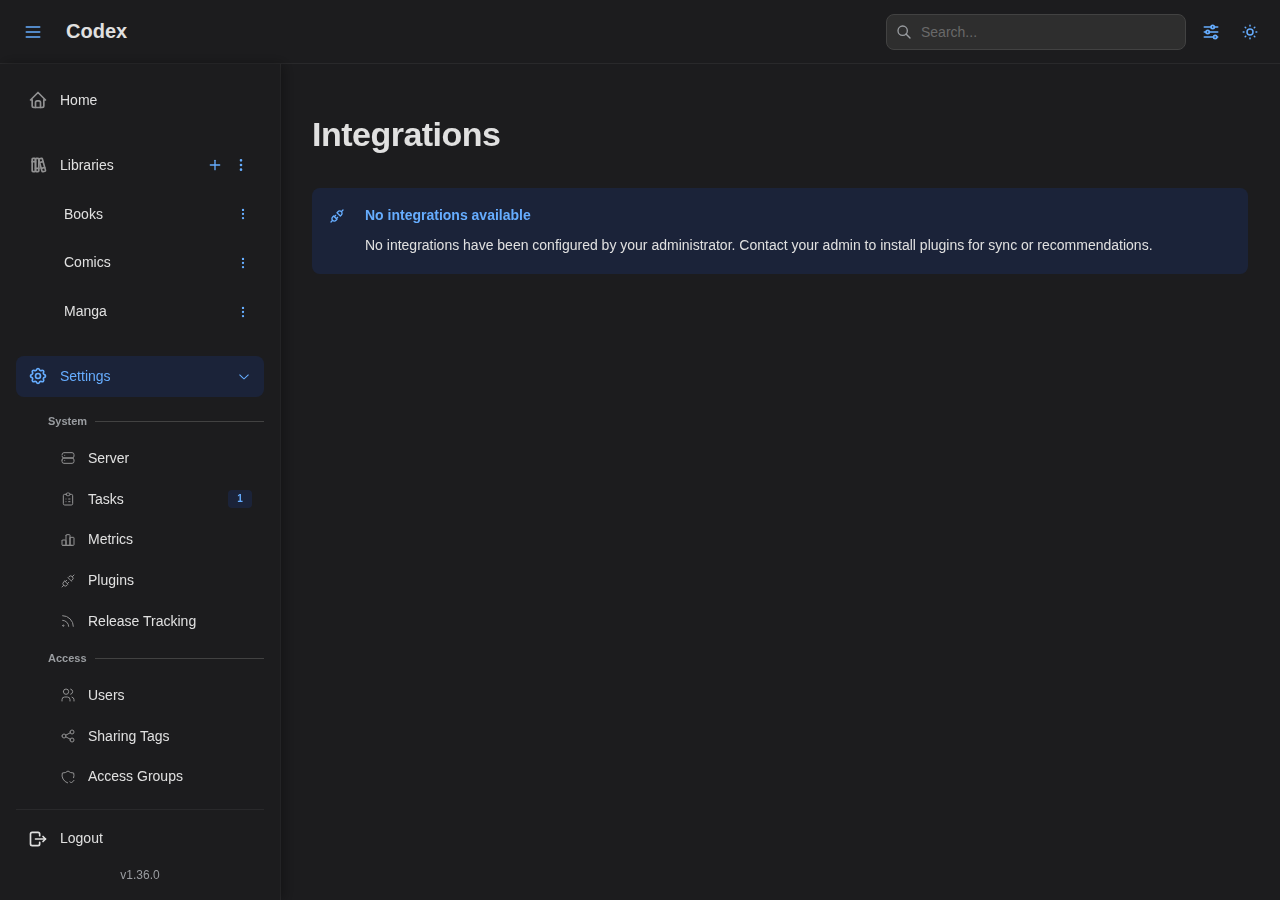
See the User Integrations section under Plugins below for the full flow.
Plugins
Codex supports extensible plugins for metadata enrichment, reading progress sync, and personalized recommendations. Plugins are managed by admins and connected by users.
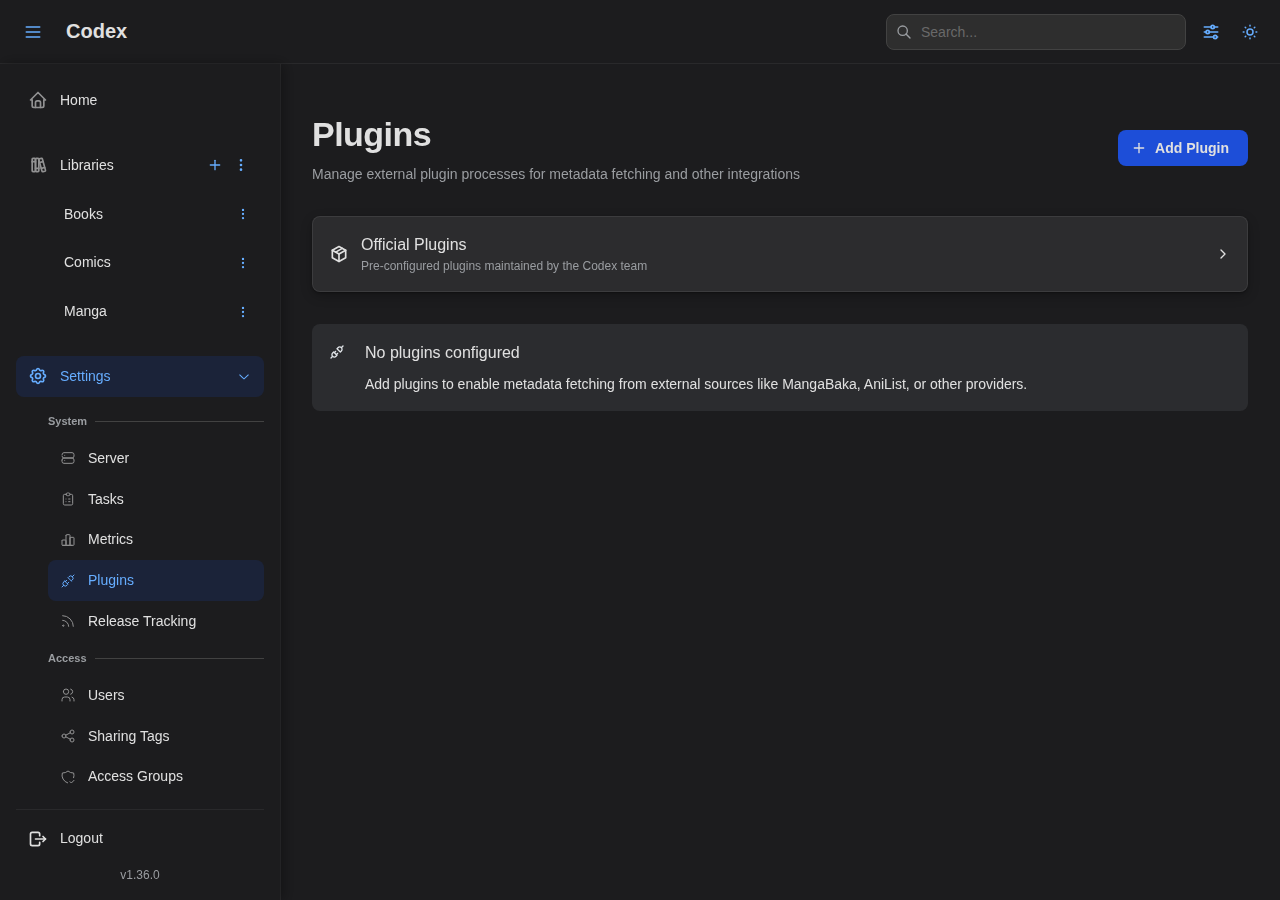
Plugin Management
The plugins page in Settings lets admins manage installed plugins.
Official Plugin Store
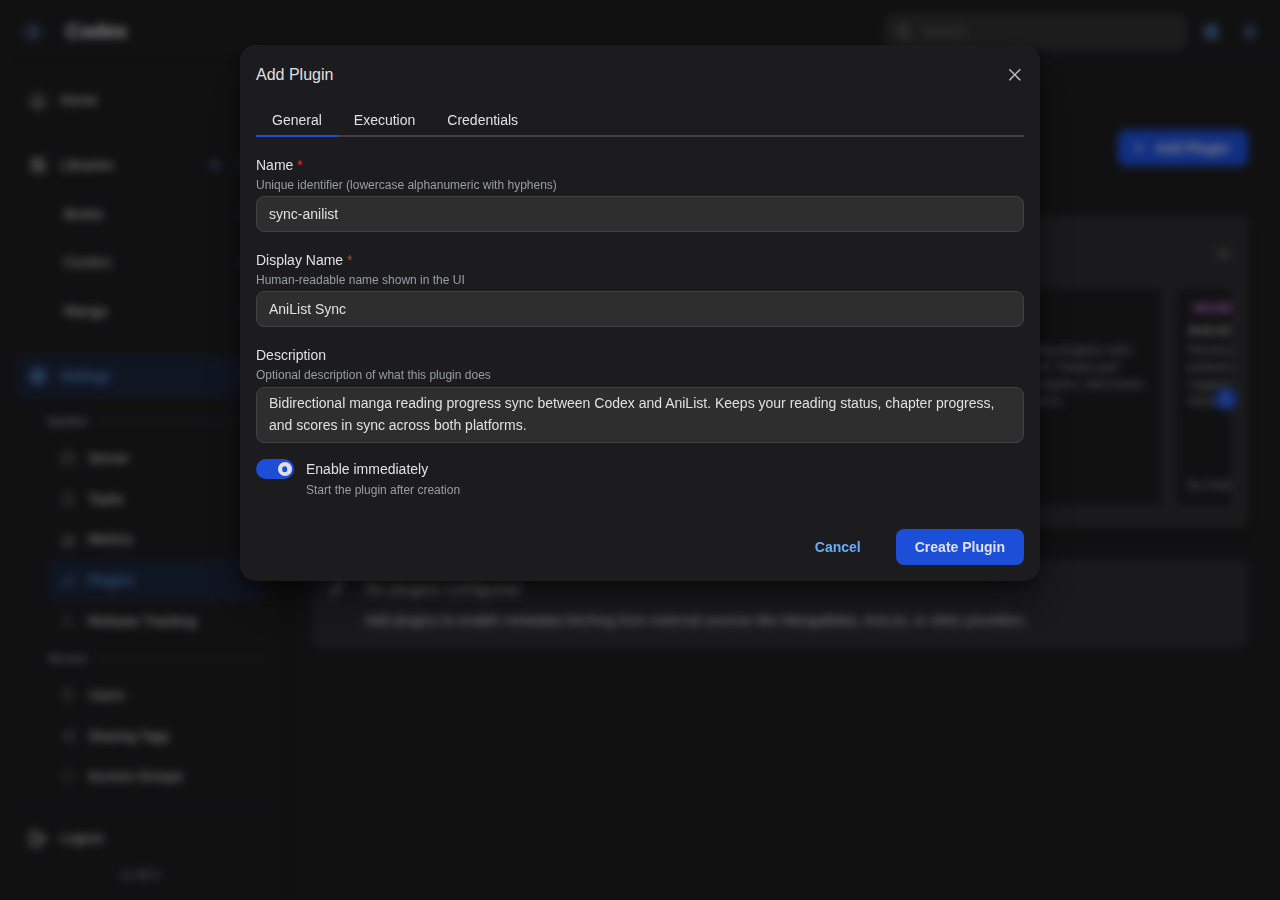
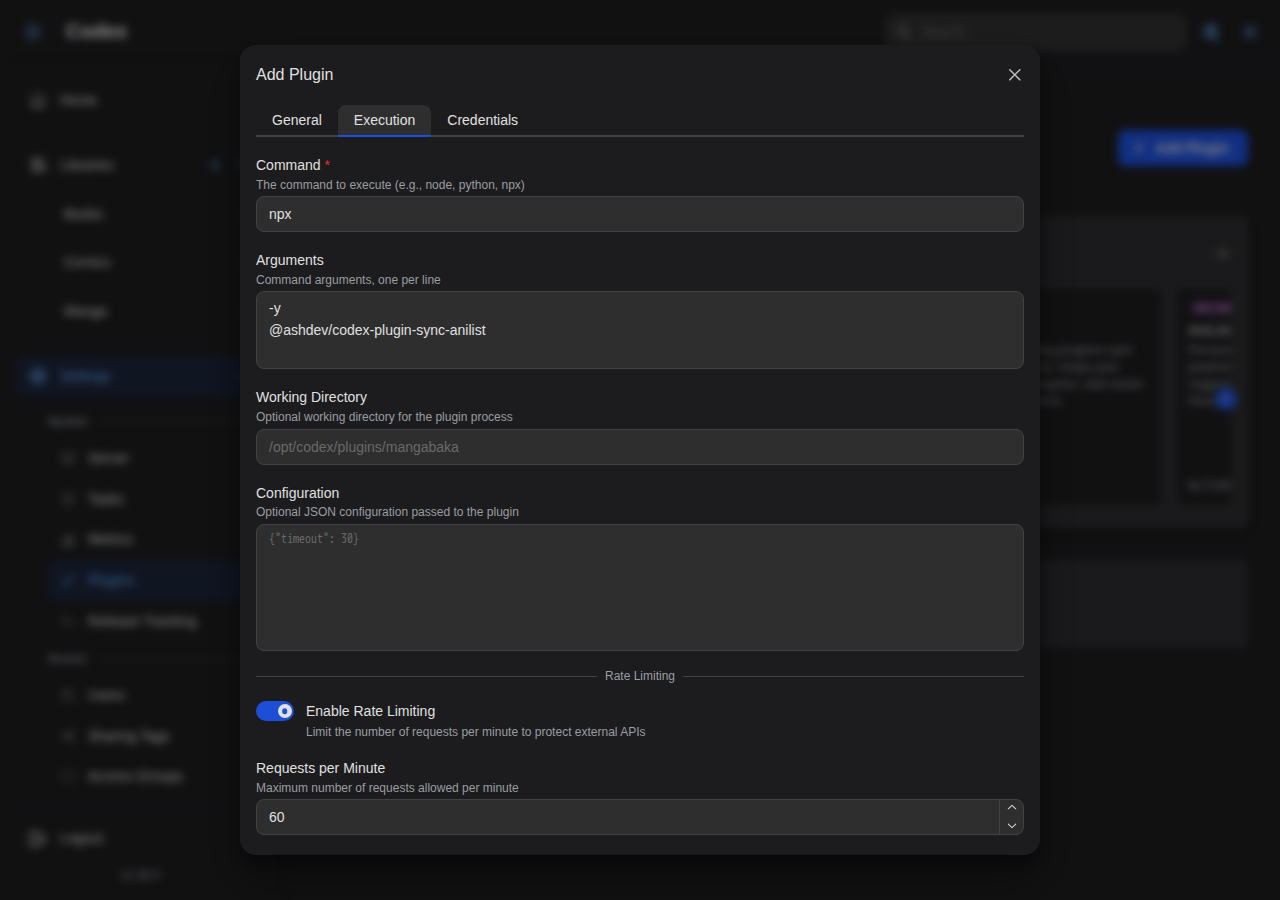
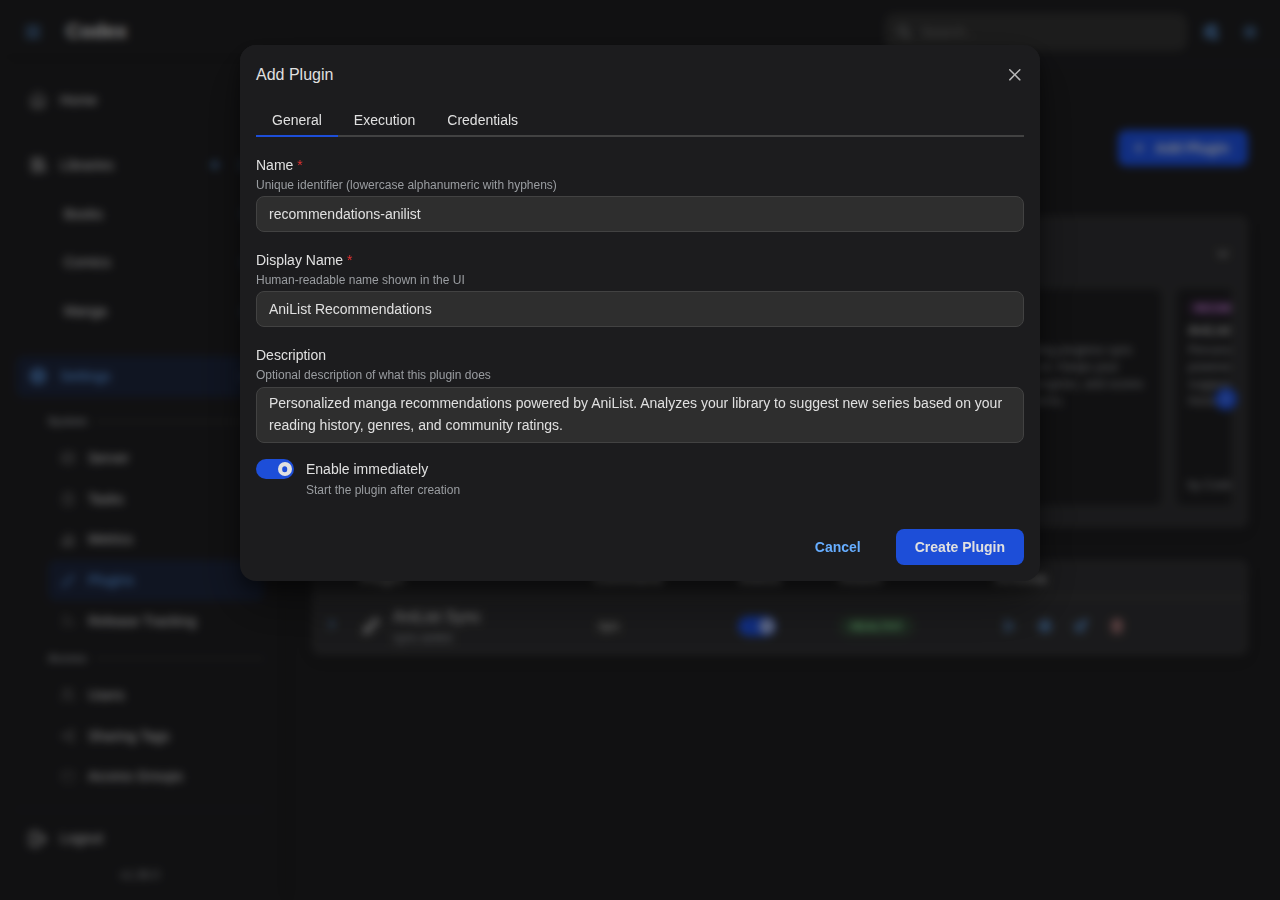
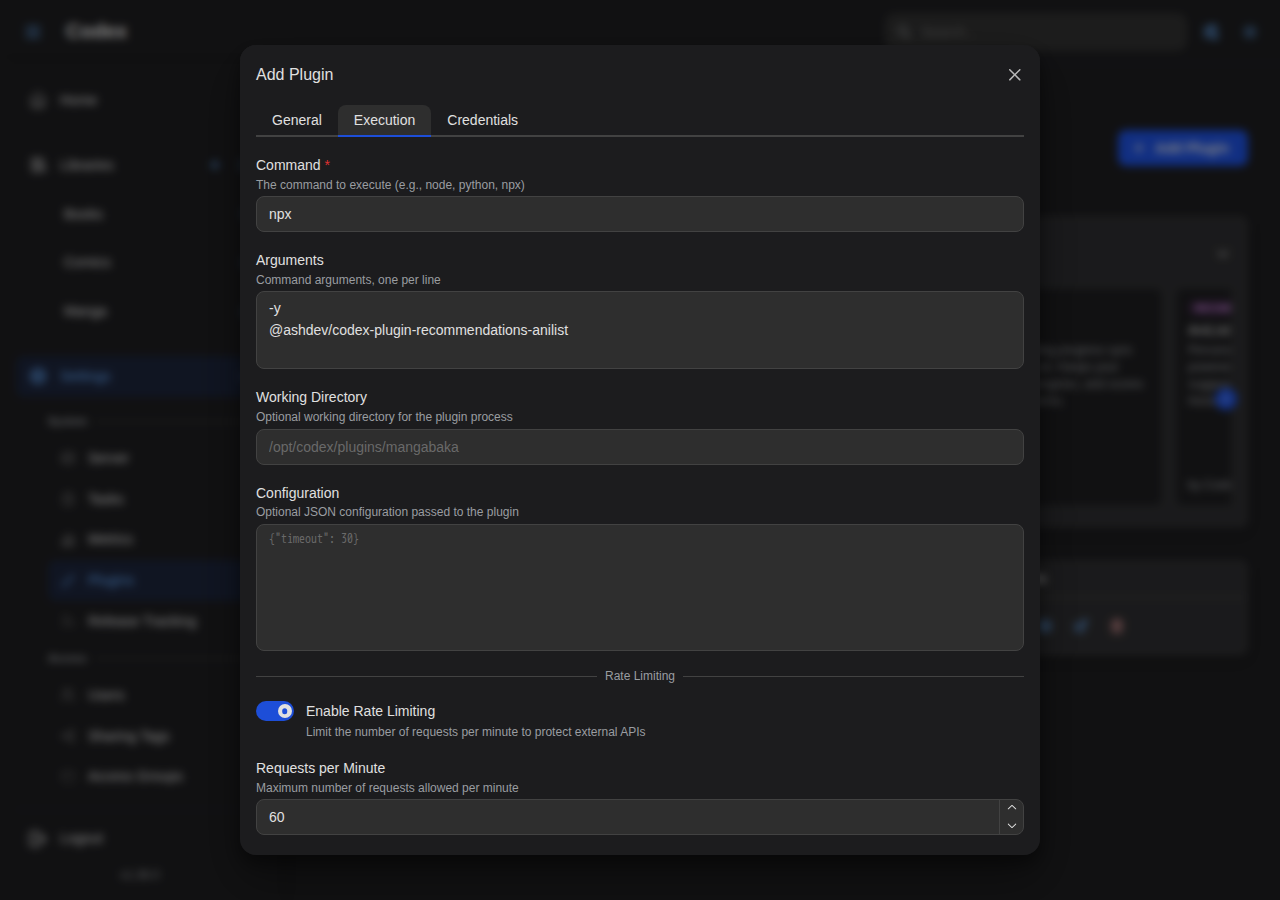
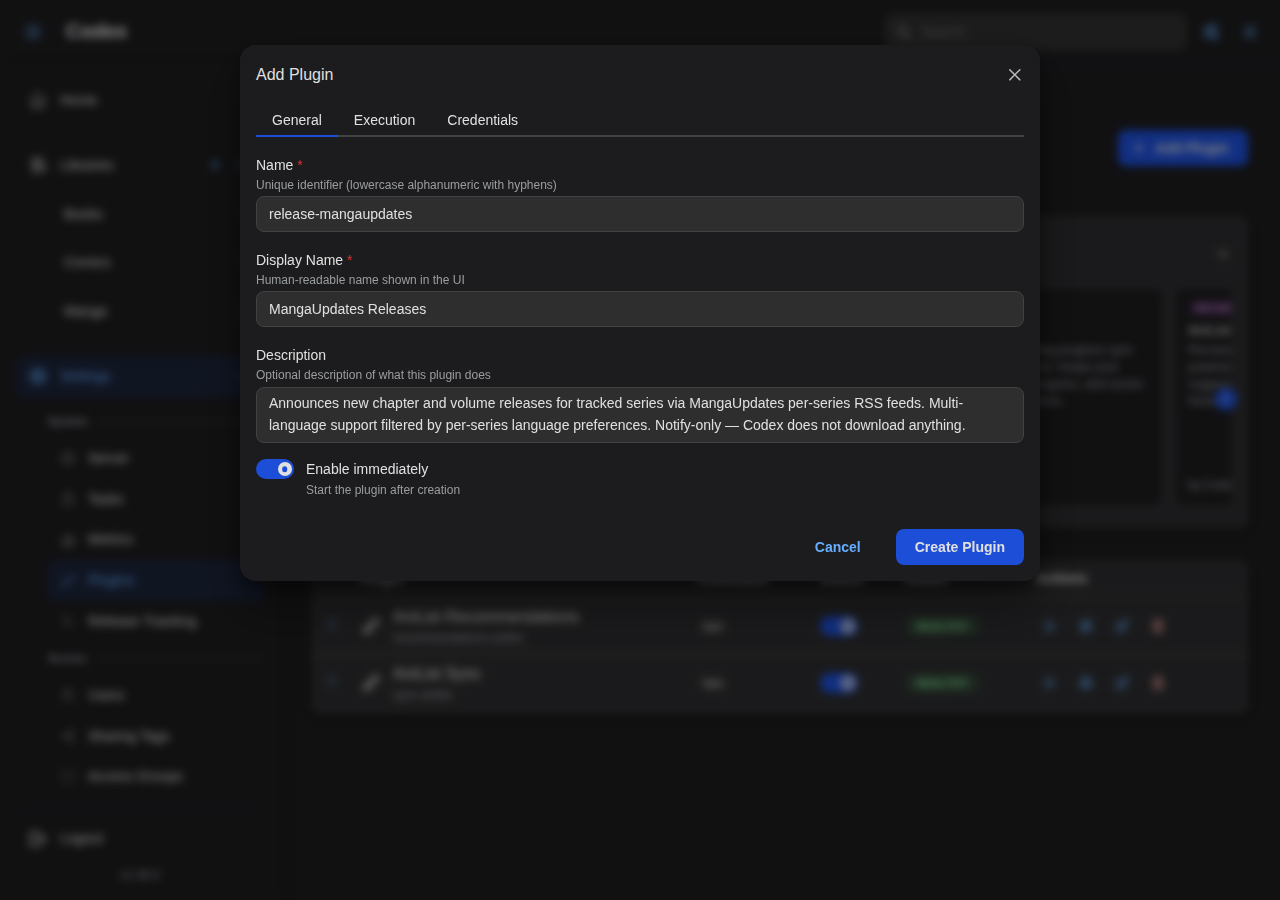
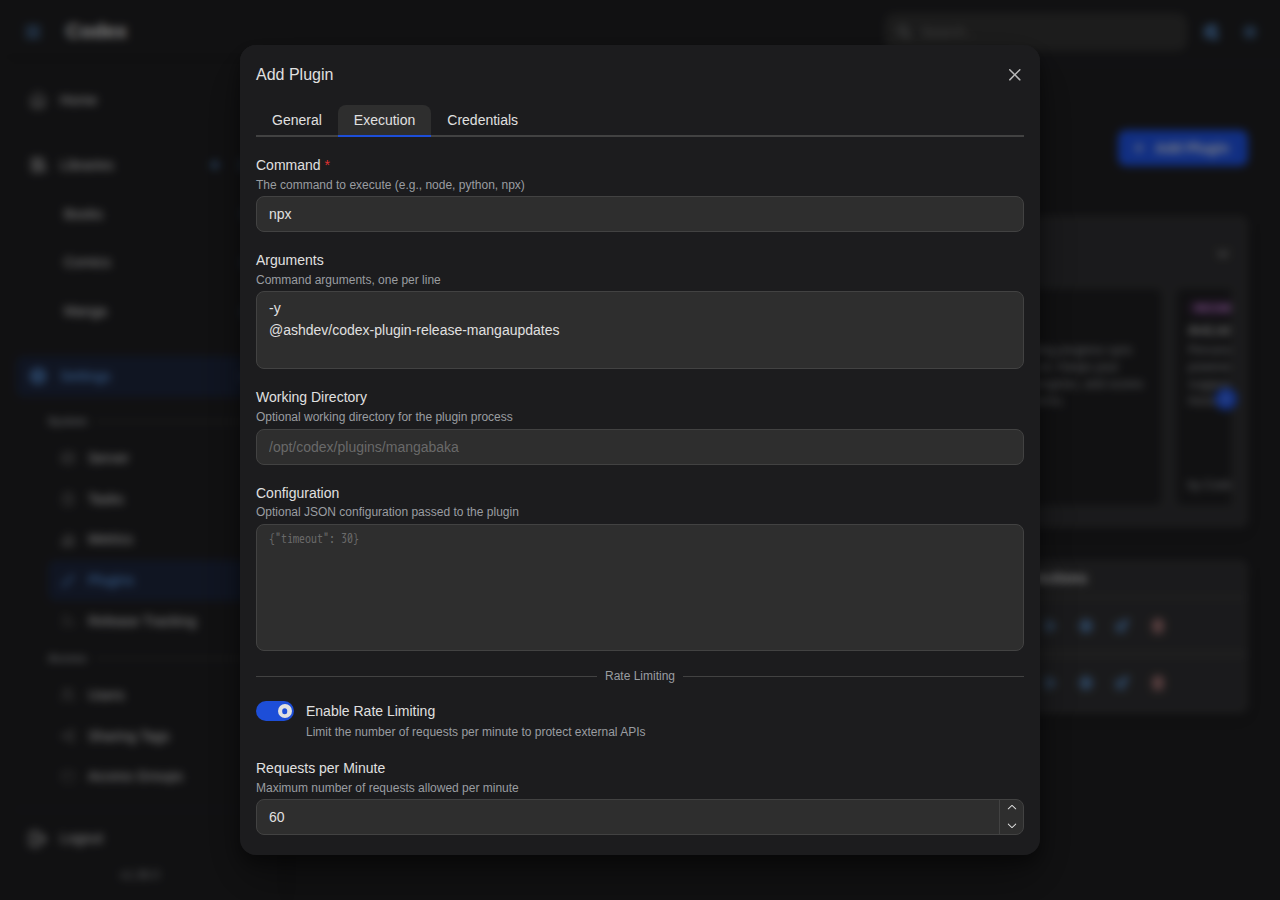
Install plugins from the built-in store with pre-configured settings.
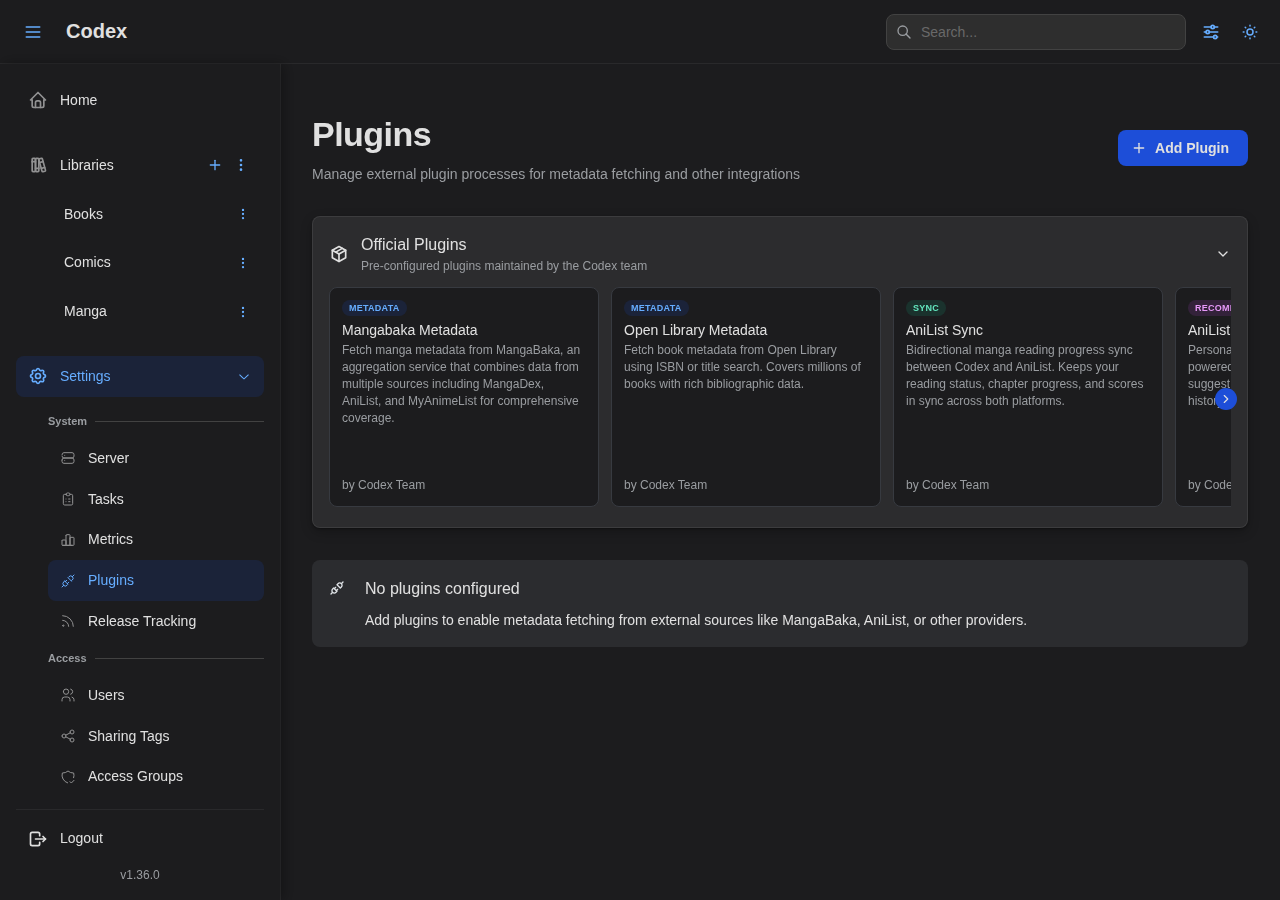
Clicking "Add" on a plugin opens a pre-filled creation form with the plugin's recommended settings.
AniList Sync Plugin:
AniList Recommendations Plugin:
MangaUpdates Releases Plugin:
Adding a Plugin Manually
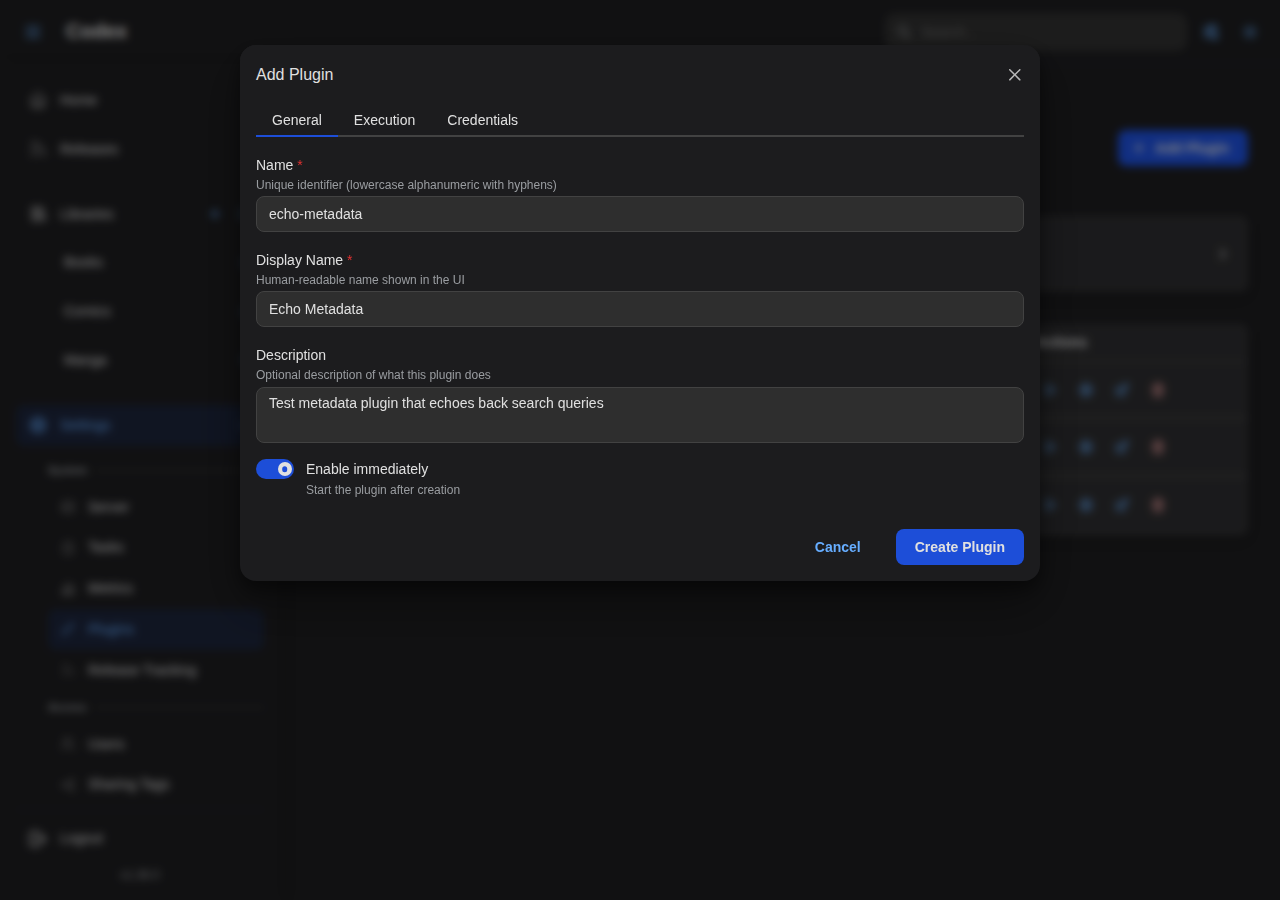
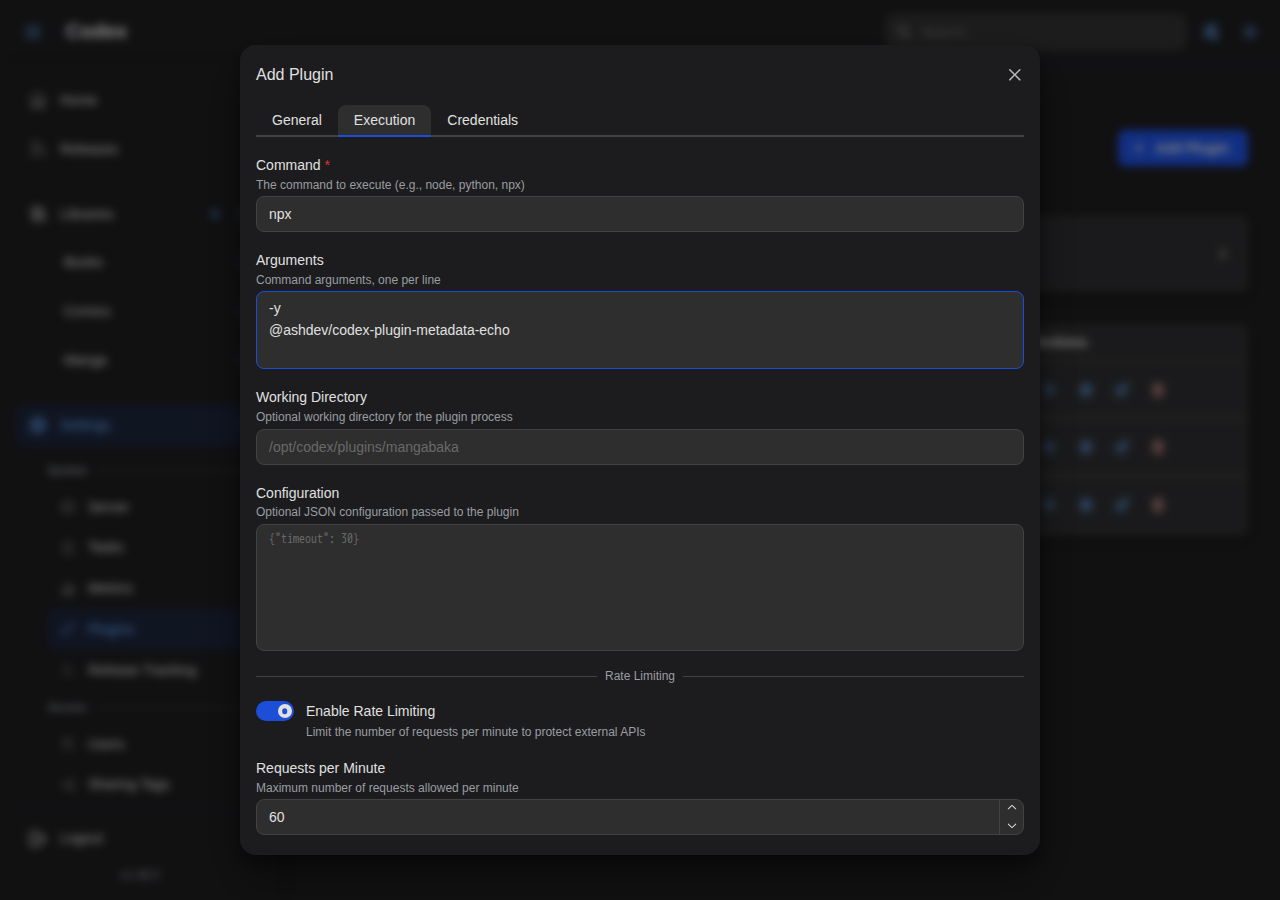
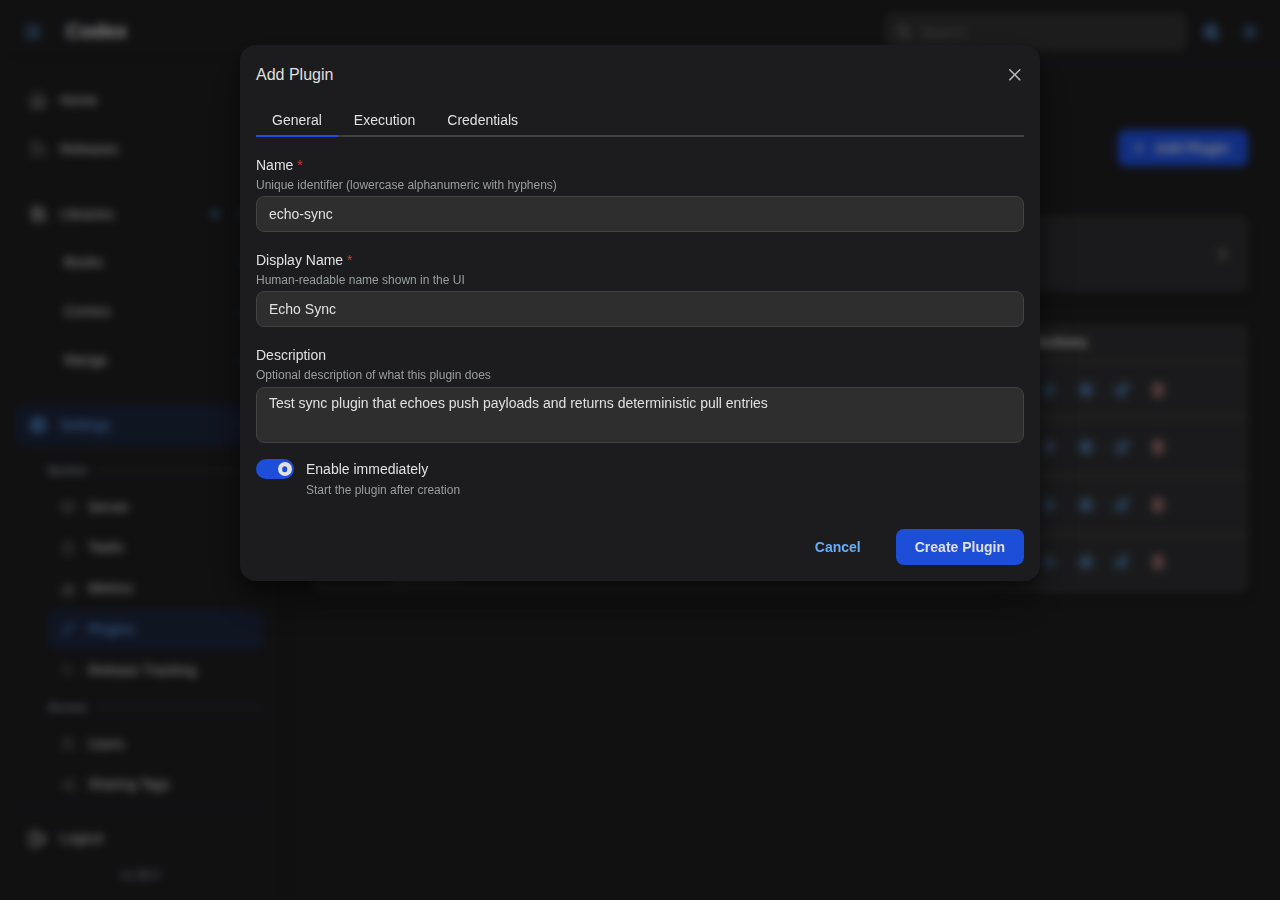
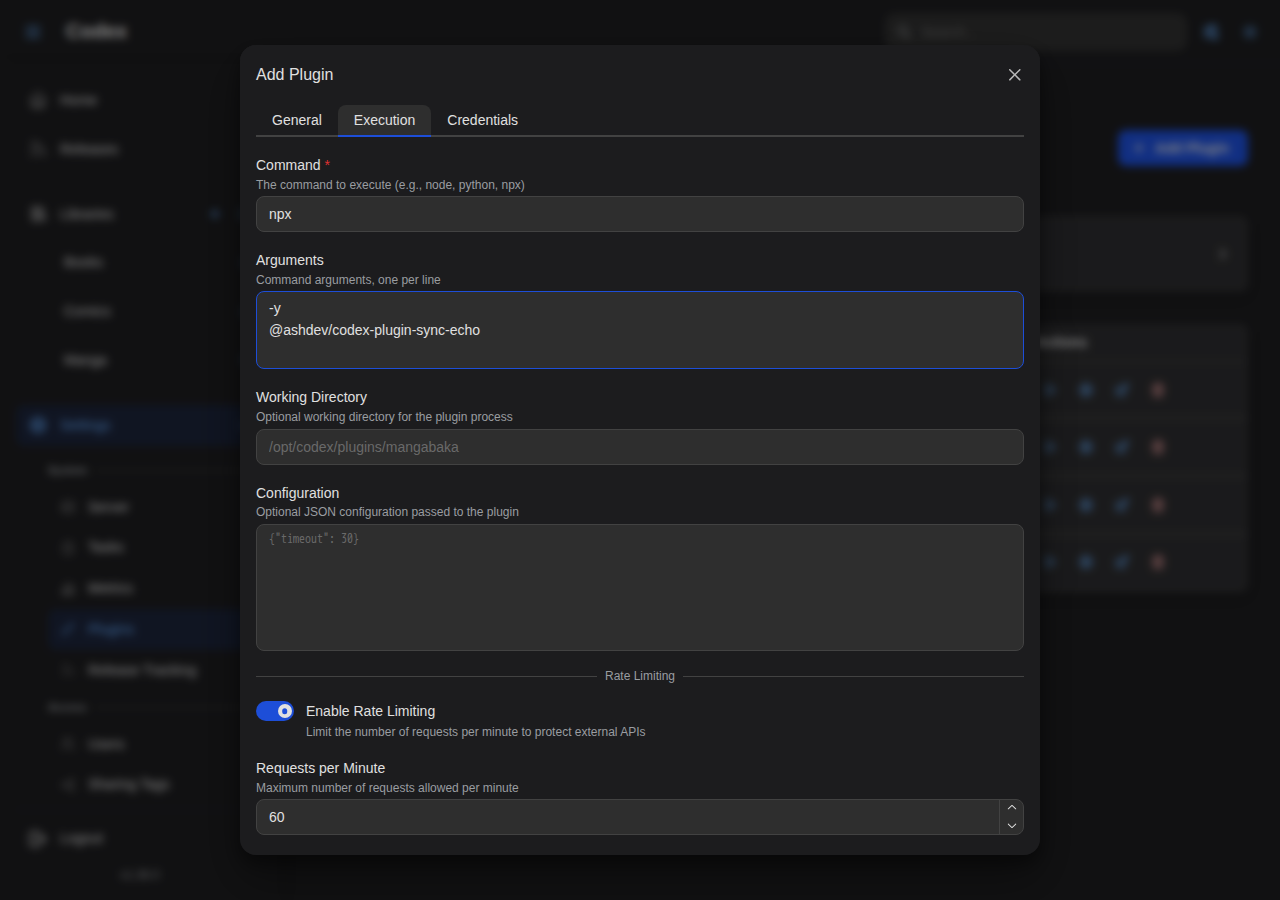
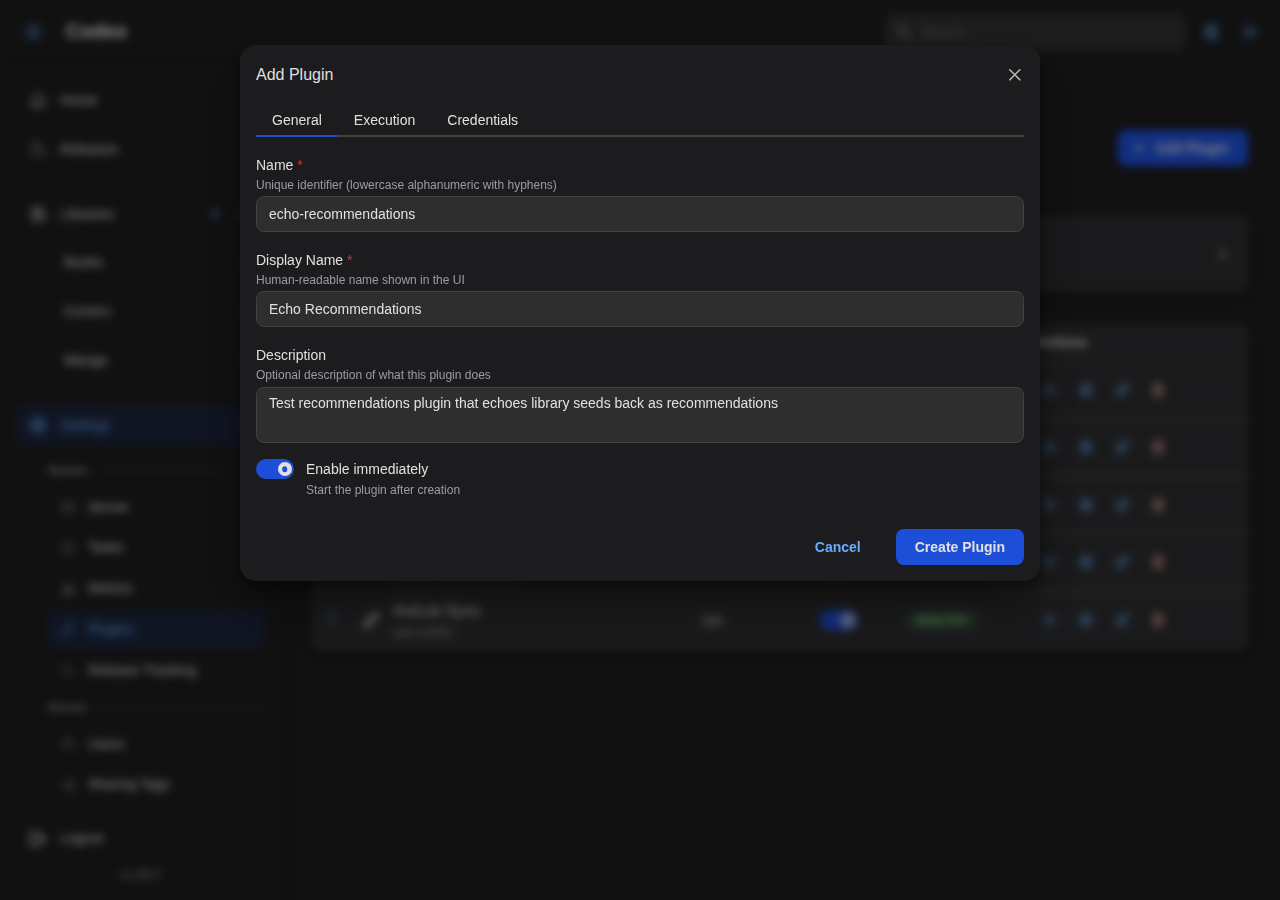
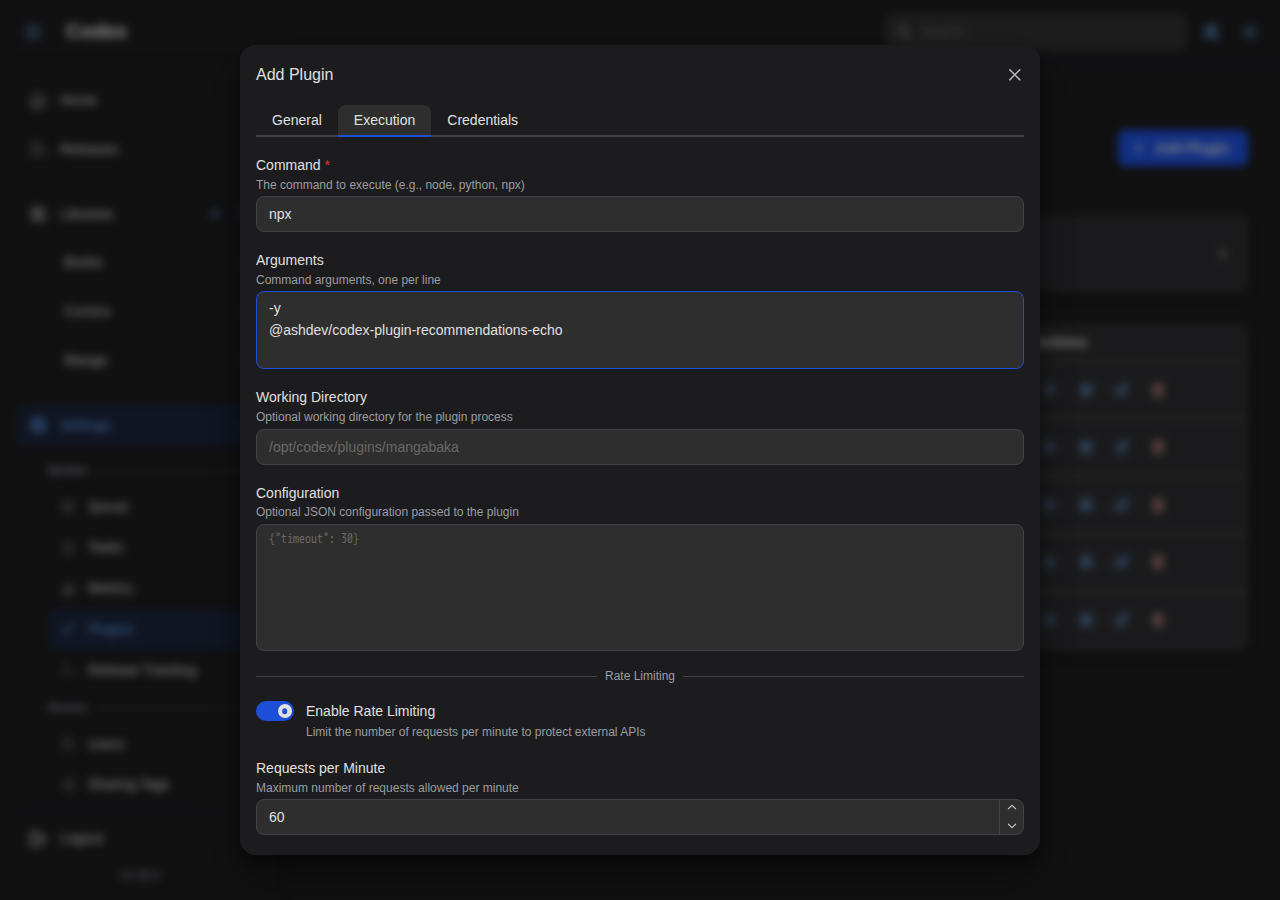
Plugins outside the store can be added by hand via the "Add Plugin" form, filling in the command and arguments. The echo plugins (used for development and testing) are installed this way.
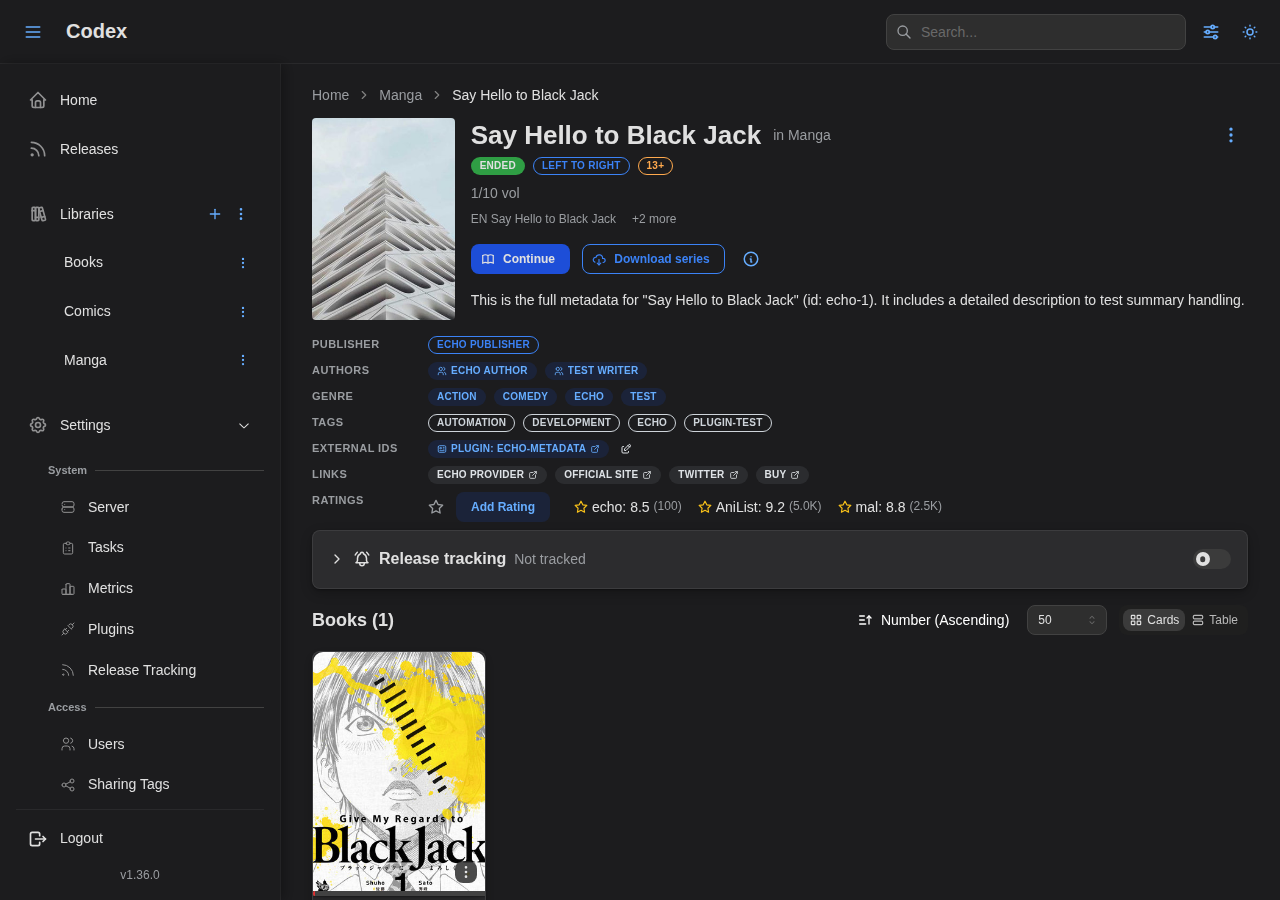
Echo Metadata Plugin:
Echo Sync Plugin:
Echo Recommendations Plugin:
Installed Plugins
View and manage installed plugins, their status, and health.
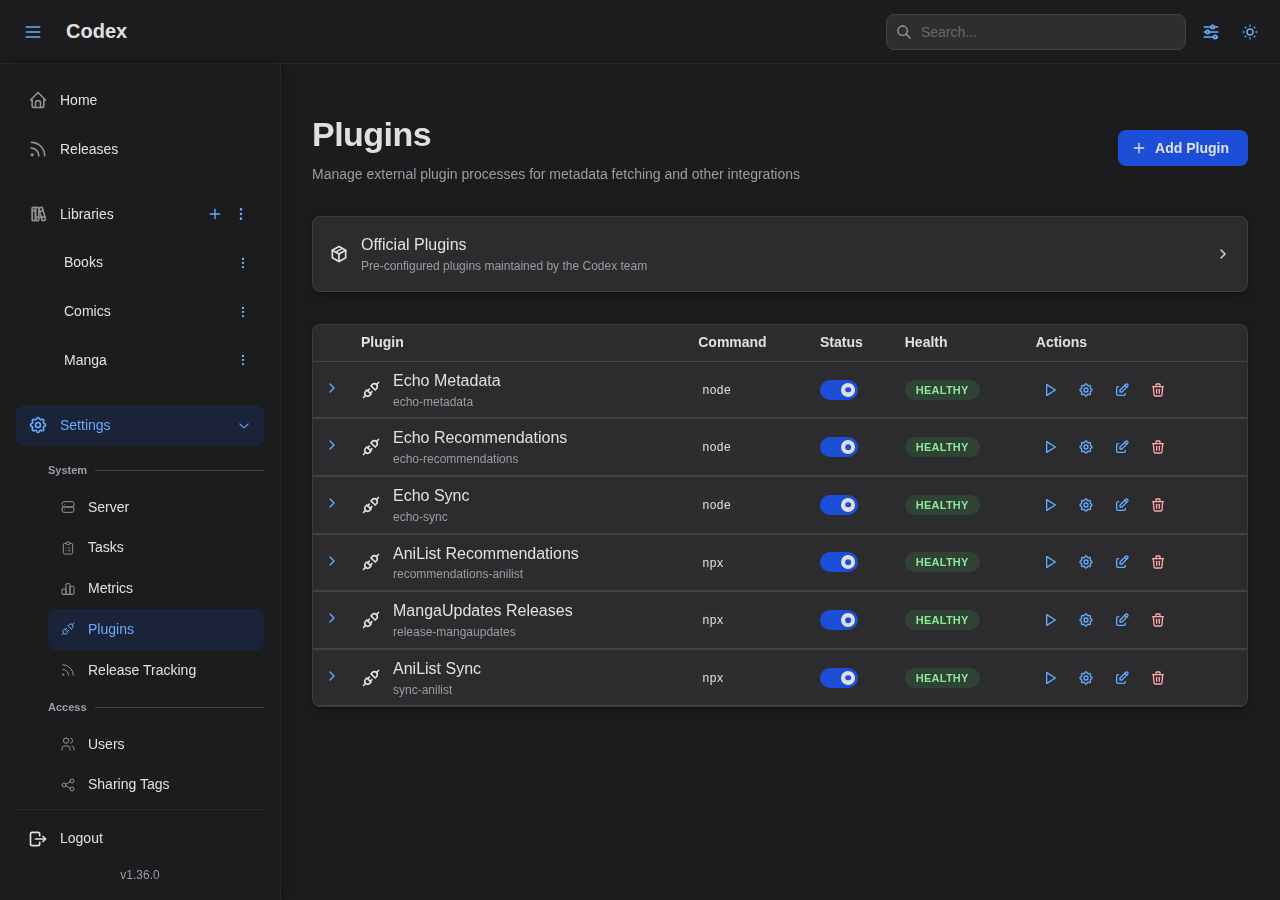
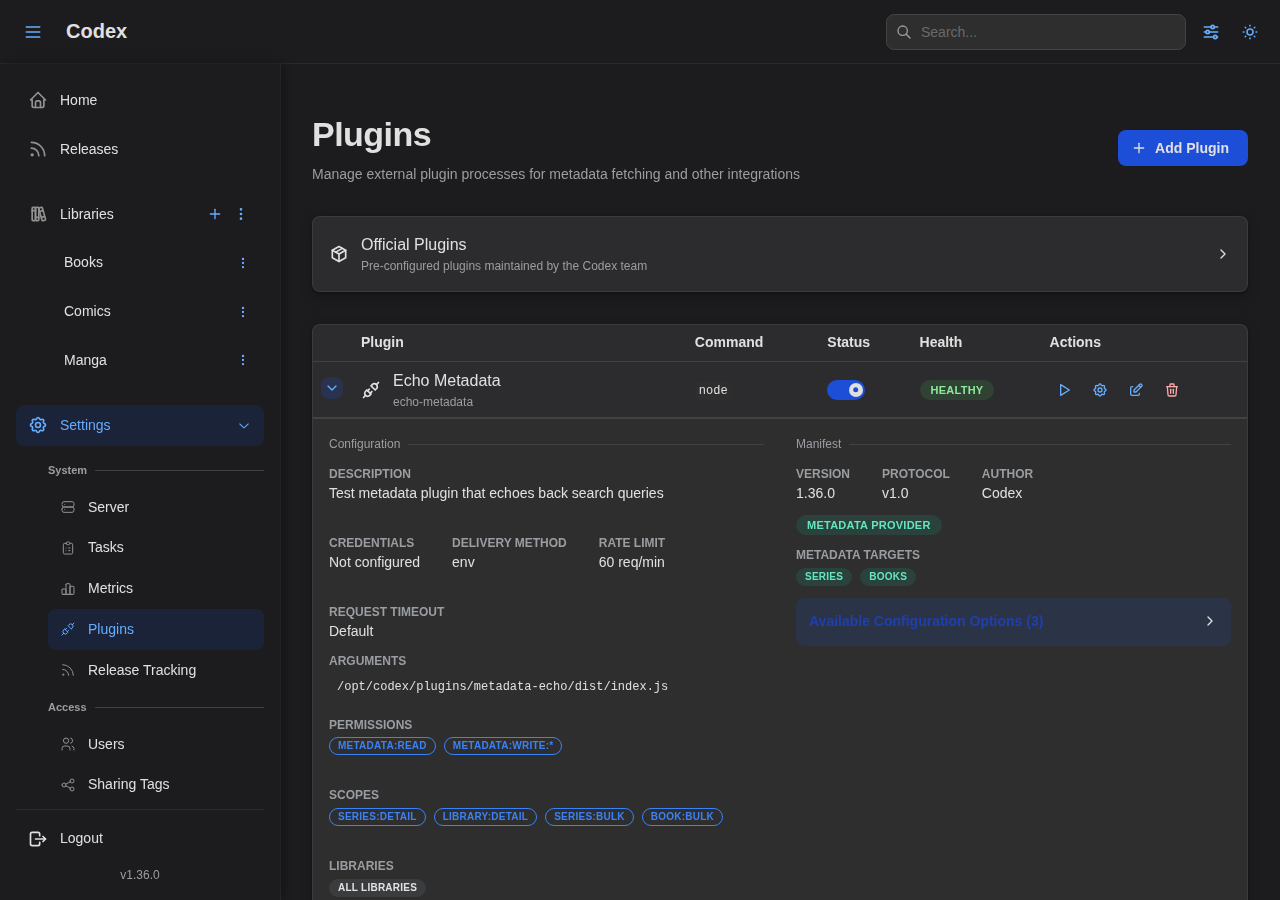
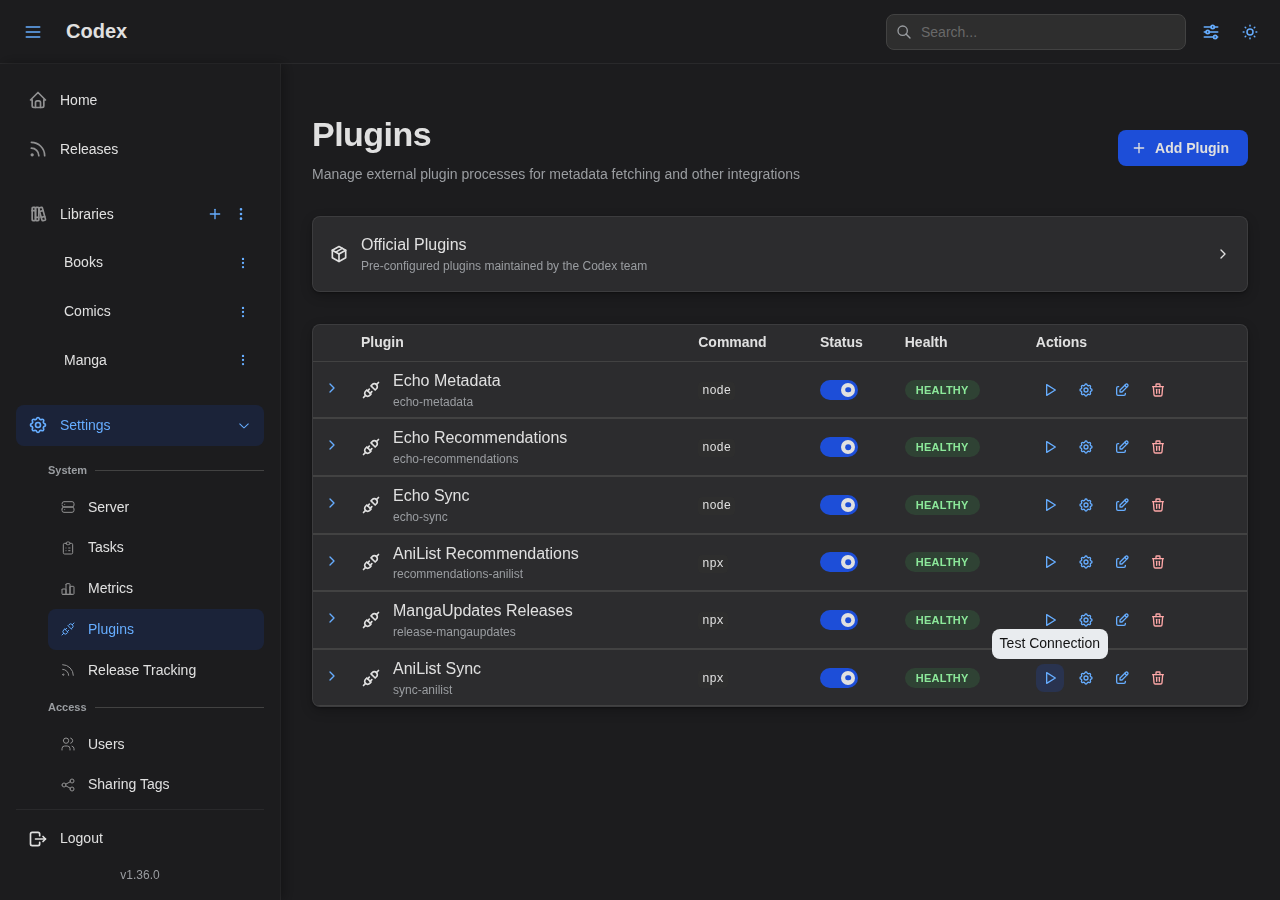
You can test plugin connectivity using the "Test Connection" action.
Configuring a Plugin
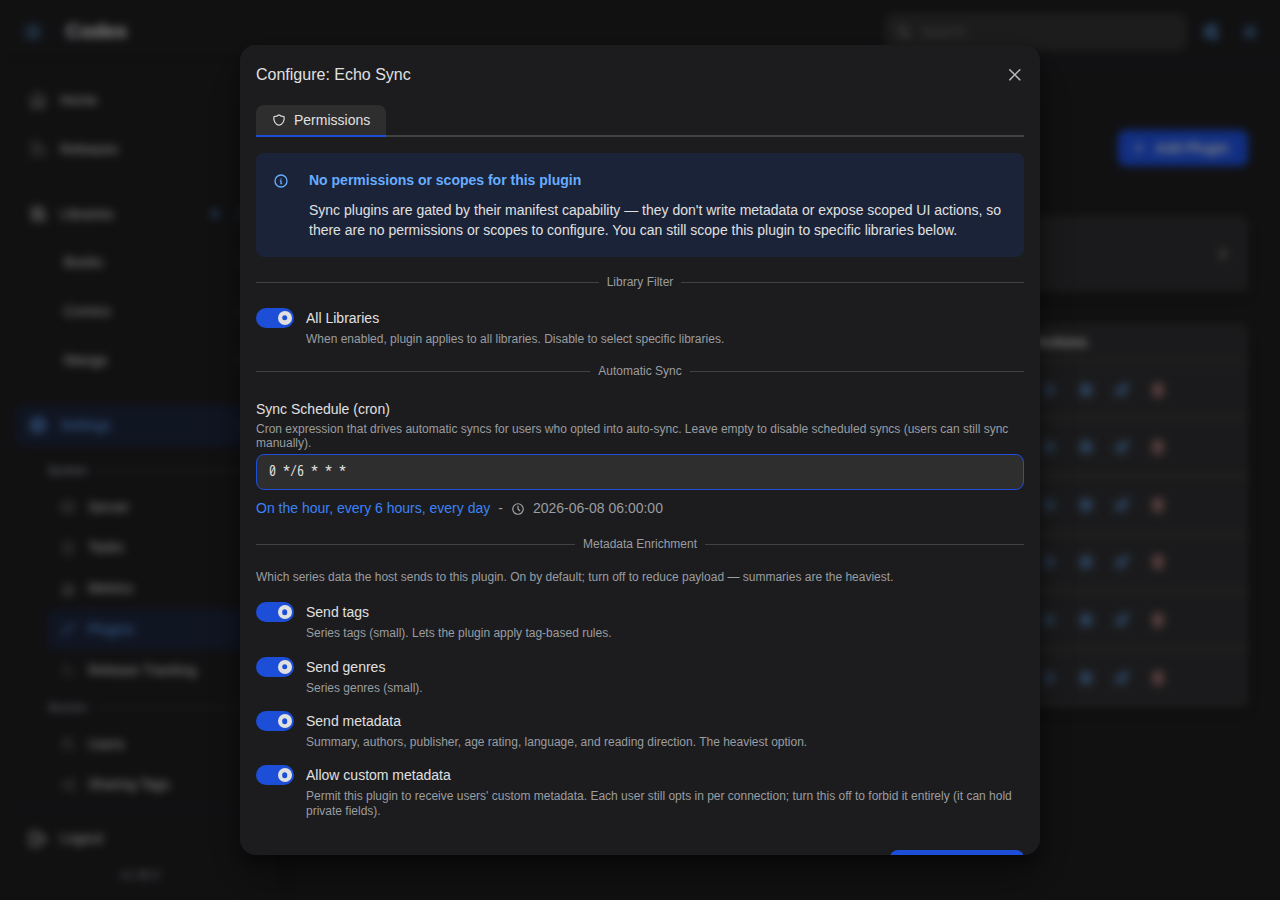
After installing a plugin, open its configuration modal to set permissions, scopes, search templates, preprocessing rules, and conditions.
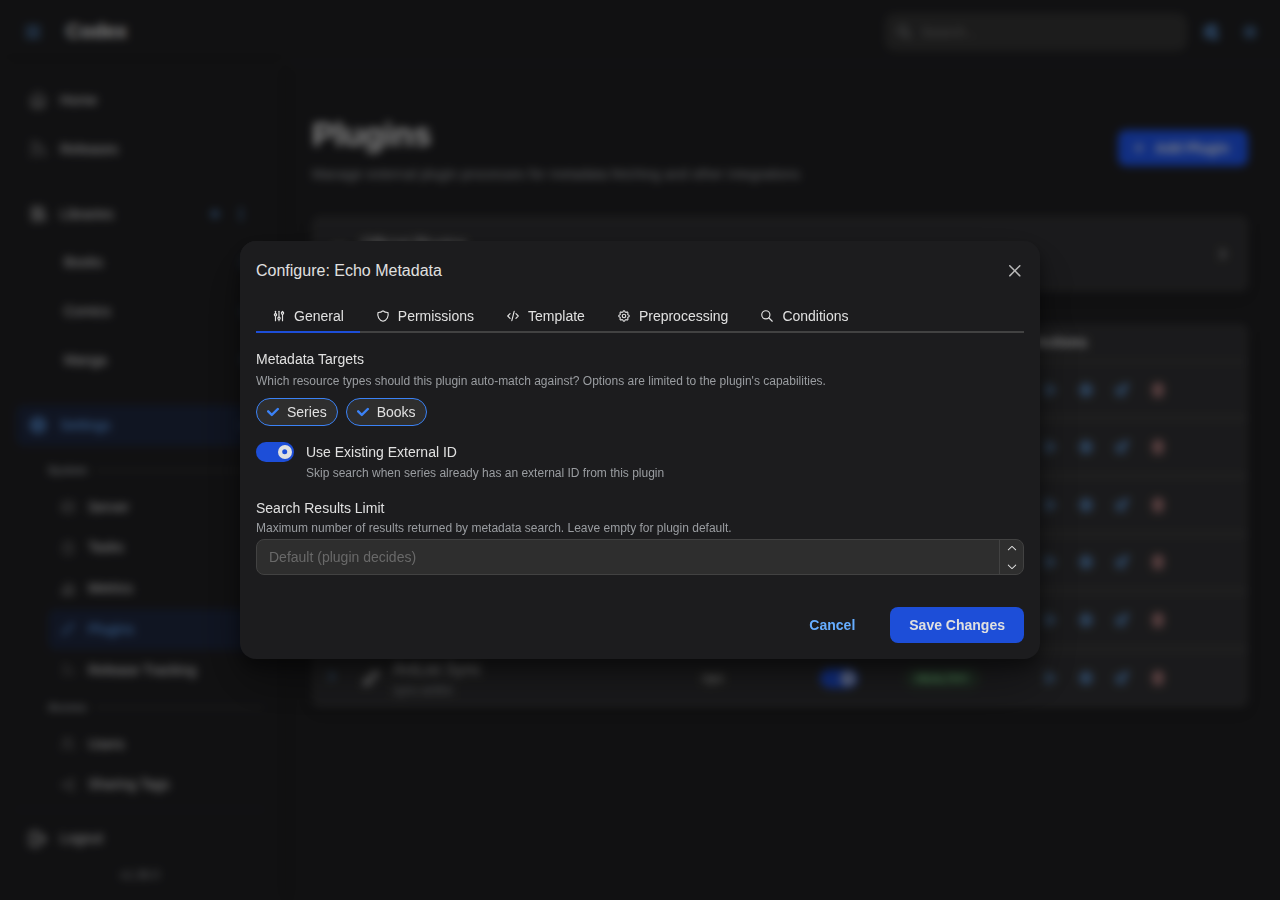
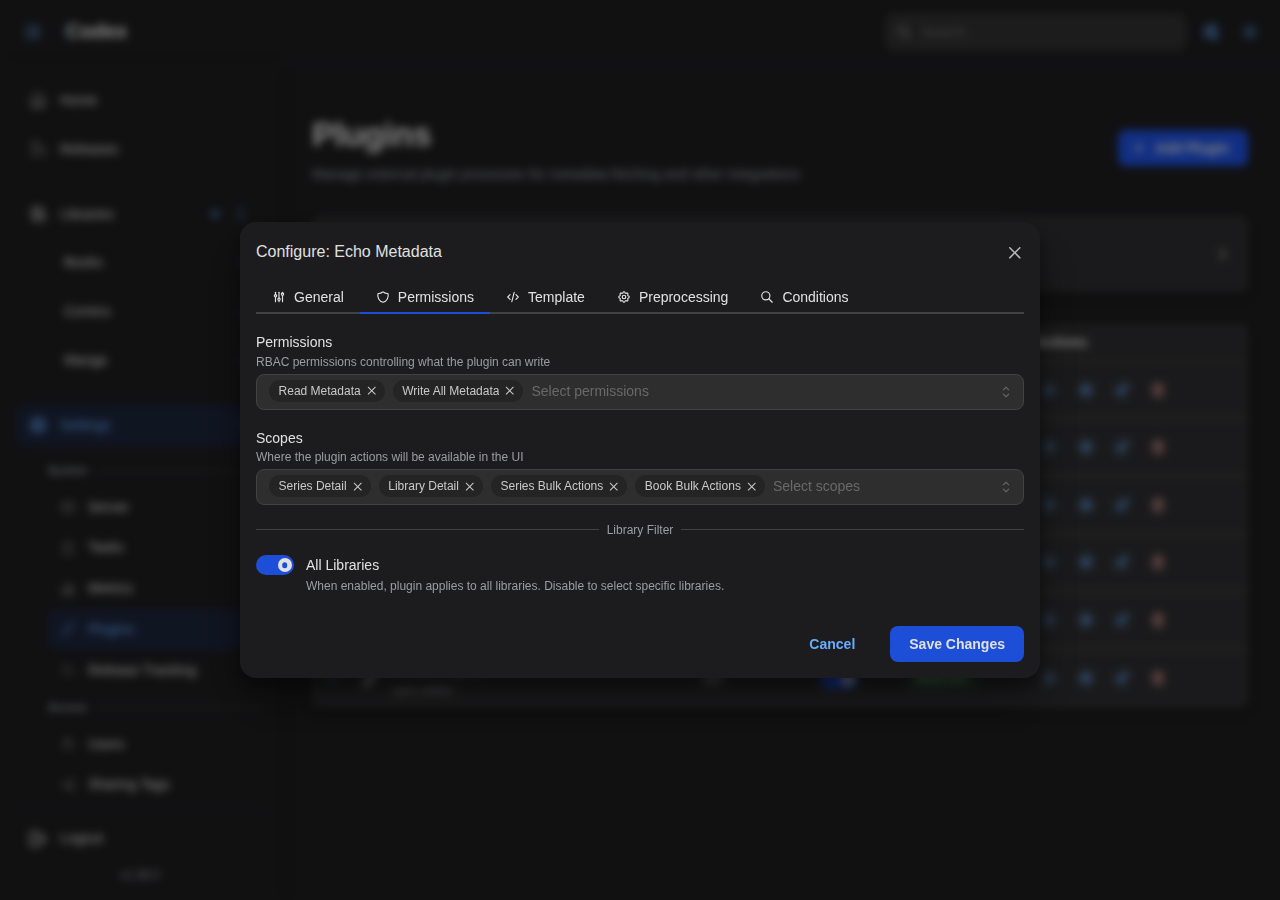
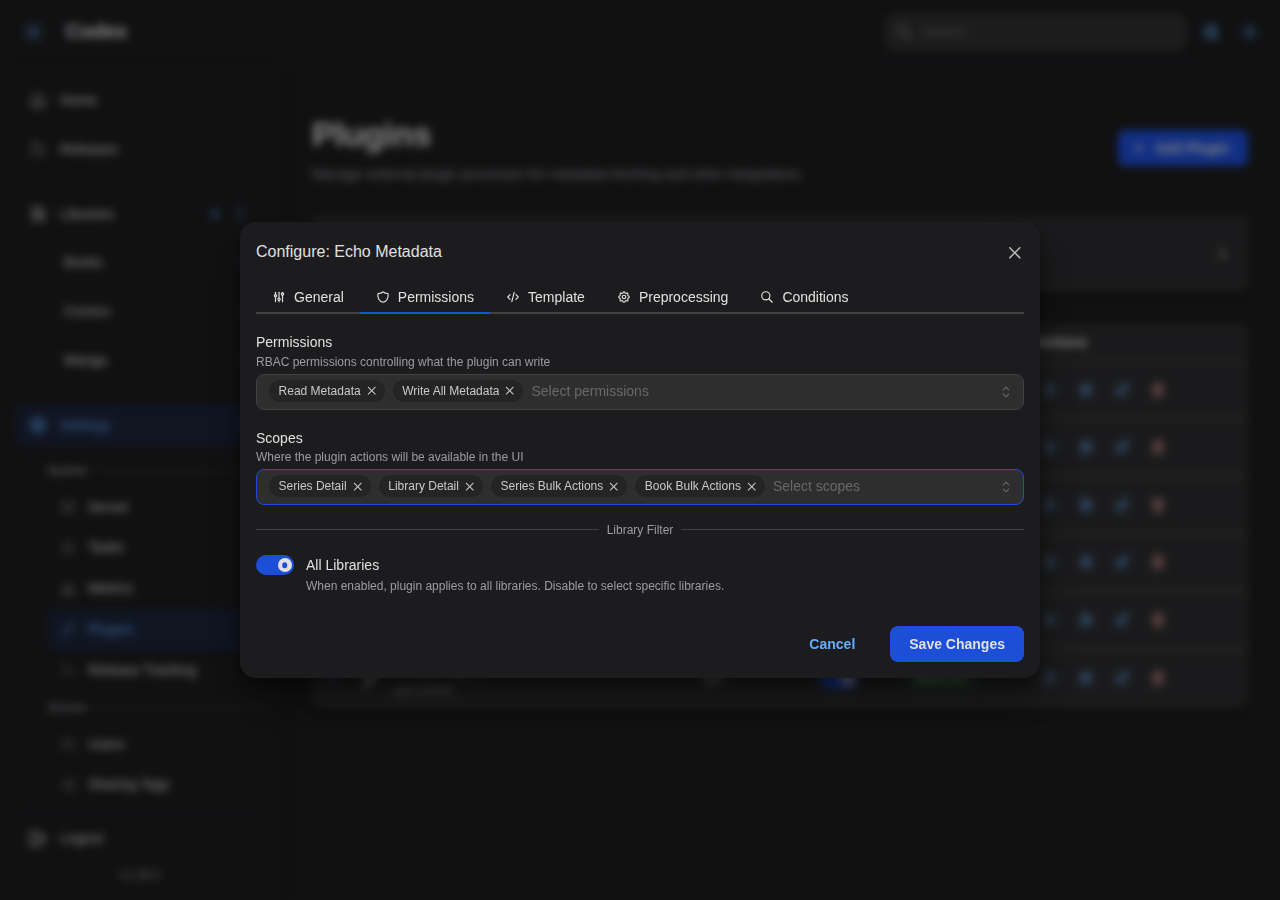
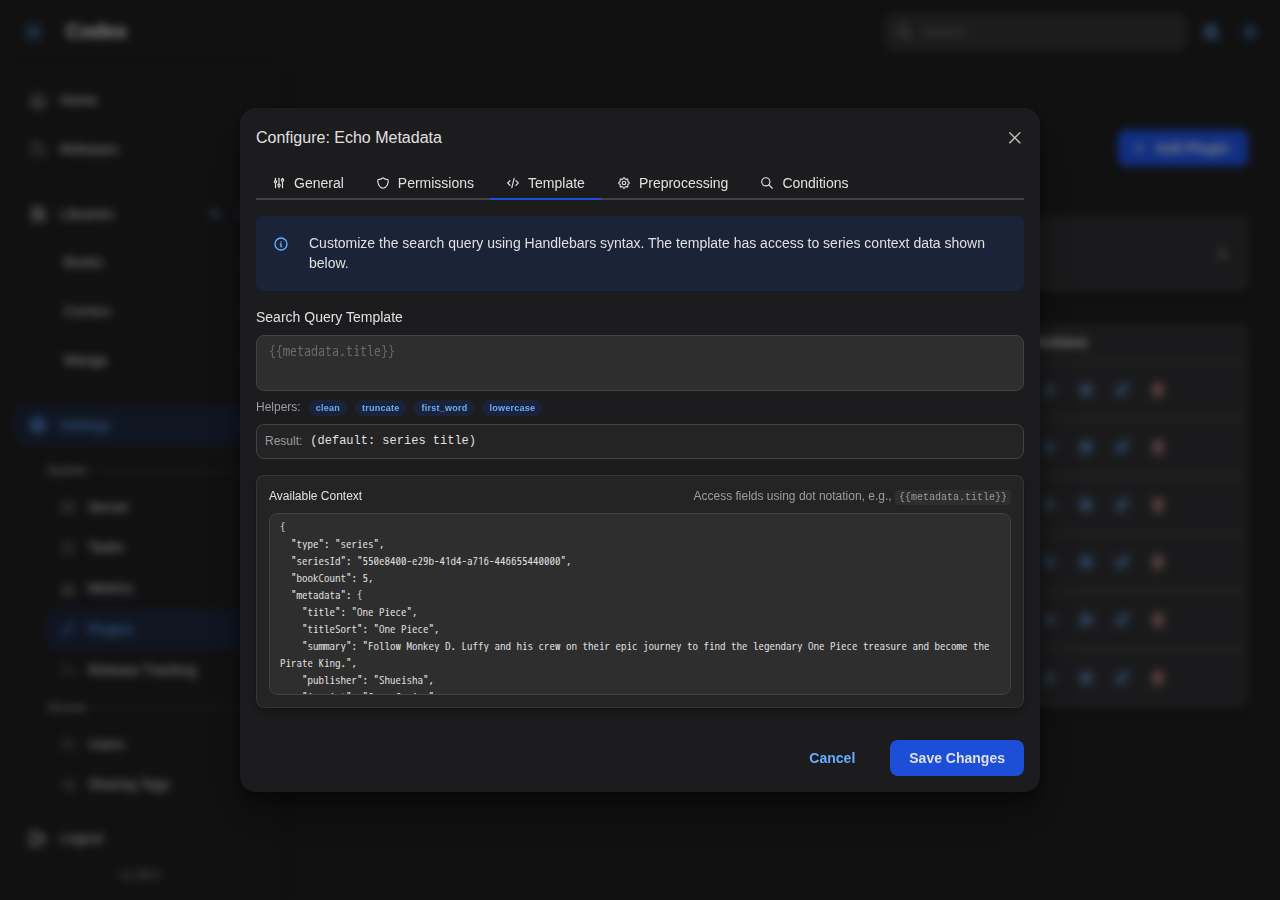
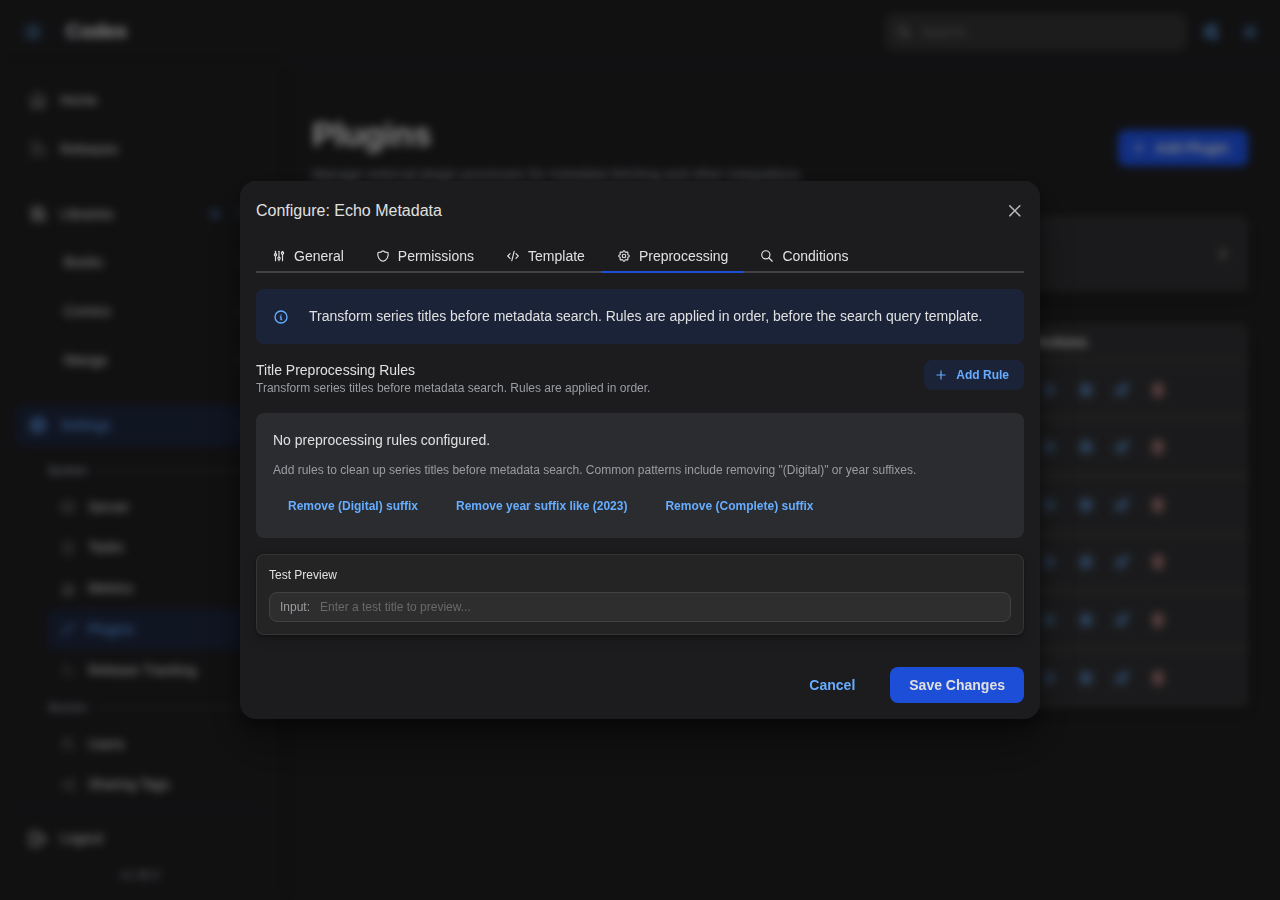
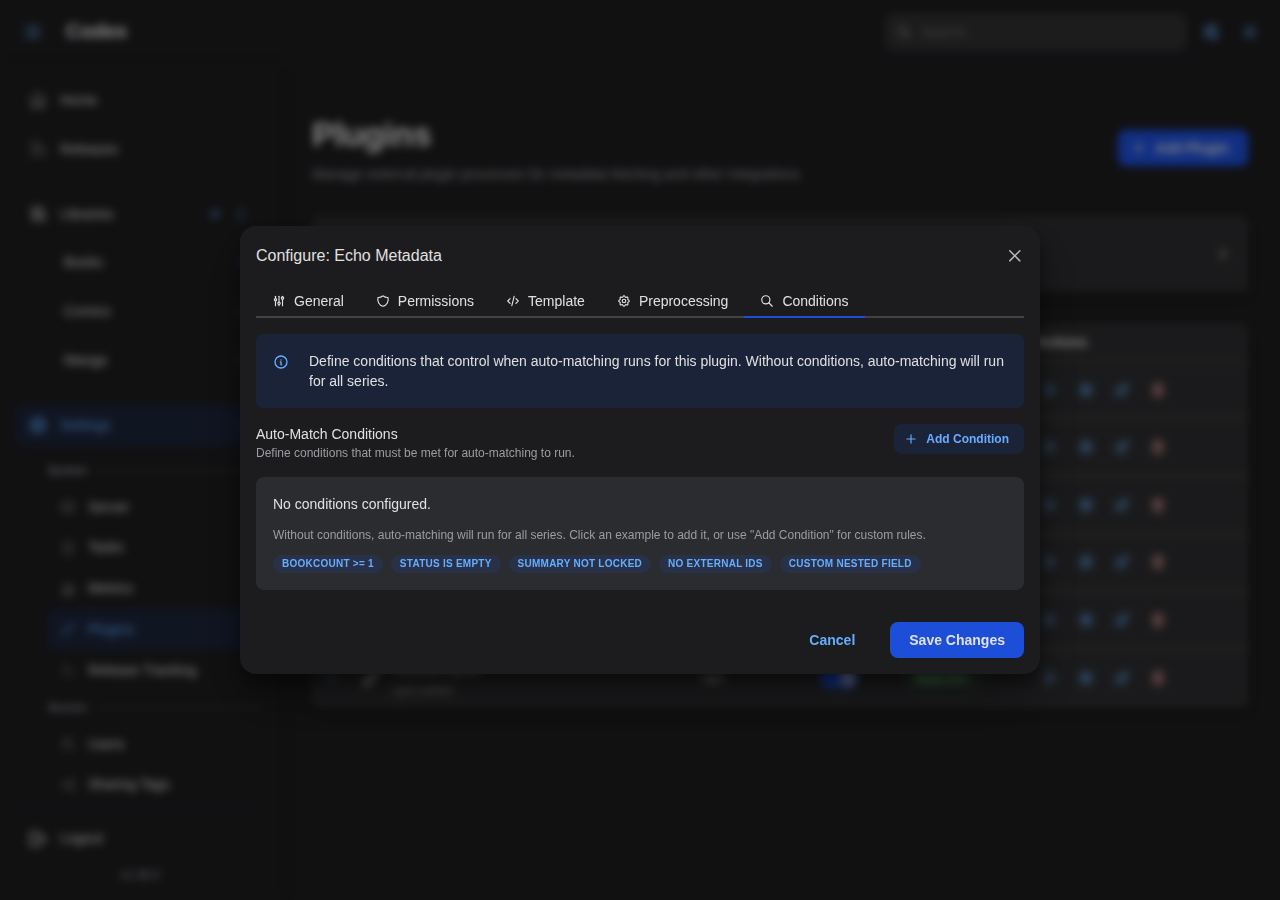
For sync-capable plugins, the Permissions tab also exposes a Sync Schedule (cron) field that sets the automatic-sync cadence shared by all users of that plugin.
Using Plugins
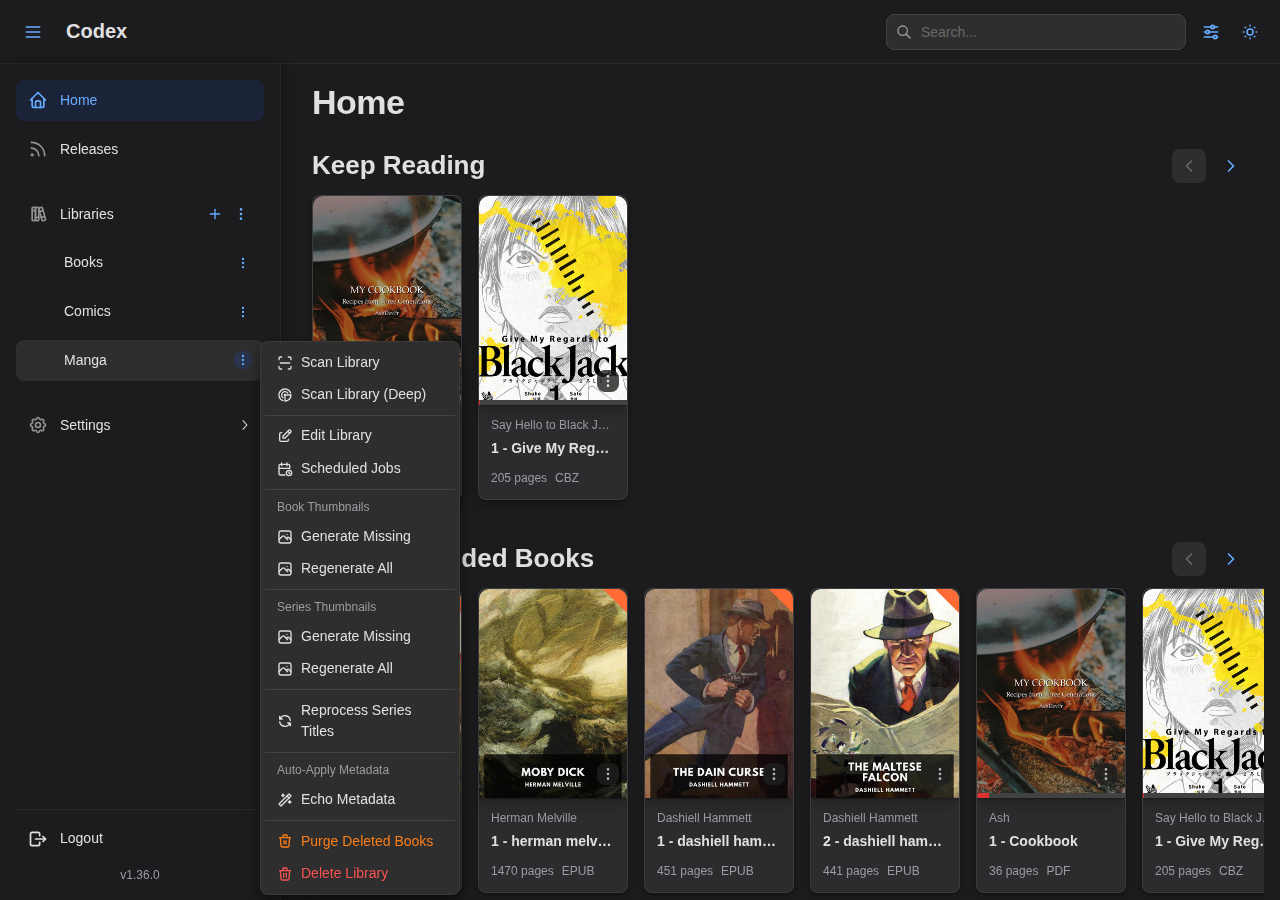
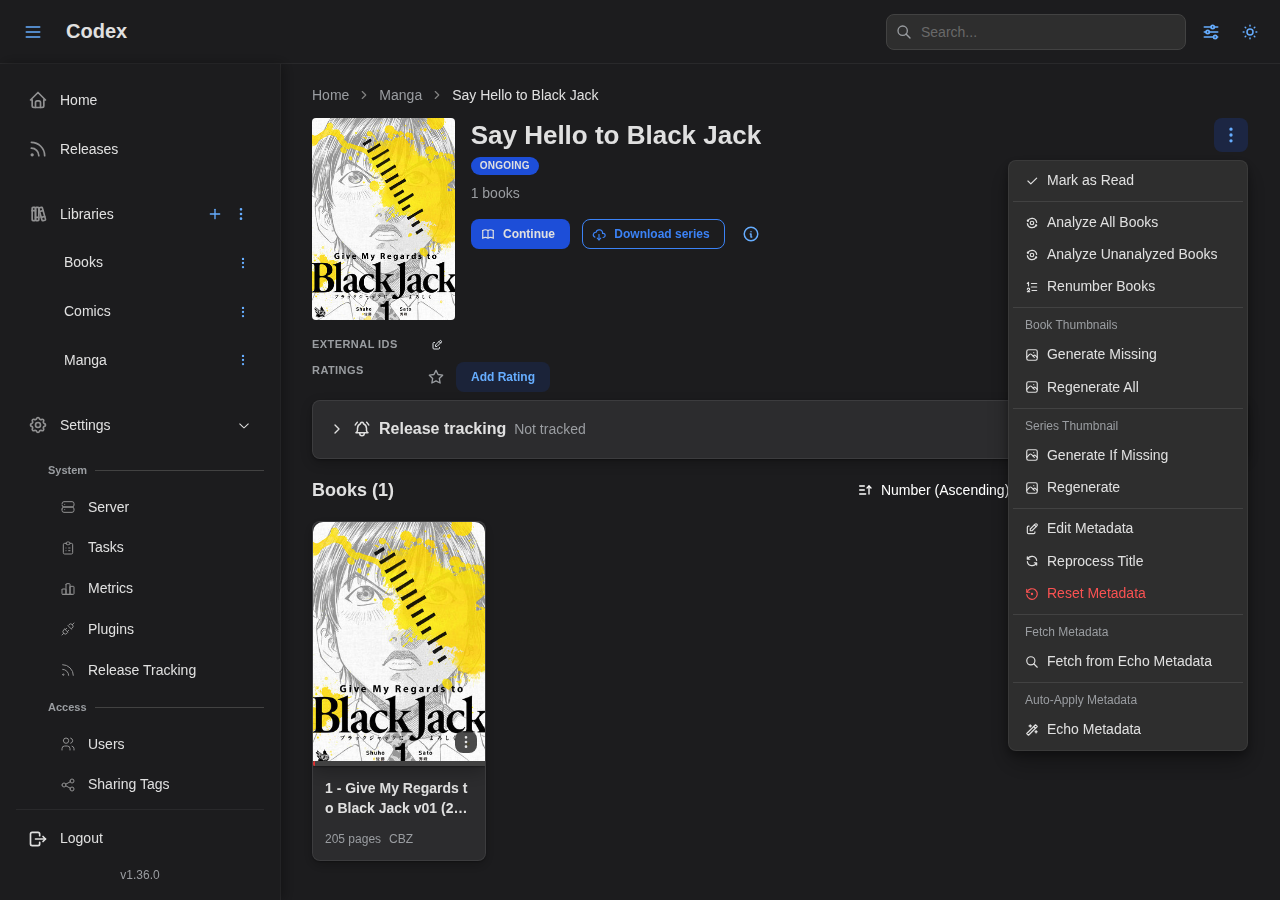
Access plugin actions from the library sidebar or series detail pages.
If the plugin is enabled and has the library scope, you will see the plugin dropdown in the library sidebar.
If the plugin is enabled and has the series scope, you will see the plugin dropdown in the series detail page.
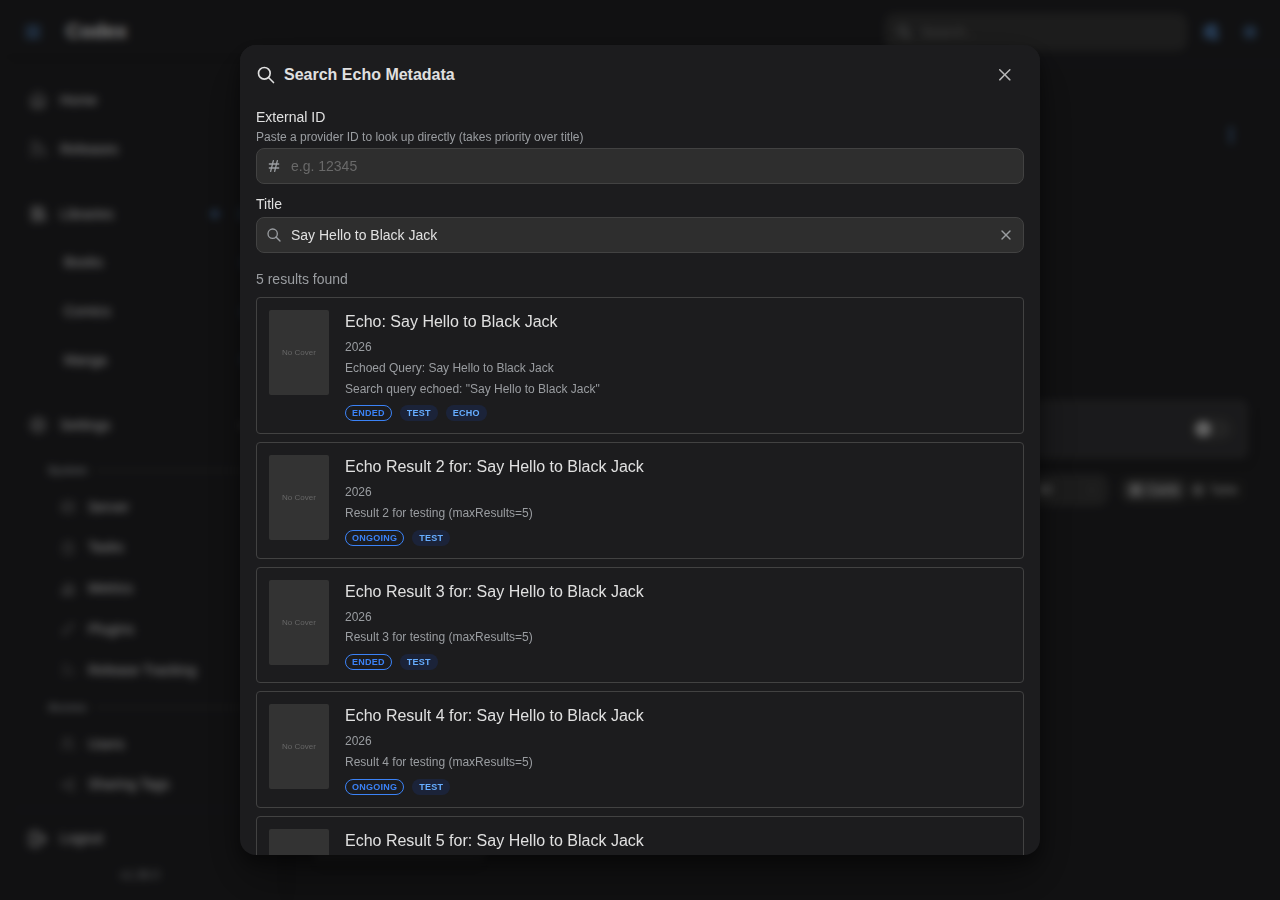
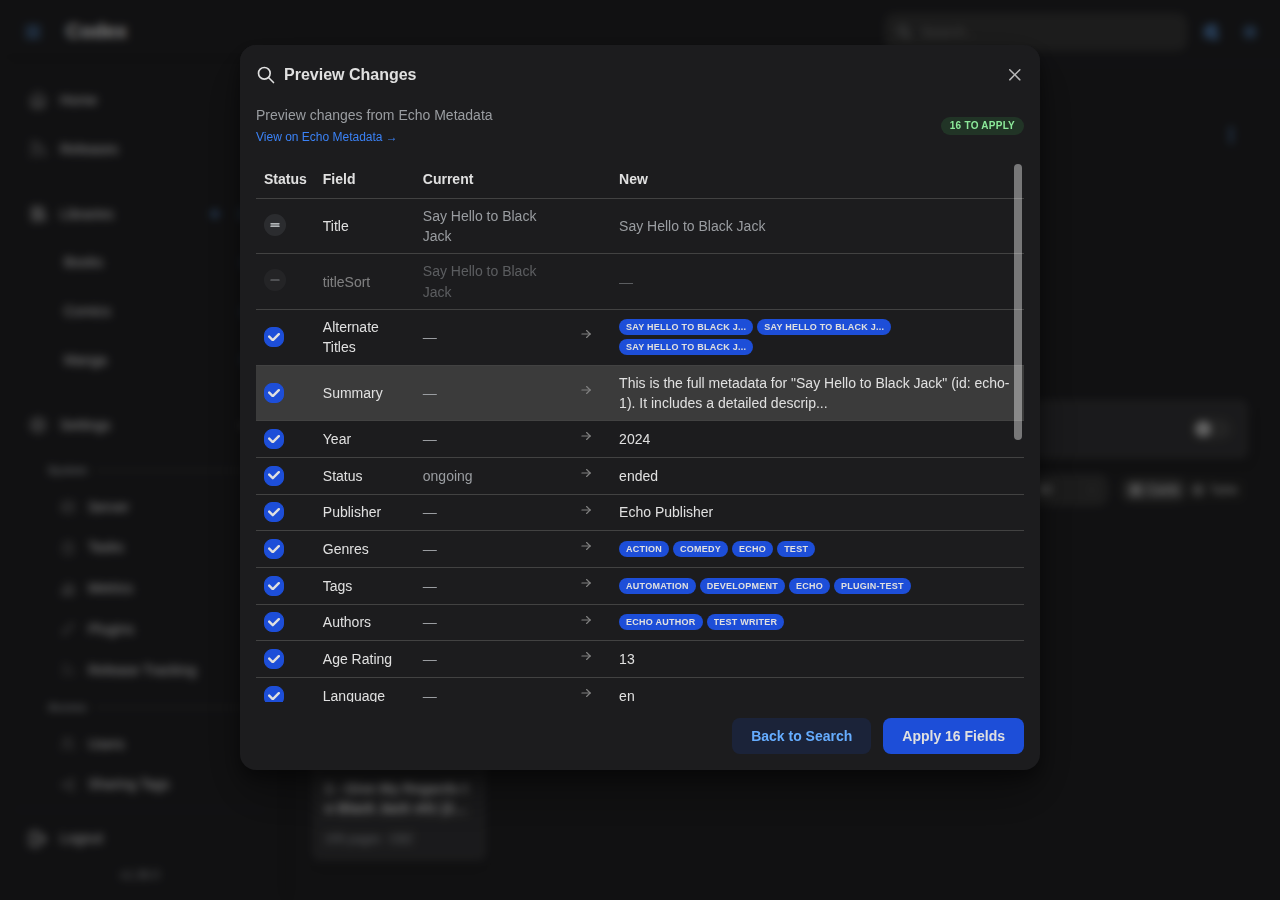
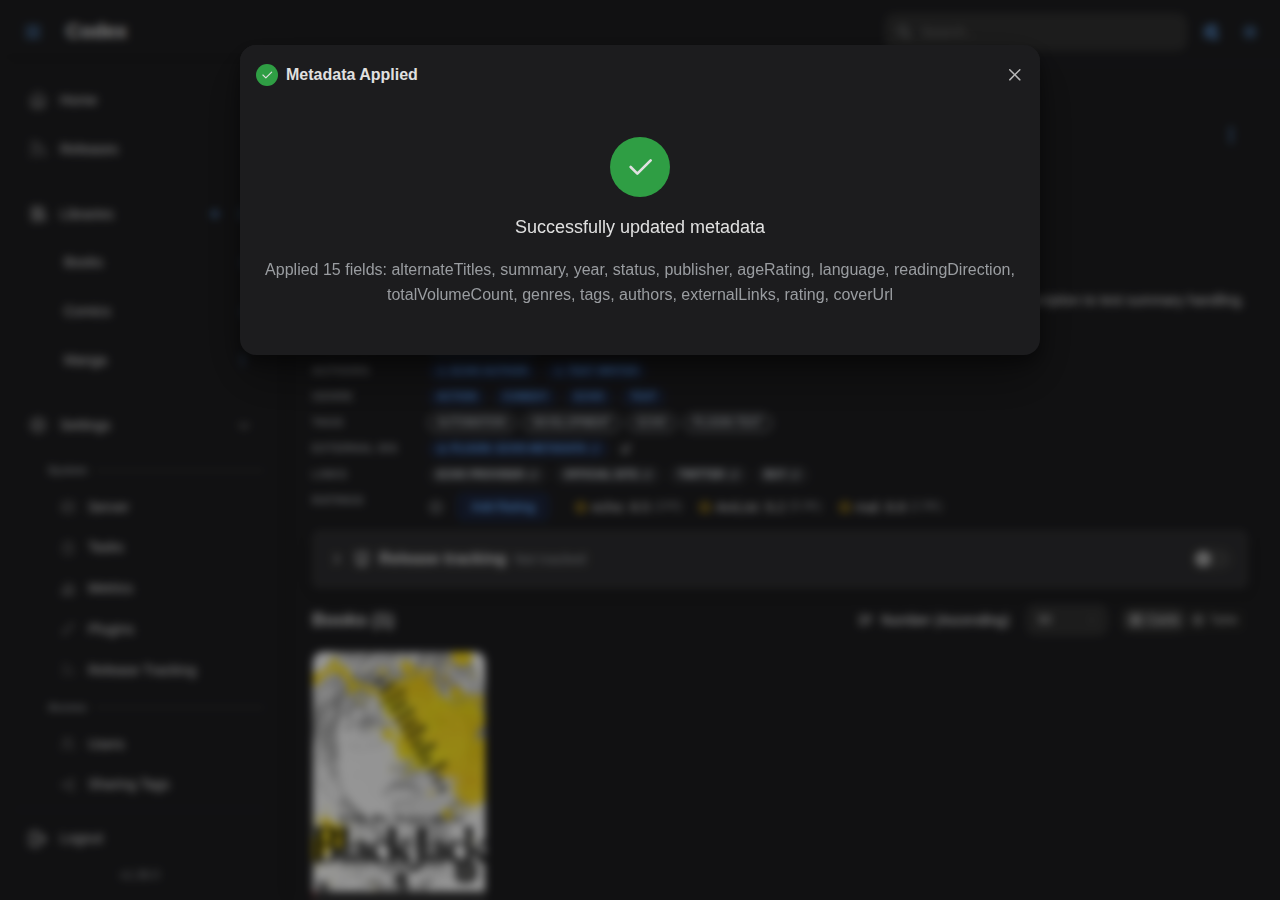
Plugin Results
View results after running plugins on your library content.
User Integrations
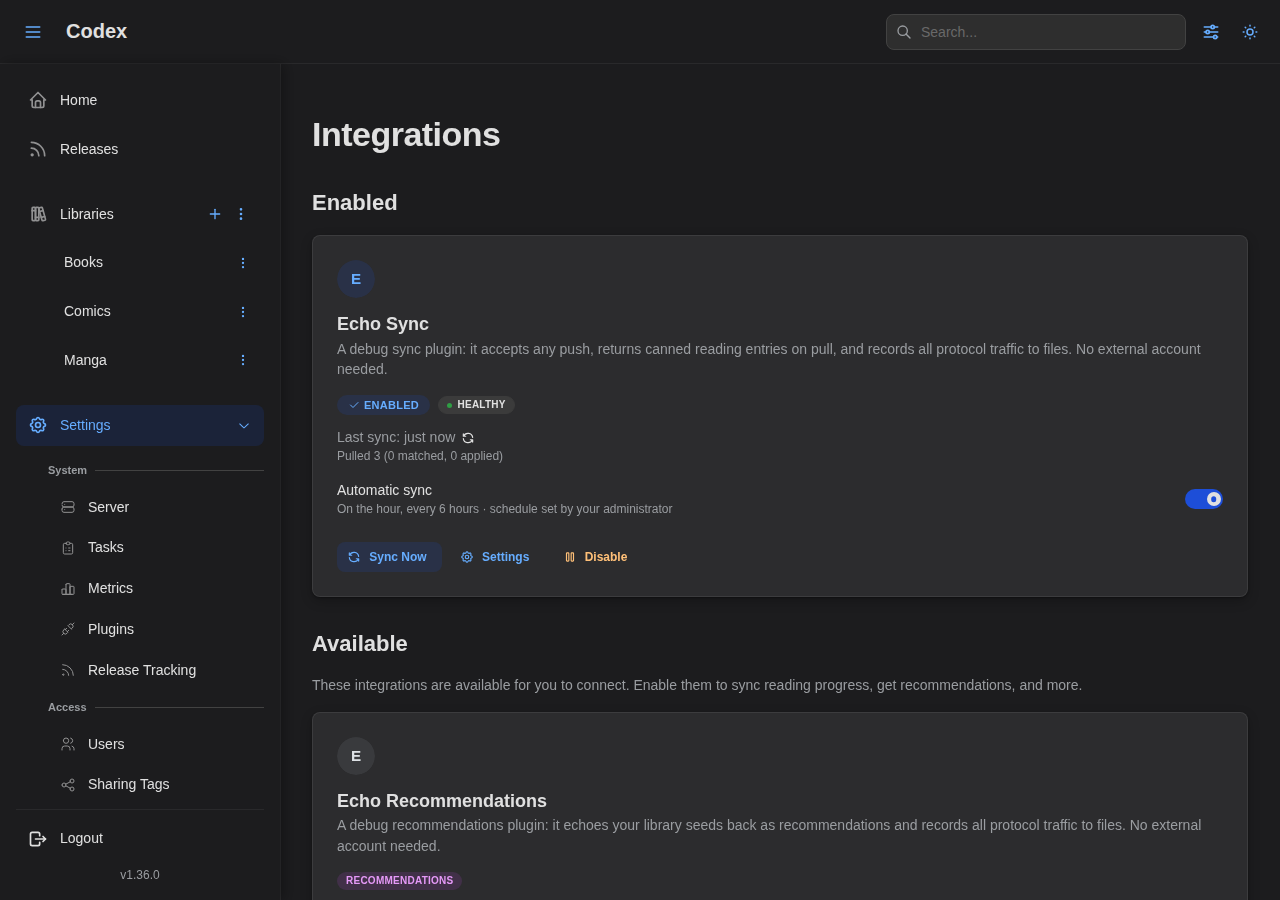
Users can enable or disable plugin integrations from their account settings, such as sync and recommendation services.
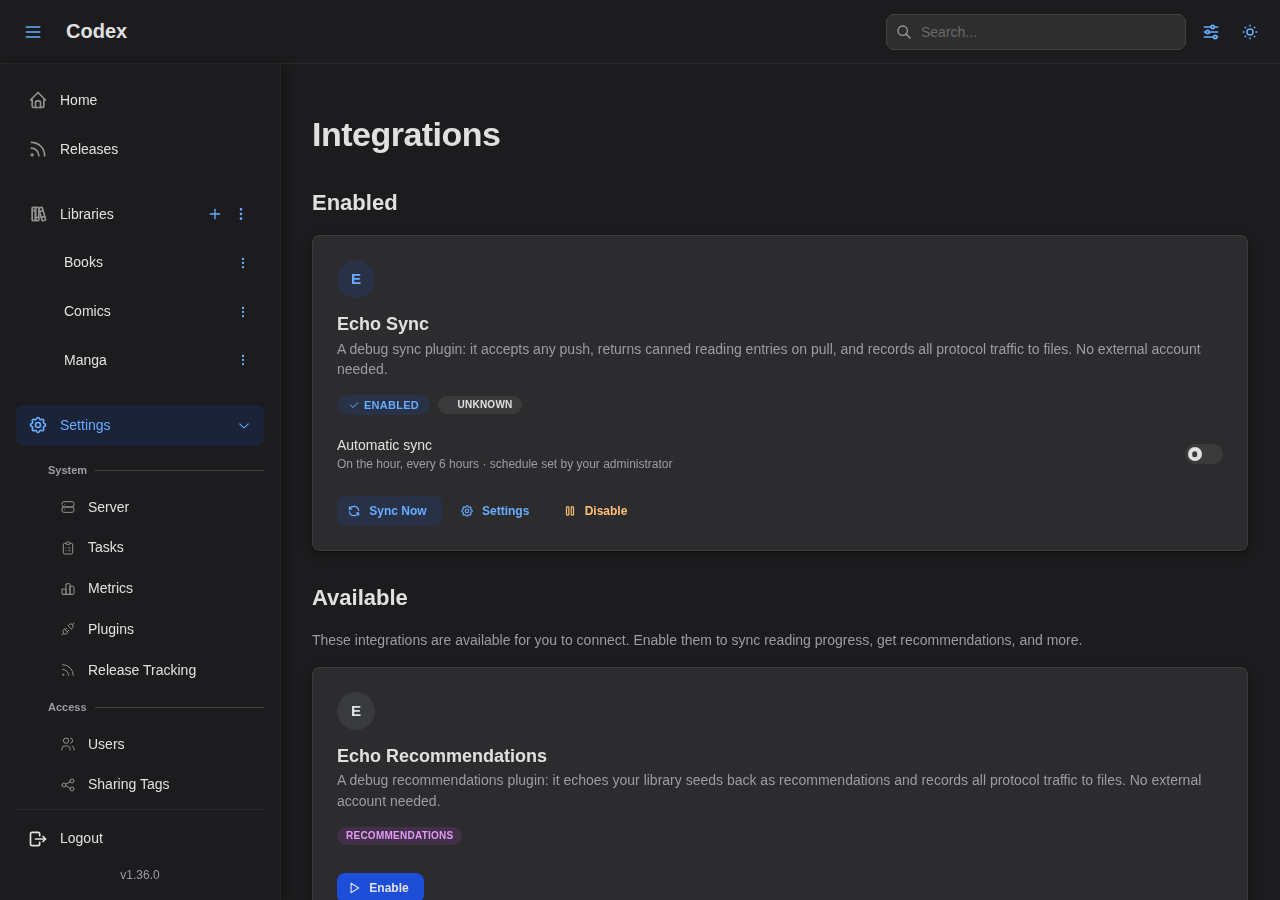
Once an admin has set a sync schedule, each user can opt their connection into automatic sync.
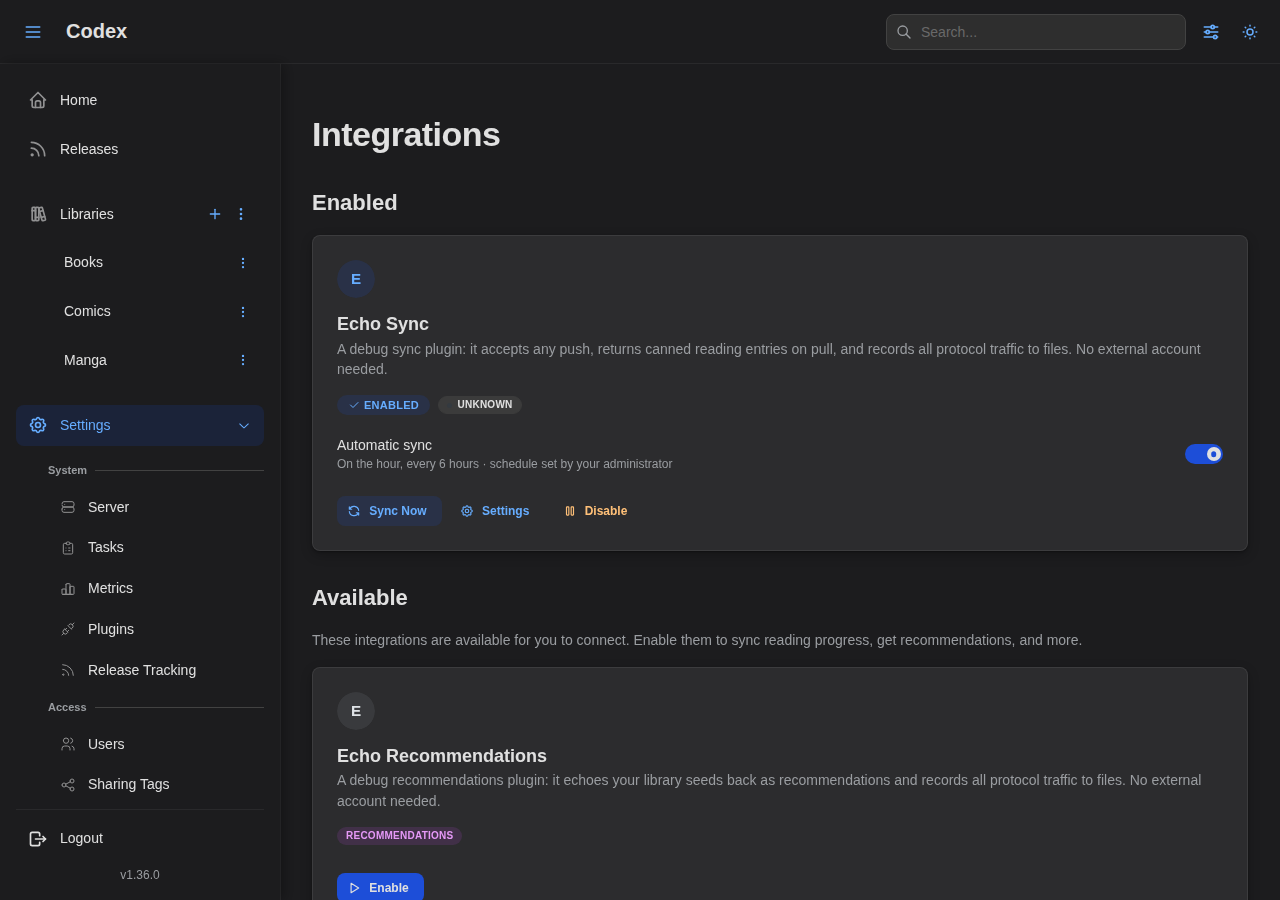
Running a manual sync updates the connection's last-sync status and stats.
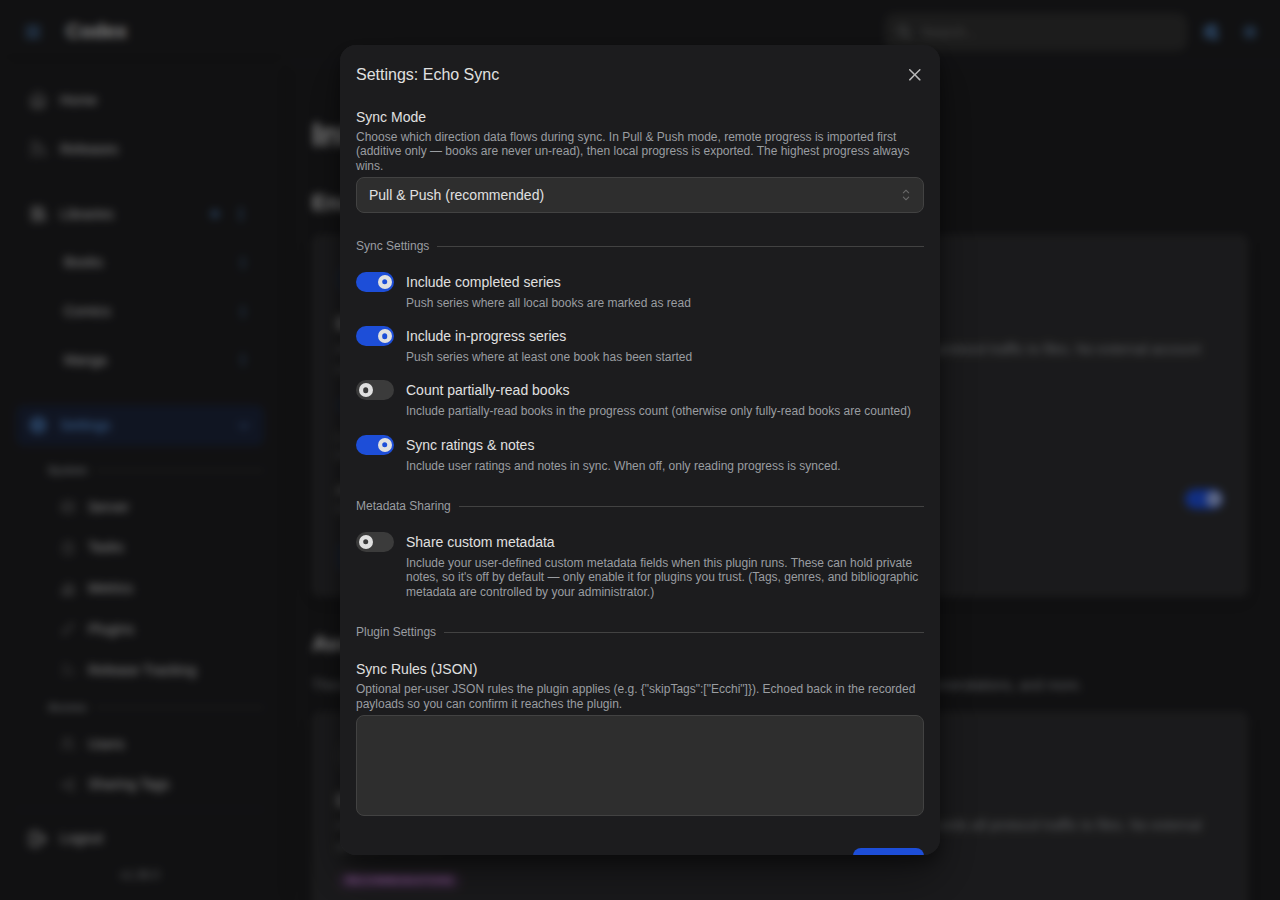
The connection's settings control which entries are sent during a sync.
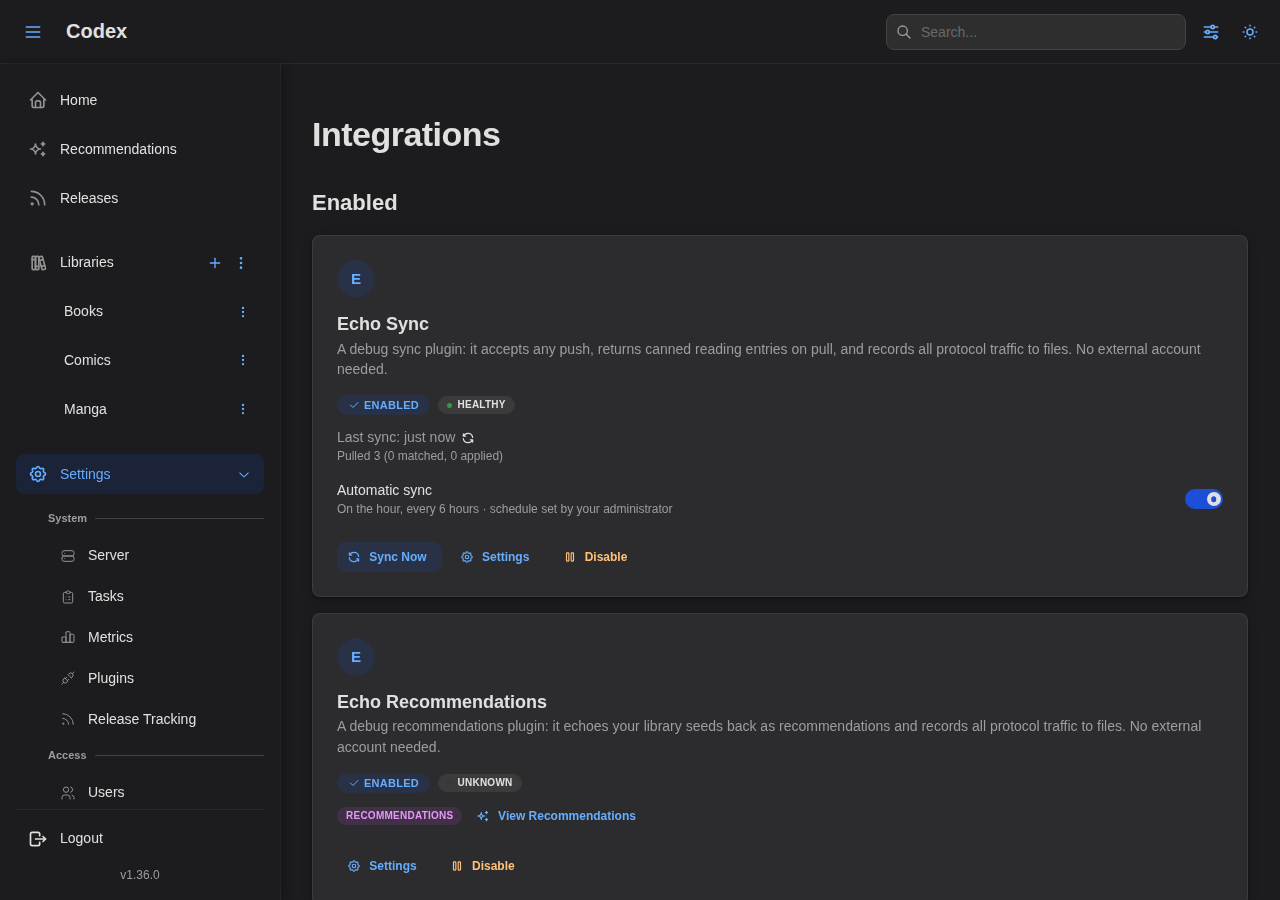
Enabled integrations appear at the top of the page.
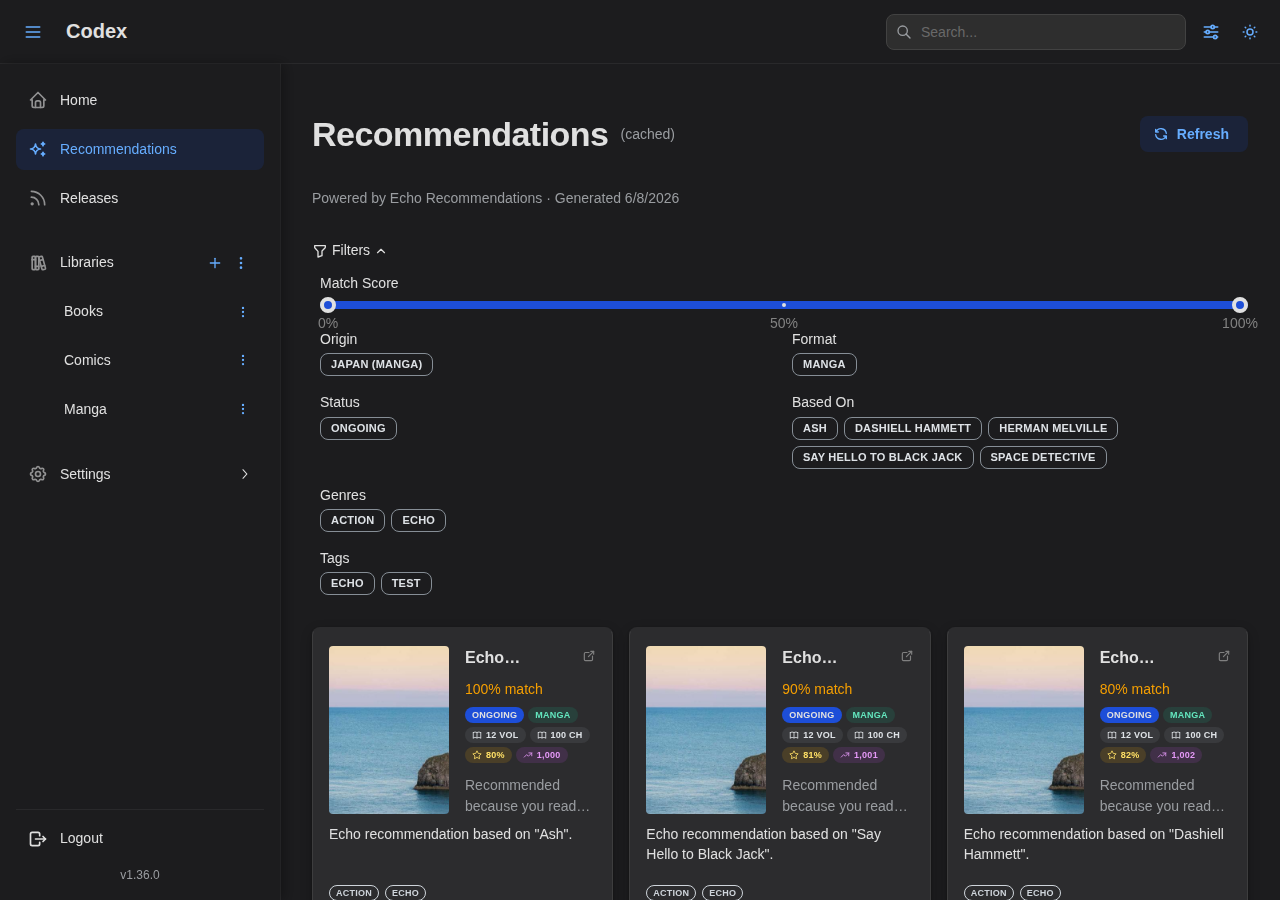
Recommendations
When a recommendations plugin is connected, users get personalized suggestions based on their library and reading history.
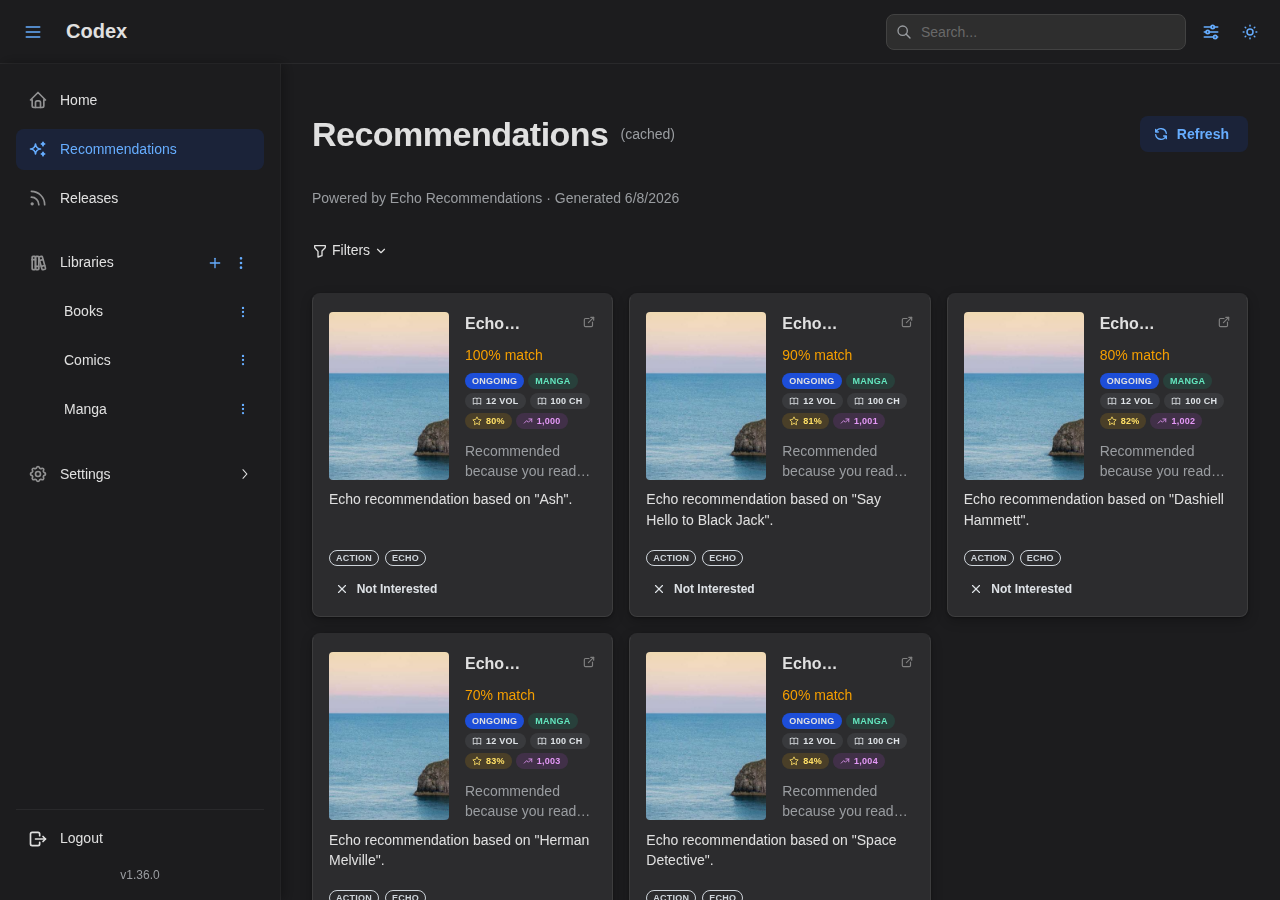
Recommendations can be narrowed with the filter panel (match score, origin, format, status, genres, and tags).
Authentication
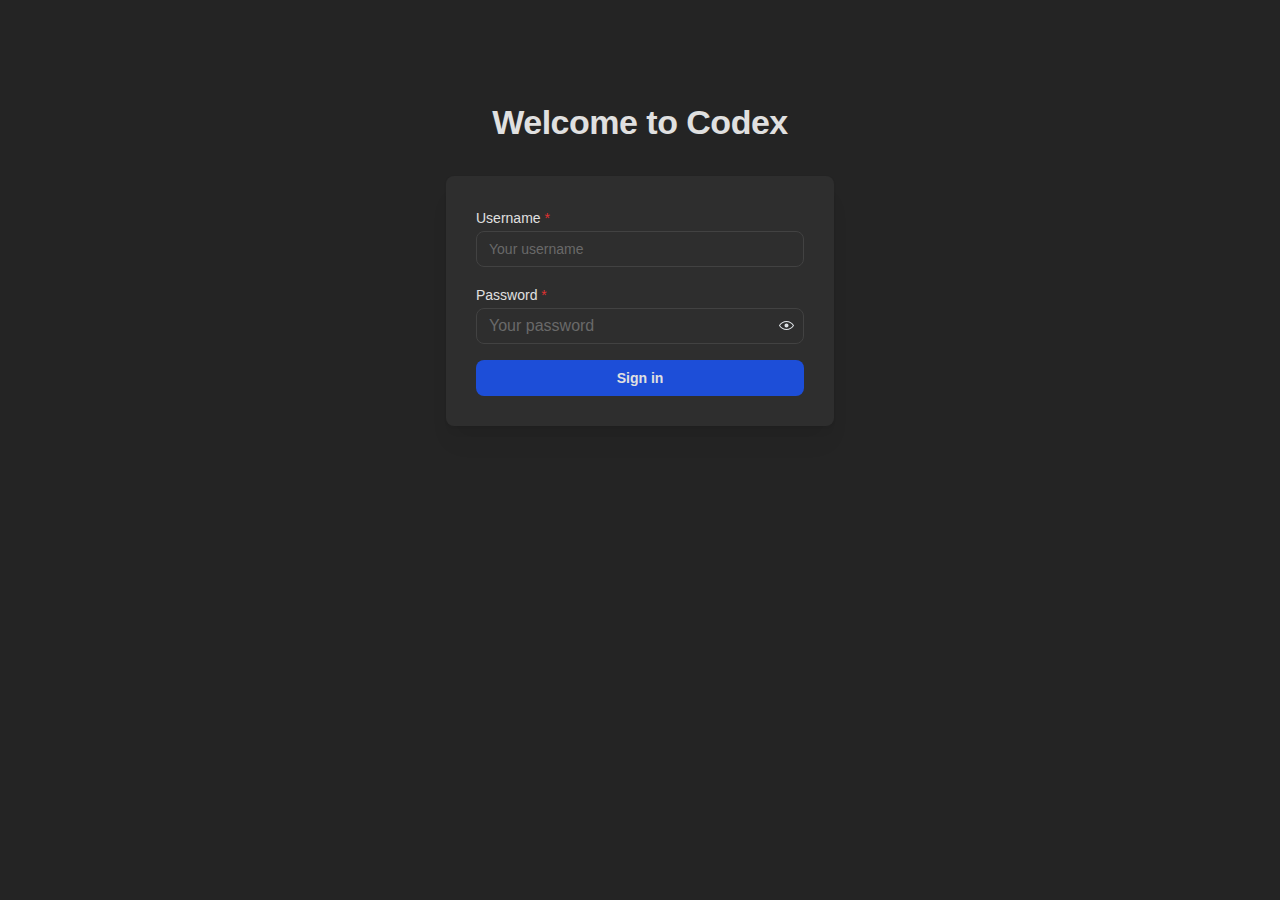
Login
Secure authentication for your library.
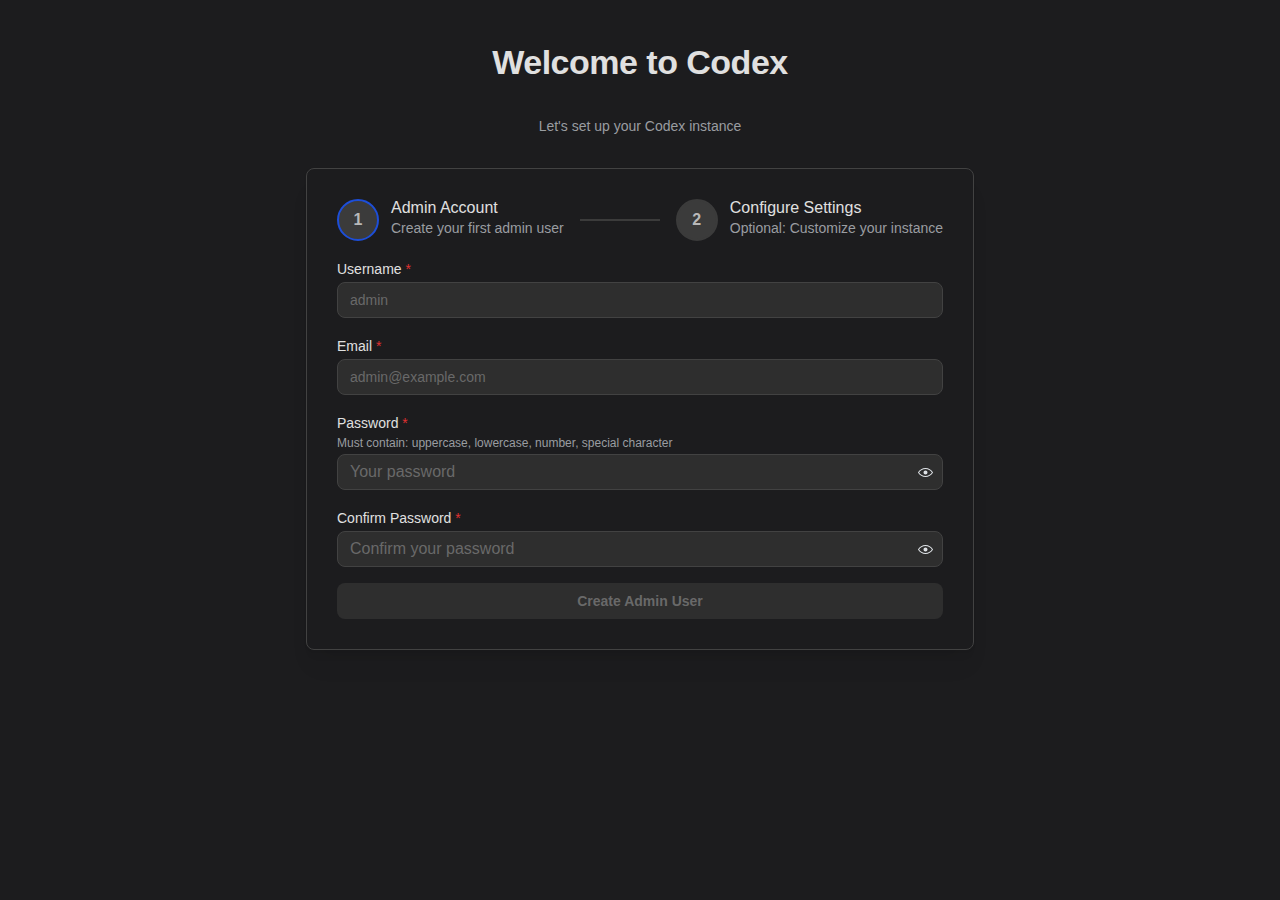
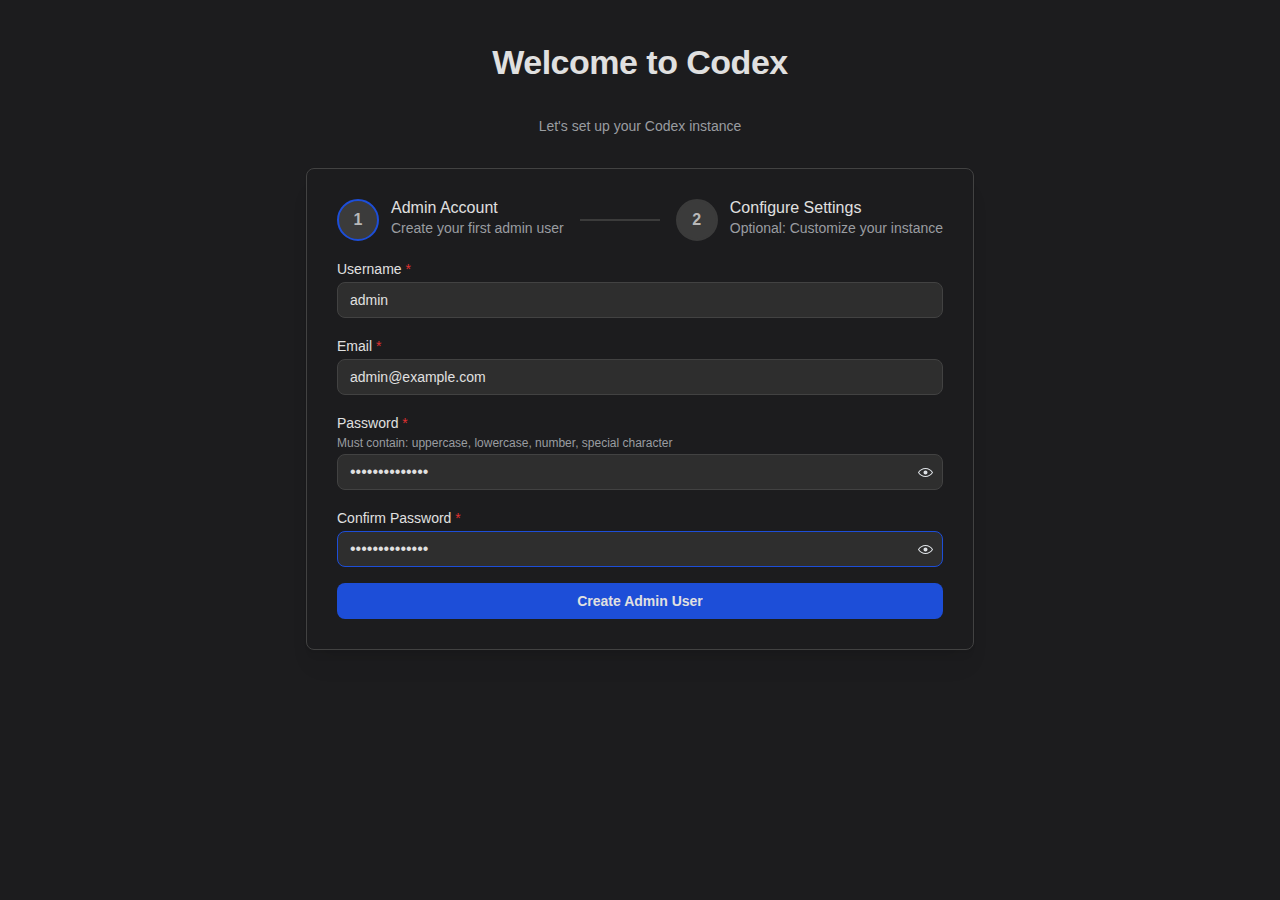
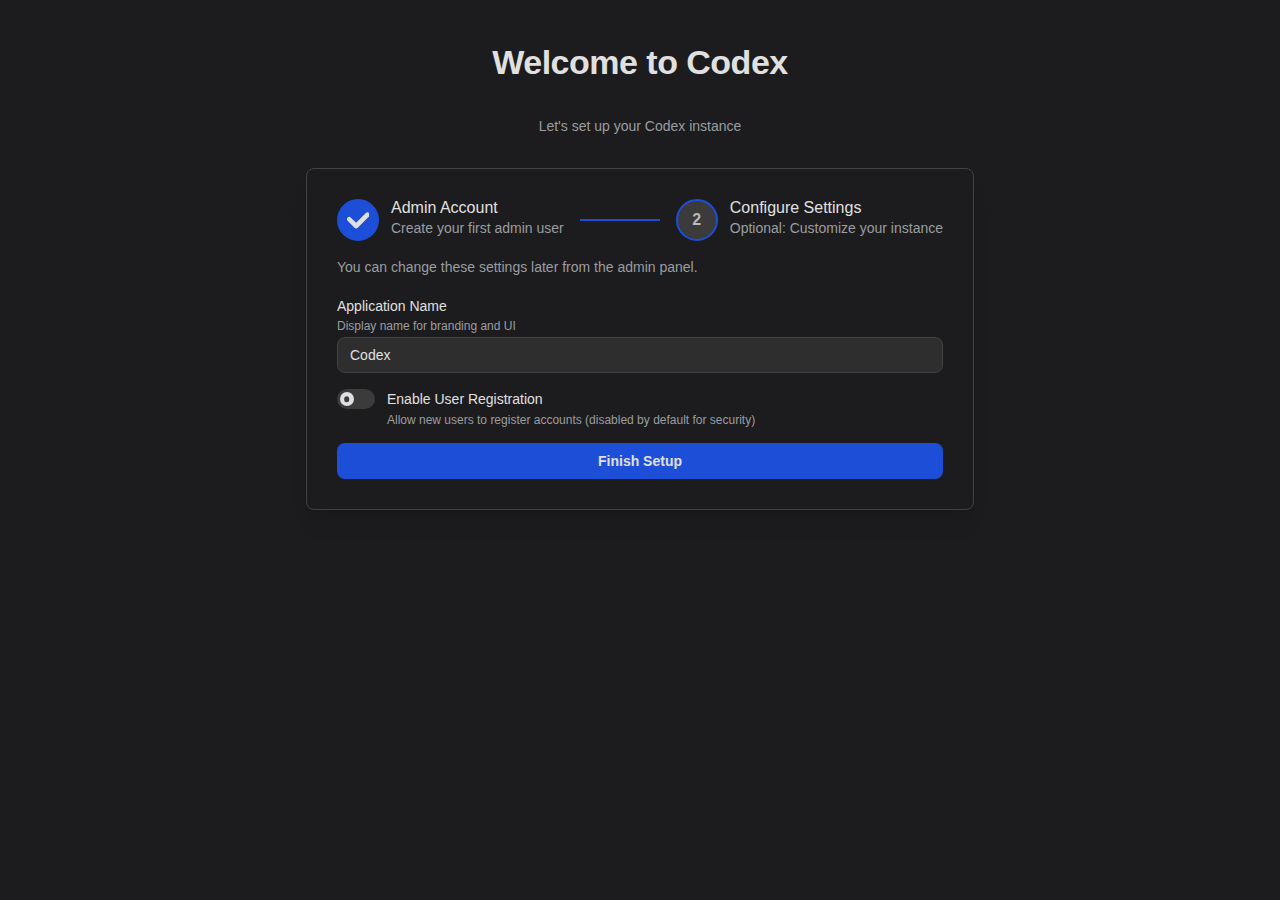
Setup Wizard
First-time setup for creating your admin account.
Navigation
Sidebar
The sidebar provides quick access to settings and navigation.
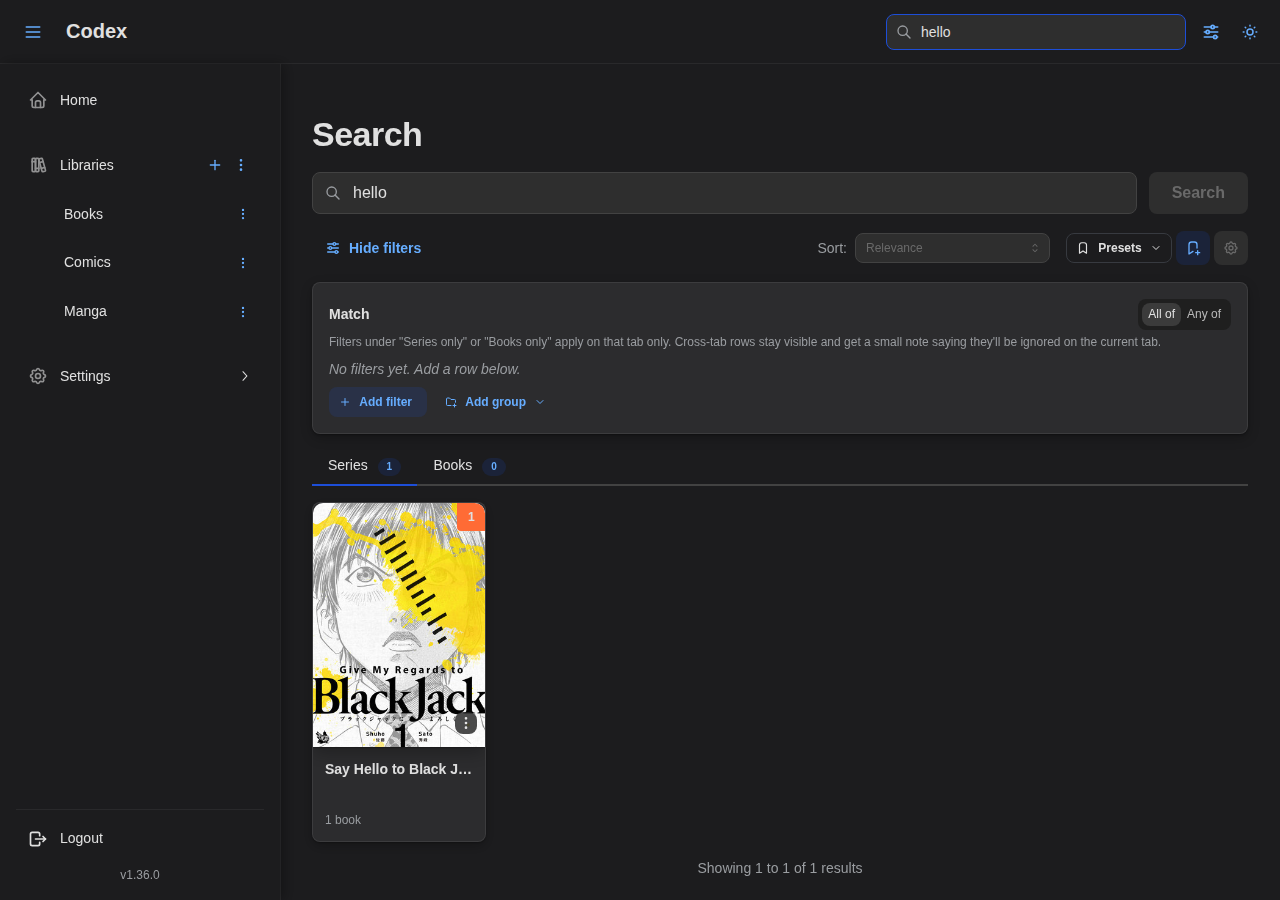
Search
Search across your entire library.